
When you sign up for an EventBuilder subscription, you'll be assigned a private tenant for your account. There are some quick, but important, actions to take once your tenant has been created to ensure proper configuration. Generally, the steps outlined below are performed upon your initial account setup and not repeated once complete.
Let's go through it step by step.
First Steps
Once your subscription is activated you will receive a Welcome Email with a button to begin setting up your account.
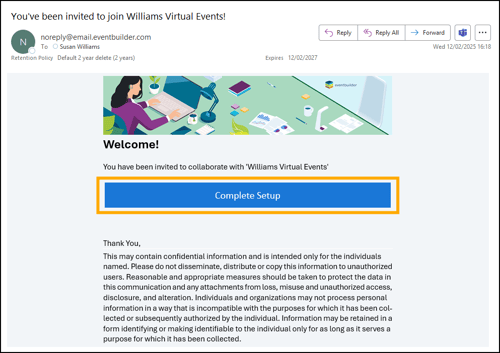
Click the Complete Setup button in your Welcome Email to access your tenant for the first time. You'll be prompted to enter the following information:
- First Name
- Last Name
- Password
Required fields are highlighted in red throughout EventBuilder to make setup clear and simple.
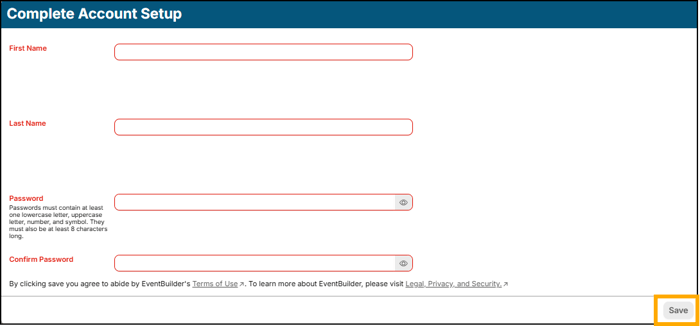
All passwords must contain:
- At least 8 characters
- 1 lowercase letter
- 1 uppercase letter
- 1 number
- 1 symbol
Click Save at the bottom right-hand corner of the screen to complete your account setup.
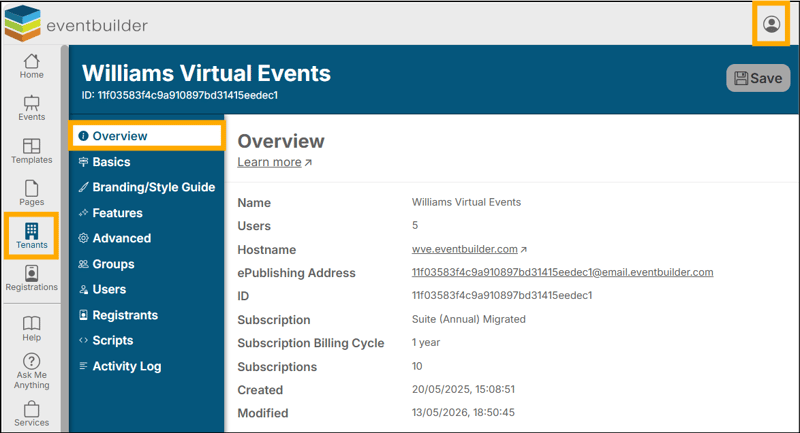
Congratulations! You're now looking at the Overview Step of your new Account! Please note that you may return to the account page at any time by clicking the avatar in the upper right corner of your screen and selecting View Account.
Best Practices
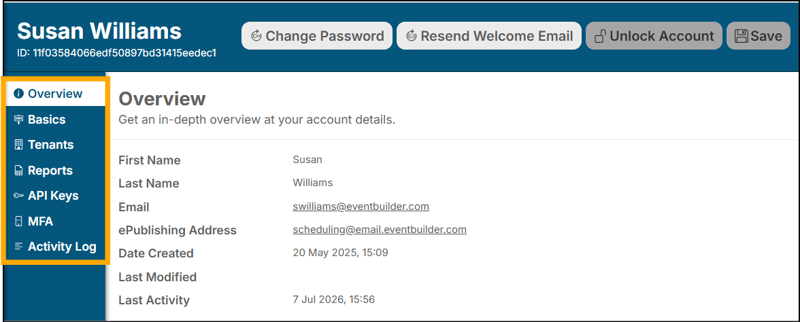
Now, let's take a quick tour of your inner account navigation:
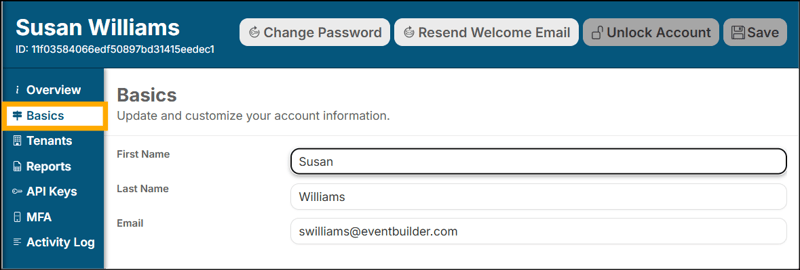
Basics
Confirm the account information shown on the Overview and Basics Steps are accurate:
Multi-Factor Authentication (MFA)
MFA is enabled for all EventBuilder portals to ensure all client, registrant, and attendee information is kept confidential and secure. By default, our system will send an email to the email address associated with your account with a one-time passcode. All subscriber accounts (administrators and organizers) will be prompted for verification upon login unless using the option to Sign in with Microsoft.
Alternatively, you may choose to set up MFA using your preferred application.
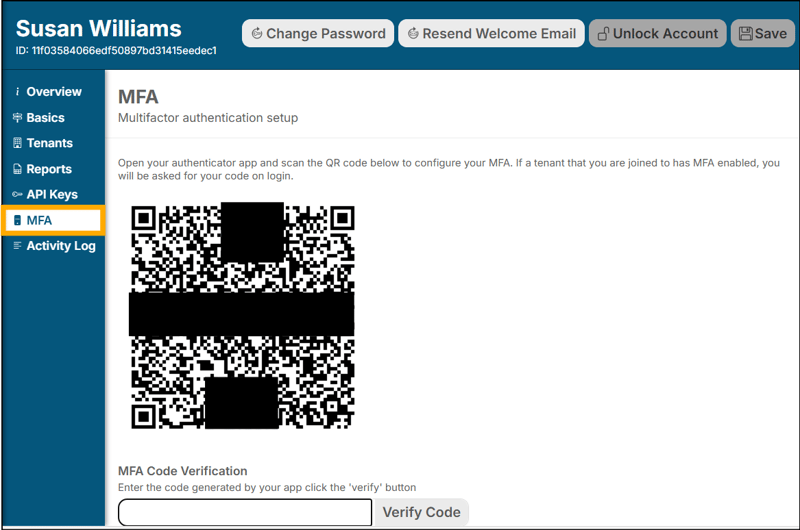
- Open your preferred mobile authenticator app
- (Google Authenticator, Microsoft Authenticator, Twilio Authy, Cisco Duo)
- (Google Authenticator, Microsoft Authenticator, Twilio Authy, Cisco Duo)
- Scan the QR code to configure your MFA
- Enter the Verification Code shown in your app
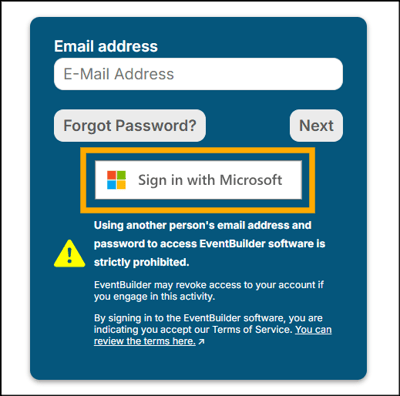
Alternate Verification: Sign in with Microsoft
If your organization uses Microsoft, you may choose to Sign in with Microsoft for a faster, more secure login - no new password required. This option streamlines access by using your existing Microsoft credentials and security settings. Simply click the Sign in with Microsoft button on the login screen.
Next Steps
Set up Master Branding & Tenant/Account Configuration
Other steps on this inner navigation are covered in our Knowledge Base article ‘Setting Up Master Branding & Tenant/Account Configuration’ - link coming soon!