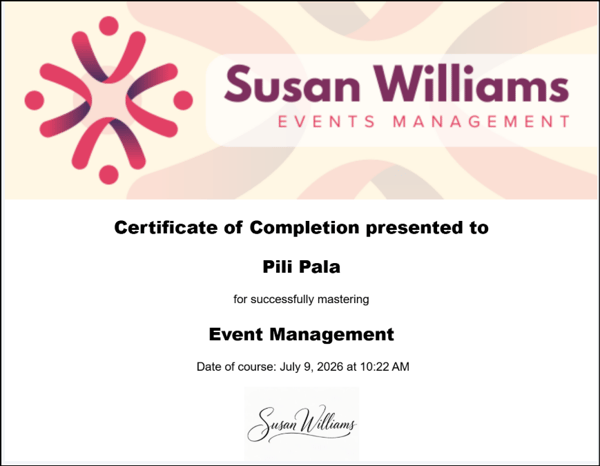
Provide attendees with downloadable certificates to recognize participation and completion of your events.
Enable Certificates
Toggle this setting ON to begin building your post-event Certificate.
Toggle this setting OFF if you do not want to offer certificates for your event.
Example of Certificates Step with toggle option OFF: 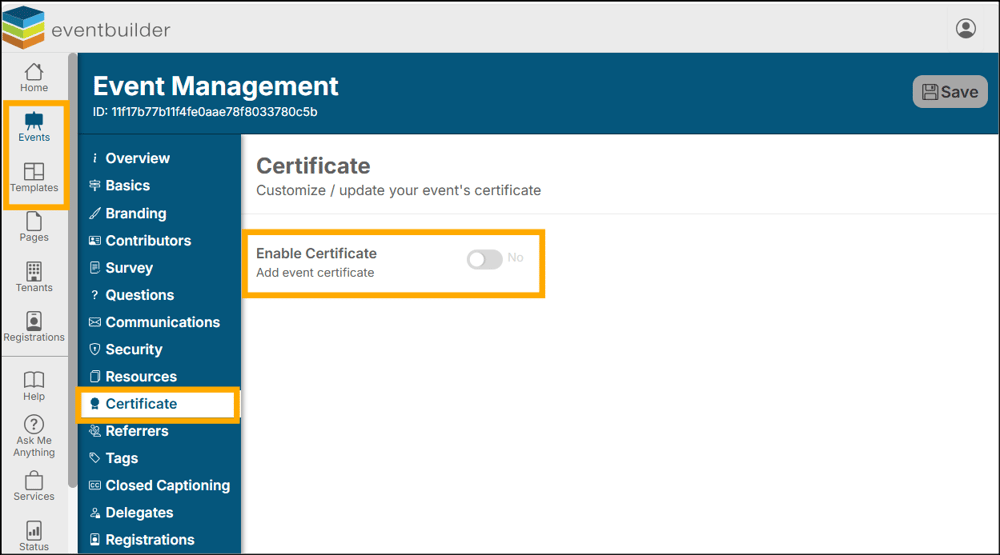
Example of Certificates Step with toggle option ON: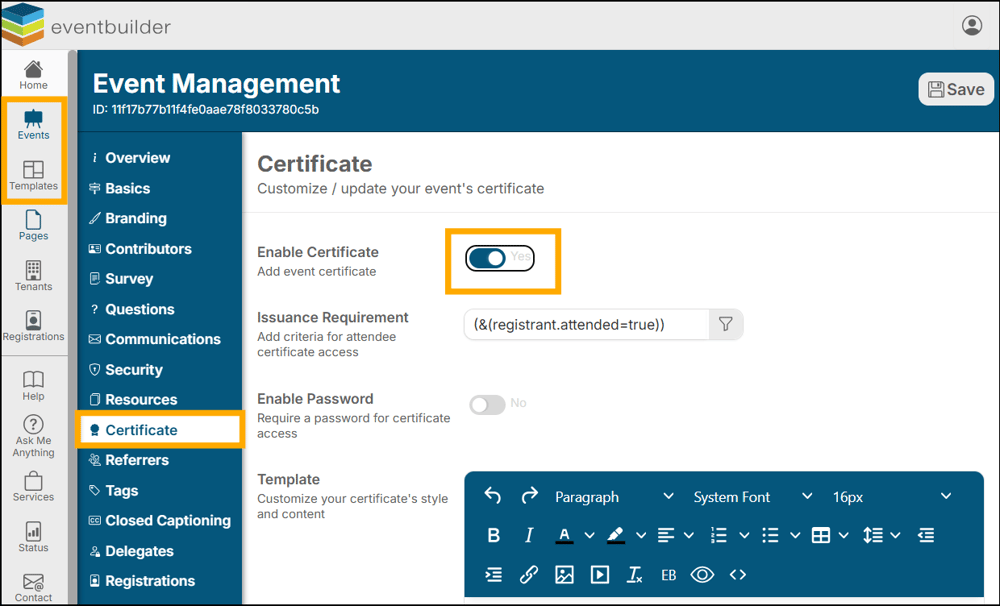
Issuance Requirements
Control when attendees are eligible to access their certificates:
Default setting: Registrant attended = true

You can customize this requirement by adapting the fields within the filter.
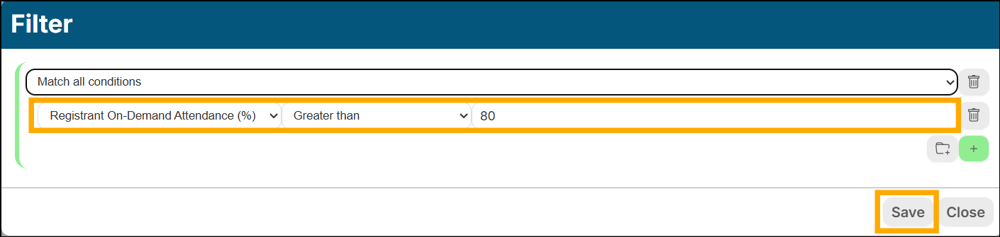
For example, perhaps you would like to issue certificates based on a level of registrant engagement. If you want on-demand attendees to watch 80% of the content before downloading a certificate, simply change the filter to 'Registrant On-Demand Attendance (%) > Greater Than > 80' and then Save.
Password Protection
You have the option to secure certificates with a password:
-
Toggle Password Protection ON to enable.
-
A password will be auto-generated, or you can create your own.
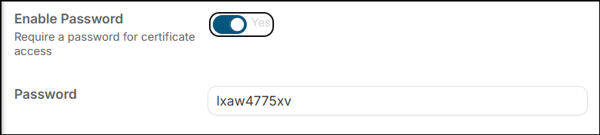
Important considerations:
Live Events : You must manually add the password to the “Thank you for attending” system-generated email so attendees can access their certificate. Or share the link and password directly with attendees during your event.
On-Demand Events: Password protection is not recommended, as there is no automated way to distribute the password to viewers.
Certificate Template
Customize the look and content of your certificate. Use the HTML editor to:
-
Add or edit text
-
Insert images and links
-
Apply custom styling
-
Use the EB Variables button to dynamically insert: Event details (e.g., event name, date)
-
Registrant details (e.g., attendee name)
Auto generated content example: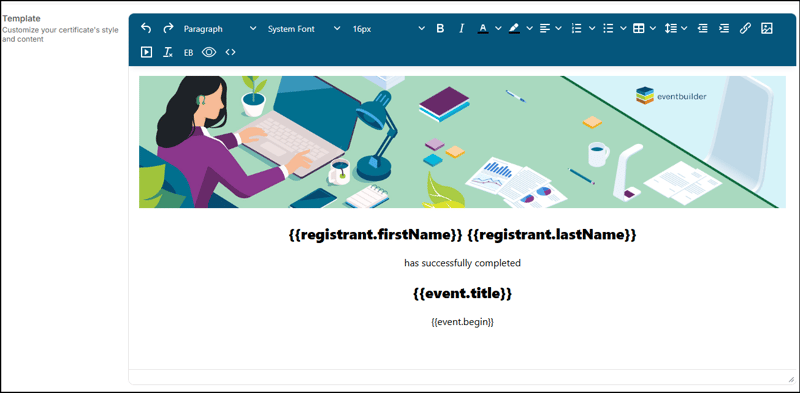
Button Text
Customize the certificate call-to-action by editing the:
“Request Certificate” button text
You can label it however you prefer (e.g., Download Certificate, Get My Certificate).

Certificate Distribution
How attendees receive certificates depends on event type:
Live Events
A “Download Certificate” button is automatically included in the post-event email.
If password protection is enabled, ensure the password is included in the email. Or share link and password with attendees during your event.
On-Demand Events
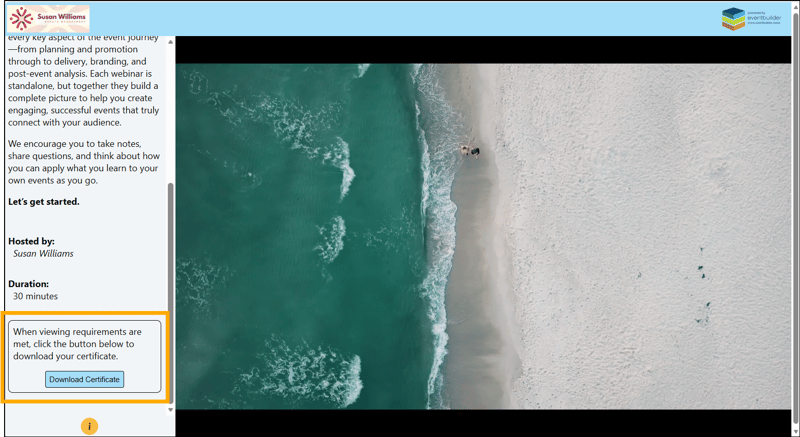
A pop-up notification appears within the attendee viewer when eligibility criteria is met.
Attendees can download their certificate directly from the viewing experience.
Best Practice:
Keep issuance criteria clear and achievable, and avoid password protection for on-demand content to ensure a smooth attendee experience.
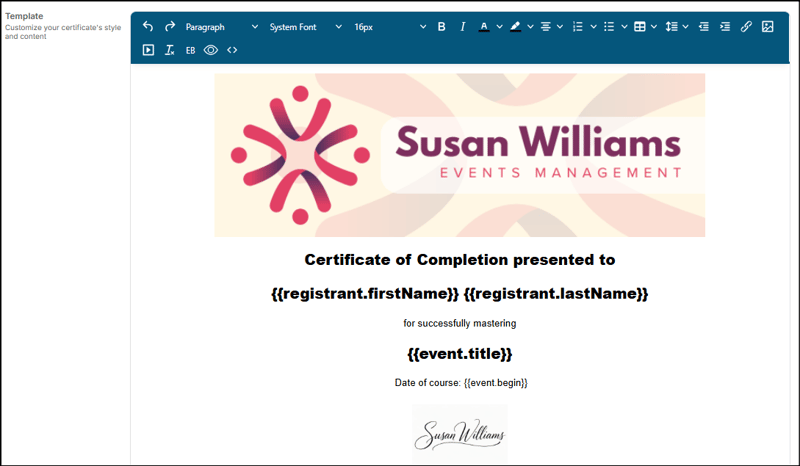
Branded Certificate Example