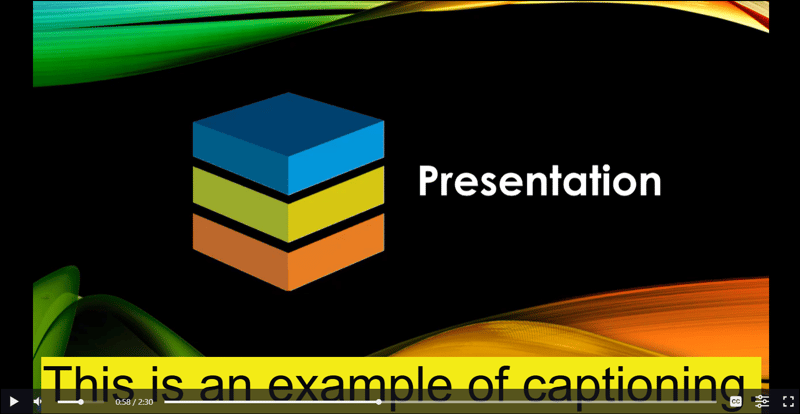
Enhance your on-demand events by adding closed captioning, making your content more accessible for all attendees.
Add Closed Caption Files
You can upload .vtt (WebVTT) files to provide captions in one or multiple languages.
-
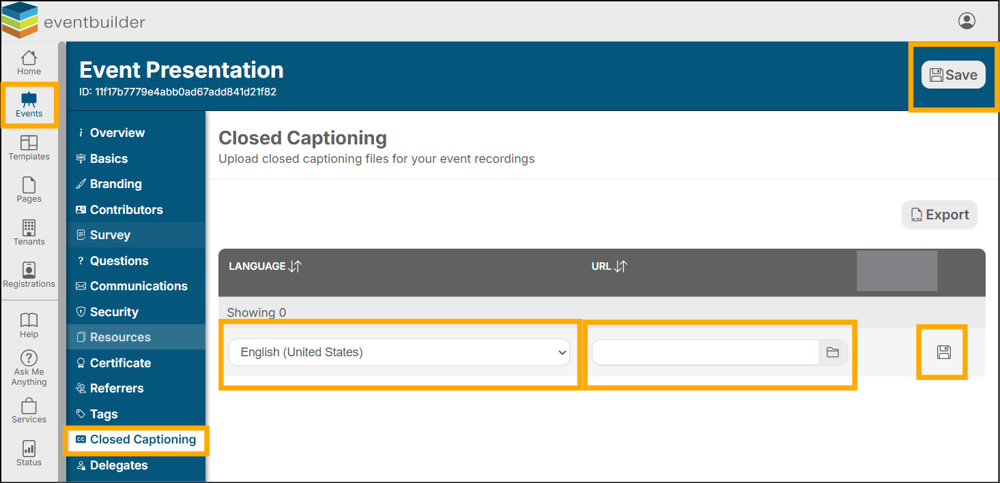
Navigate to your On Demand Event and locate the Closed Captioning step.
-
Select a language option from the dropdown list (this is what attendees will see in the On-Demand viewer).
-
Upload your .vtt file.
-
Click the disk (save) icon to apply your changes.
-
Once your file(s) have been uploaded, remember to click the Save icon at the top right side corner of your screen, to save these changes to your event.
Multiple Languages
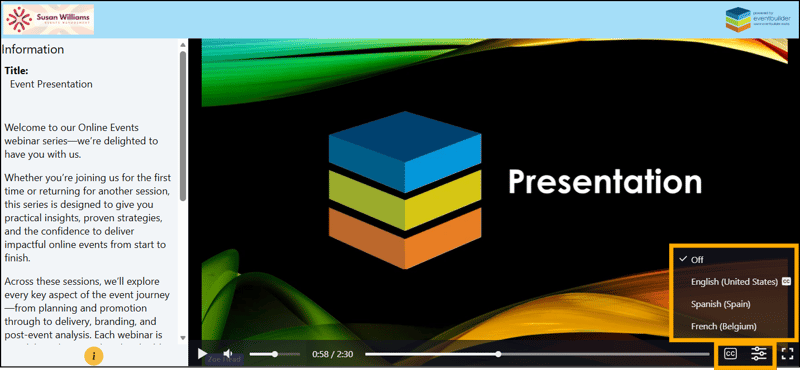
- You can upload multiple caption files for different languages.
- Each file will appear as a selectable option in the on-demand viewer.
Compatibility
.VTT files sourced from any technology will be compatible with EventBuilder software.
If your captions are already generated in Microsoft Stream or your live Microsoft Teams event, simply download and upload them directly to your event.
User Display
To meet all accessibility needs, EventBuilder captioning can be controlled by the viewer from the options at the bottom right of the On-Demand Viewer. Font size, font colour and background colour can all be individualized.
Example of medium white font on black background:
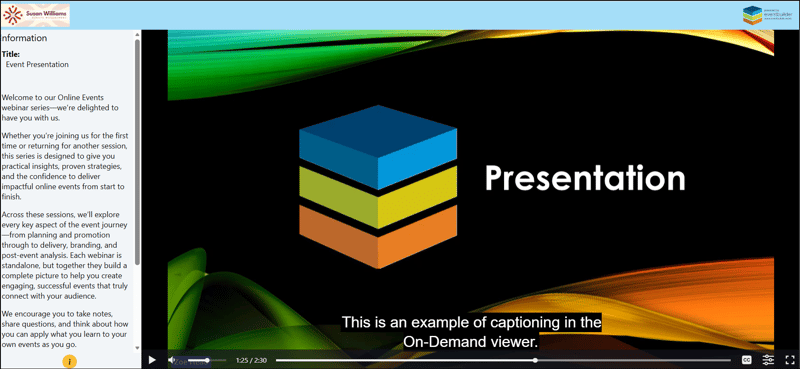
Example of extra large black font on yellow background: