
Search Filters on Levels
You will find search filters on each Level (Event, Templates, Pages, and Tenants).
Example of filter at Event Level:

Example of filter at Template Level:

To access search features simply click into the filter field - a pop-up box will open, where you can refine your search criteria.
Example of a search filter opened:
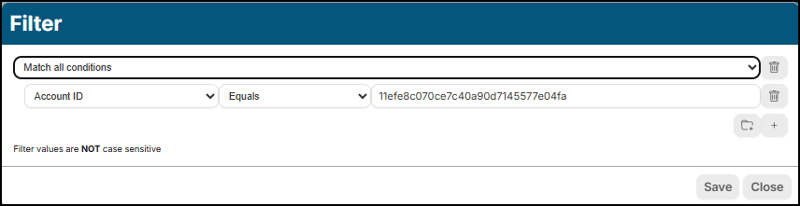
In this filter you can select from ‘Match all conditions’ or ‘Match any condition’ and add as many requirements as you need.
Use Case Scenario:
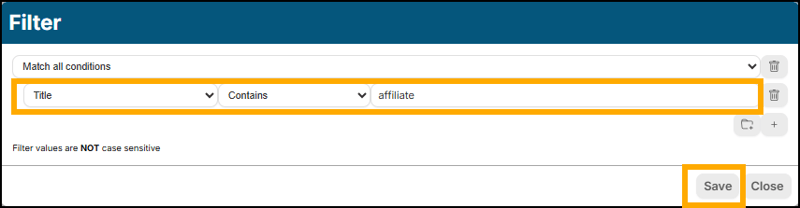
- You want to filter down your Events list to view only those with the word ‘Affiliate’ in the Title.
- Replace the values, using the dropdown menu of options, with: Title > Contains > Affiliate.
- Click ‘Save’
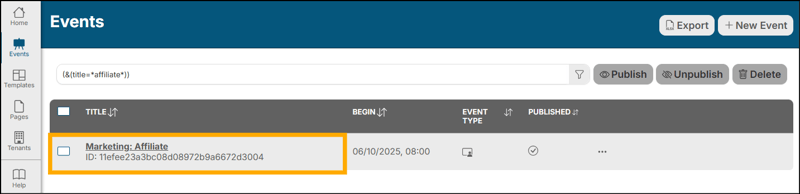
Your Events list will now show only events that match your criteria:
Variables for use in the first column are dynamically created from the fields appropriate to the area you are filtering.
Variables in the second column consist of: Equals, Does not equal, Greater than, Not greater than, Less than, Not less than, Contains, Does not contain.
The third column is a free text field for you to enter the data you are filtering.
Search Filters at Step Level
Filters appear in the following Step Level areas:
- Event Level: Questions, Emails, Security, Certificate, Registrations, Activity Log
- Template Level: Questions, Emails, Security, Certificate, Activity Log
- Pages Level: Event List, Activity Log
- Tenant Level: Registrations, Activity Log
- Account Level: Activity Log
Registrations Step Filtering
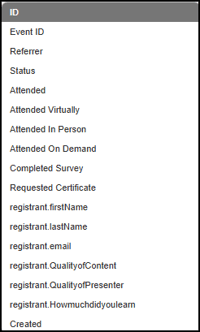
Filter at Event level for: ID, Event ID, Referrer, Status, Attended, Attended Virtually, Attended In Person, Attended on Demand, Completed Survey, Requested Certificate, registrant.firstName, registrant.lastName, registrant.email, and Created. If you have added custom questions to your event or template, they will also be available.
Example of variables:
Conditional Logic in Questions
Use Conditional Logic in Questions to create a more personalized and efficient registration experience for your attendees. Conditional Logic allows you to ask specific follow-up questions based on responses, preventing overwhelming attendees with unnecessary questions that may not pertain to them.
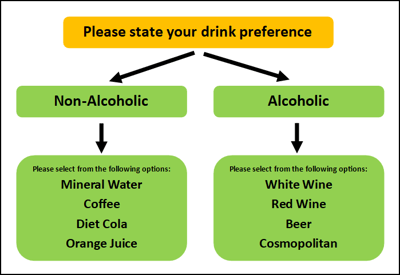
Think of Conditional Logic as a ‘question tree,’ with all possible options branching off from the trunk.
Use Case Scenario
- You are hosting an in-person event where you will be providing beverages.
- You create a base question: ‘Please state your drink preference’.
- Response values to select from are: ‘Non-Alcoholic’ or ‘Alcoholic’.
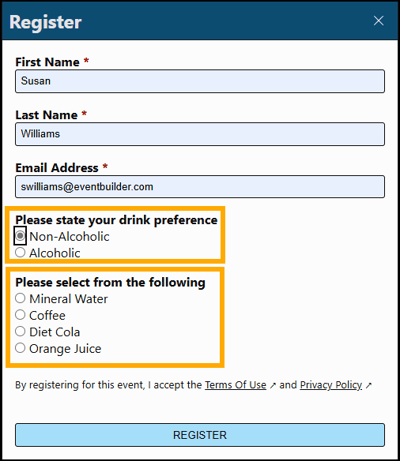
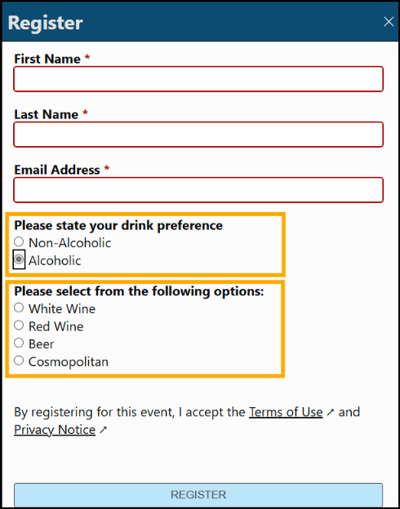
Depending on how a registrant answers the drink preference question, different secondary questions and response values will be displayed:
Conditional Logic in Practice
Once you have set your base question, here is how to create dynamic secondary questions.
Note: Read more about creating Questions in our Questions Step article.
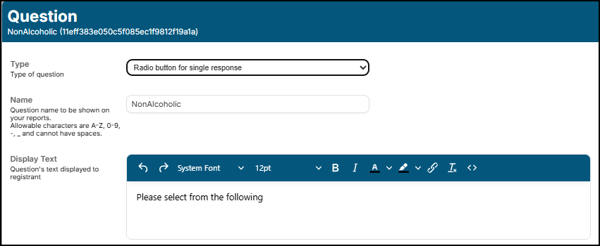
- Create and format the first secondary question. This example uses the ‘Radio Button for single response’ Question Type, ‘NonAlcoholic’ as the Question Name to show in reports, and ‘Please select from the following’ as the Question Display Text shown to the registrant:
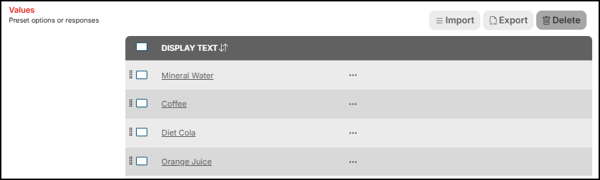
- Add your response values:
- Click into the Conditional Logic filter and the Filter pop-up box will open.
- At the bottom of the first dropdown you will see that it now includes the names of your newly created questions:

- Select your base question: registrant.Drinkpreference.
- Select Equals for the second drop down.
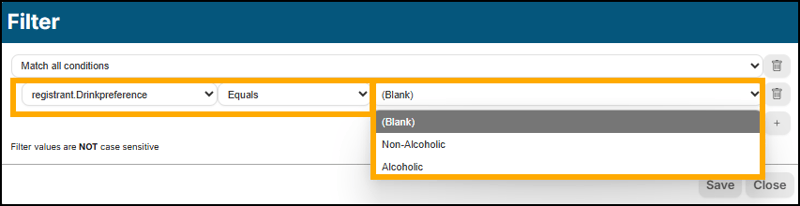
- From the last drop down, select the choice which initiates your secondary question, in this case ‘Non-Alcoholic’
- Click ‘Save’ on the Filter, ‘Confirm’ on the Question, and one last ‘Save’ in the upper right of the build to save and store your work.
- Follow the above steps to create a secondary question for the beverage choice response of ‘Alcoholic’.
Example of Registration form with Conditional Logic:
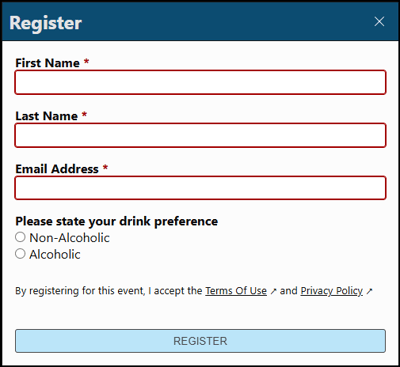
Example of Registrant selecting ‘Non-Alcoholic’ from the base question and the relevant secondary question being displayed:
Example of Registrant selecting ‘Alcoholic’ from the base question and the relevant secondary question being displayed:
You may create as many branches of questions as you like. Here are some examples of scenarios where Conditional Logic can add value to your Registration forms:
- Depending on the country selected by a Registrant, display the appropriate Terms and Conditions and Opt-in for their region.
- Any question with an ‘other’ selection can be followed by a Free Form Text field for the Registrant to explain their requirements.
- When asking if accessibility accommodations are needed, a ‘Yes’ response would display a secondary question with a text box or a list of options (e.g., wheelchair access, sign language interpreter, large print materials, etc.).
- If holding a workshop with different session paths to select from, additional questions specific to each session path can be displayed.