
Contributors are the people/companies you want to give recognition to/promote on your registration page, such as presenters/co-sponsors.
Your Contributors details and all additional information you provide are displayed directly on your registration page.
An example of where to find the Contributors Step at the Event Level:
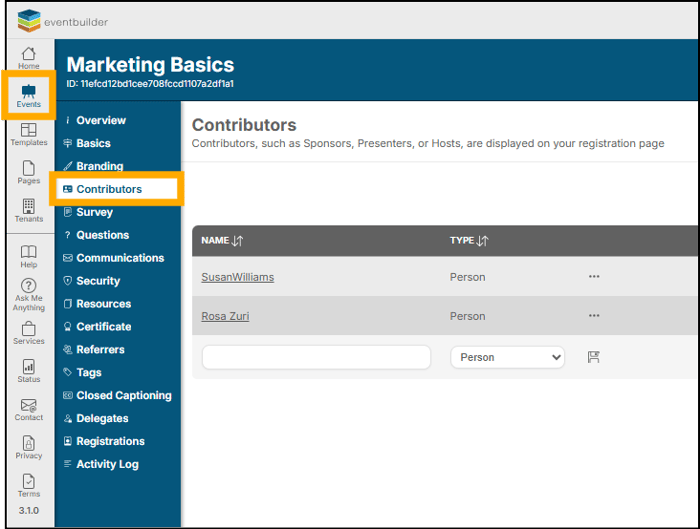
Adding Contributors
- Type the name of the Contributor.
- Select 'Company' or 'Person' from the dropdown menu:
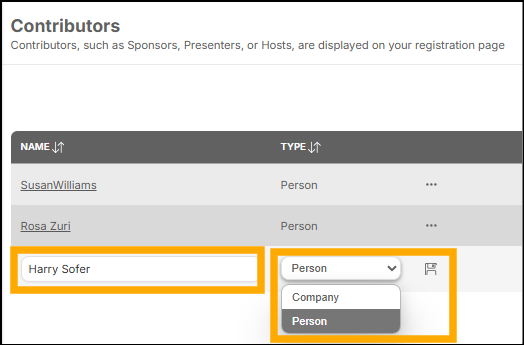
- Click on the disk icon to Save. The following pop-up box will appear:
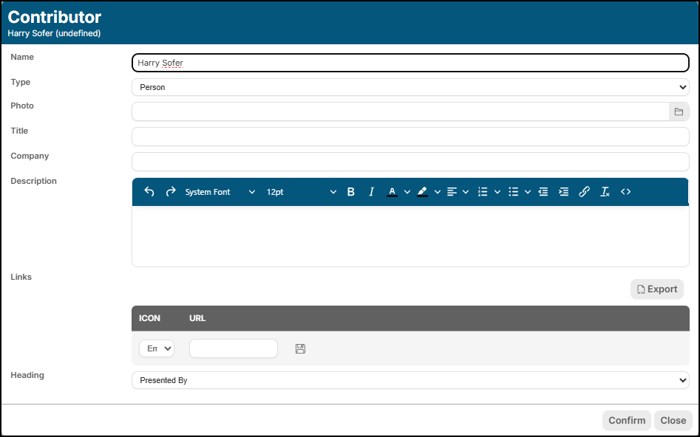
- Add any additional details you wish to include about your Contributor in the pop-up window. Options include:
- Name – Name of person or company.
- Type – Person or Company.
- Photo – Logo or headshot.
- Title – Title(s) associated with the person (available only when Person is selected, not Company).
- Company – Individual’s associated Company or general company name.
- Description – Any commentary you would like your audience to see.
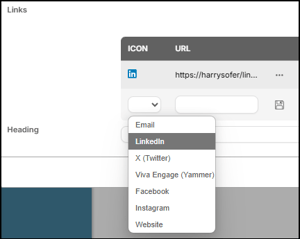
- Links – Any direct links you would like associated with your Contributor. Dropdown options are: Email, LinkedIn, X (Twitter), Viva Engage (Yammer), Facebook, Instagram, any other Website link.
-
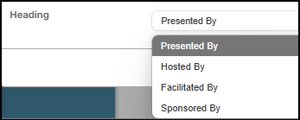
- Heading – Select the appropriate heading designation for your Contributor. Dropdown options are: Presented By, Hosted By, Facilitated By, or Sponsored By (appears with the Contributor's information on the registration page.)
- Once you have added your Contributor's details, click ‘Confirm’ in the lower right corner of the Contributor pop-up.

- To save all Contributors' information to your Event / Template, click the 'Save' button (top right-hand corner of your screen).
Making Edits
To edit any Contributor’s information click on the title of your Contributor. This will re-open the editing screen.
Re-ordering/Hierarchy
You can change the display order of your Contributors by clicking the ellipsis:
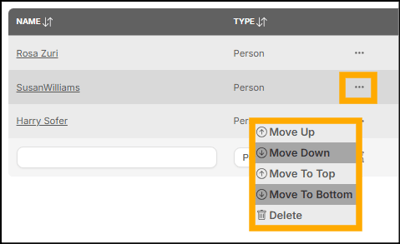
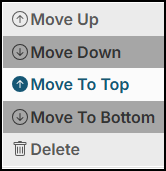
Options to Move Up/Down Move to Top/Bottom will appear.
Drop and Drag Re-Ordering
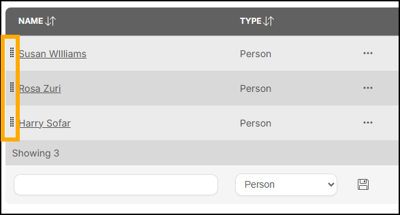
You may also manually 'drop and drag' to change the order of Contributors by clicking the dots to the left of each line and repositioning them by hand.
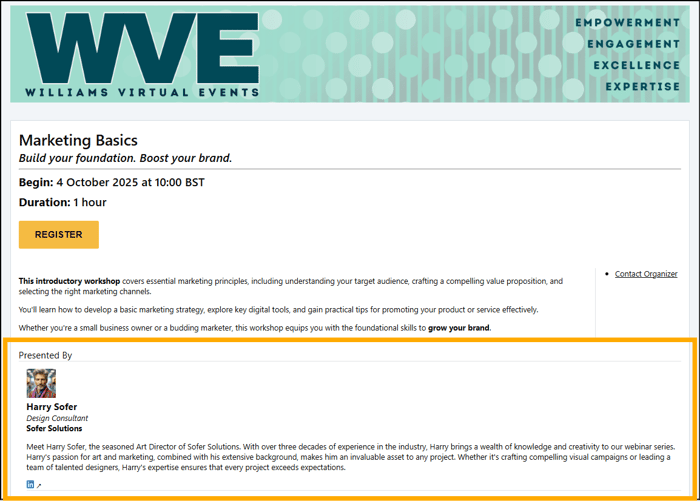
Example of a Registration Page with Contributor added:
Exporting Data
You can instantly export an Excel (.xlsx) Workbook of your Contributors by clicking the Export button to the right of the search field.