Delegates are people you choose to assign specific levels of management to your Events, Templates, or Pages.
Example of the Delegates Step at the Event Level:
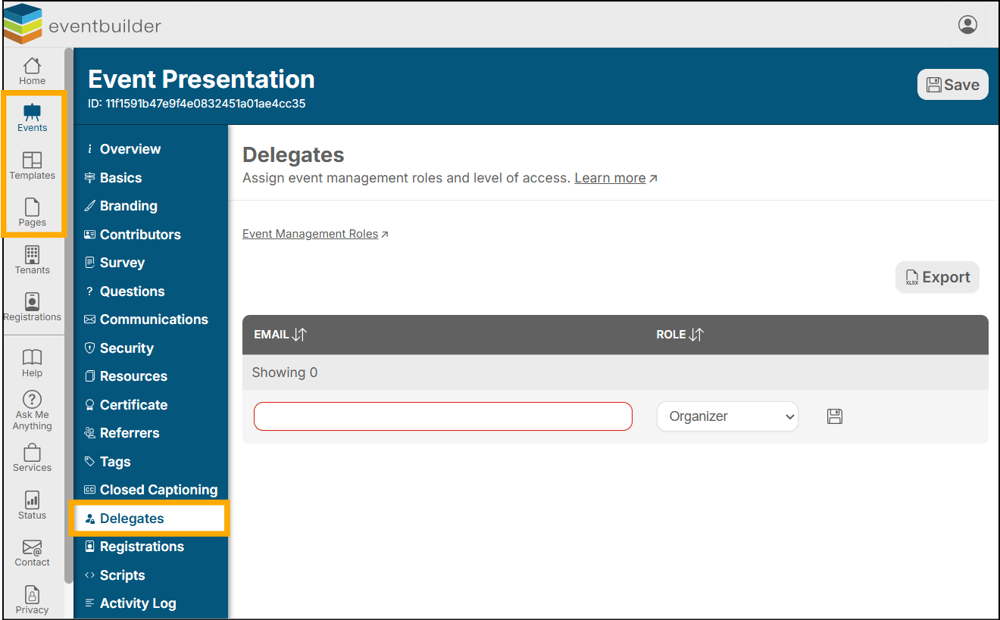
Available Roles for Delegates
Attendance – For In-Person or Hybrid Events, the role of recording and monitoring attendance face-to-face with guests.
* An EventBuilder subscription is not required to be assigned as an event Attendance manager.
Organizer - An Organizer can access all functions and features, including creating and editing Events.
** An EventBuilder subscription on your Tenant is required to be assigned as an Organizer.
Owner – Grants editorial access to your Event or Template. For example, giving a member of your team the ability to make edits, updates, or delete Events on your behalf.
** An EventBuilder subscription on your Tenant is required to be assigned as an Owner.
Note: Tenant Administrators already have full access to all Events, Templates, and Reports.
Delegates in Pages
For Pages, there are no “Role” options, as individuals added here are automatically granted full access.
** An EventBuilder subscription on your Tenant is required to be assigned as a Delegate on a Page.
Adding Delegates
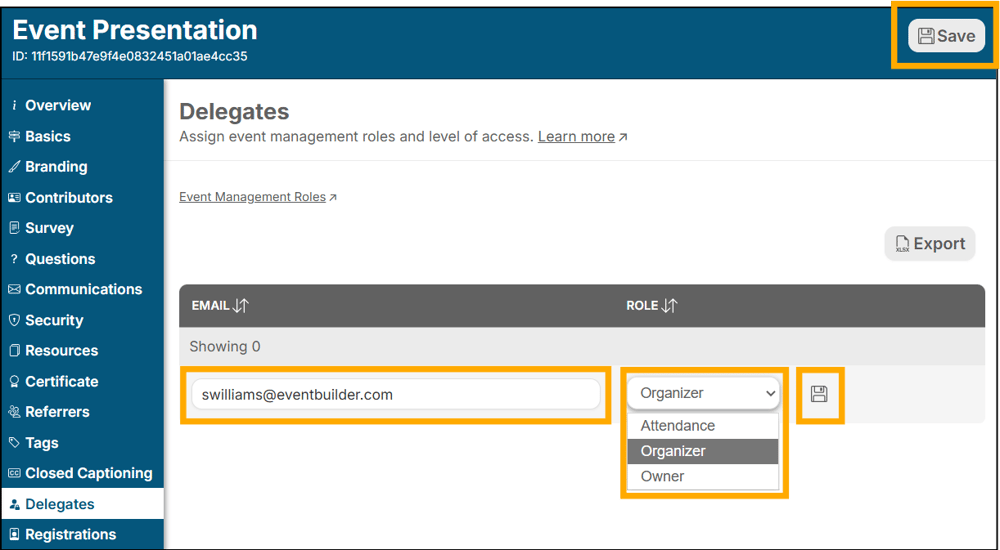
Navigate to Area
- Select Delegates in the area's left-hand navigation.
- Enter the Delegate's email in the provided field.
- Next, select the appropriate role for your chosen delegate from the dropdown menu.
- Click on the disk icon to save your Delegate to your Event
- Once all your Delegates have been added, click the Save button at the top right-hand corner of your Tenant
Best Practice: To eliminate the opportunity for small errors to negatively impact your Event, we suggest keeping the number of Delegates low, if possible.
Communications with Delegates
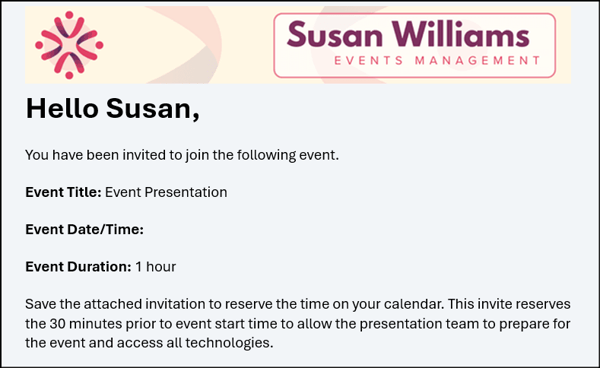
When a Delegate is added to your Event, they will receive an automated Communication containing details, an .ics Calendar file and a dynamic direct log-in button
Editing/Deleting Delegates
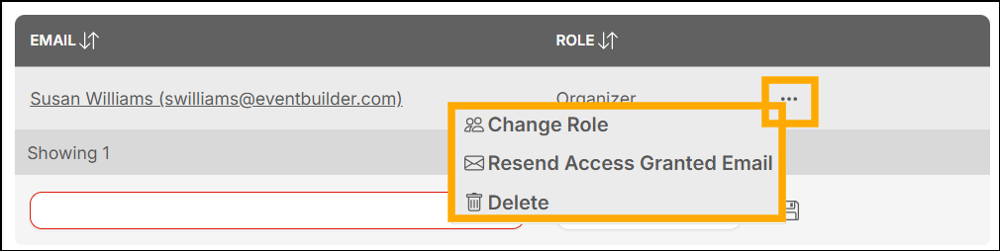
To make changes to a Delegate’s role, Delete a Delegate, or resend the Access Granted email, simply click on the ellipsis (three dots) to the right of their entry and select either ‘Change Role’, 'Resend Access Granted Email', or ‘Delete’
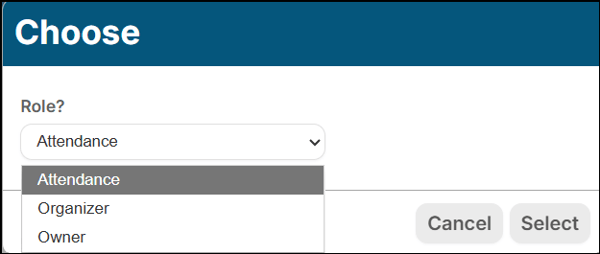
Change Role will open a pop-up window where you can make your edit:
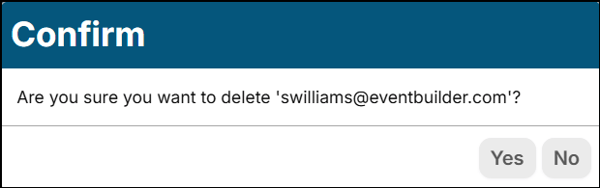
To avoid accidental deletions, after clicking ‘Delete,’ a pop-up window will display, asking you to confirm your action.
Reporting
You can instantly export an Excel (.xlsx) Workbook of your Delegates by clicking the Export button to the right of the search field.