Sample Customized Dashboard
Upon login, the Tenant Dashboard appears:
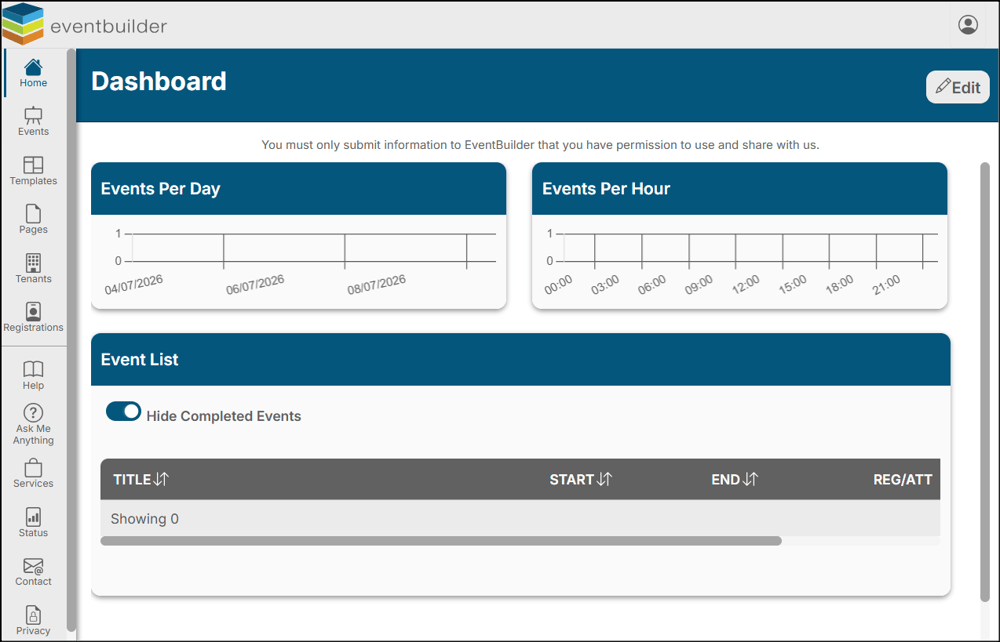
Note: Any customizations you implement are unique to your account. For example, an Administrator's Dashboard view and a User’s Dashboard view can be configured differently according to their preferences.
Adding Widgets
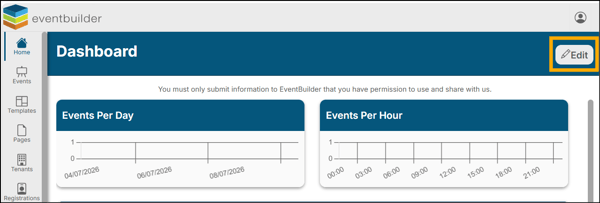
Open the Widget tool by clicking on the ‘Edit’ button, located at the top right-hand corner of your screen:
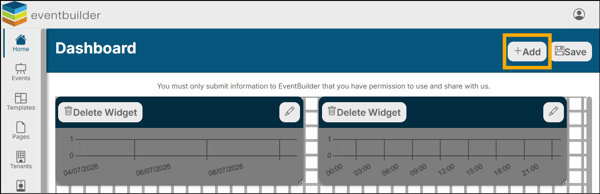
The Dashboard editor will open. To add a Widget, click on the '+Add' icon in the upper right corner:
A drop-down list of available Widgets will appear. Select the Widget you want, and click Add Widget:
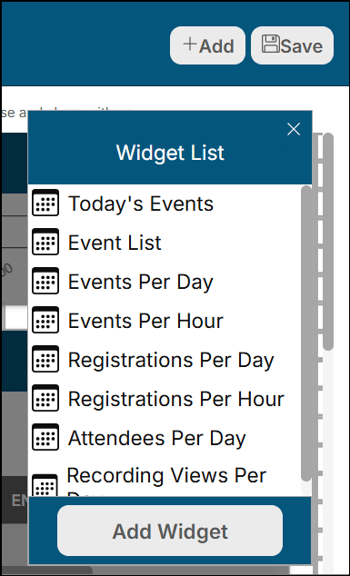
Available Widgets: Today’s Events, Event List, Events Per Day, Events Per Hour, Registrations Per Day, Registrations Per Hour, Attendees Per Day, Recording Views Per Day.
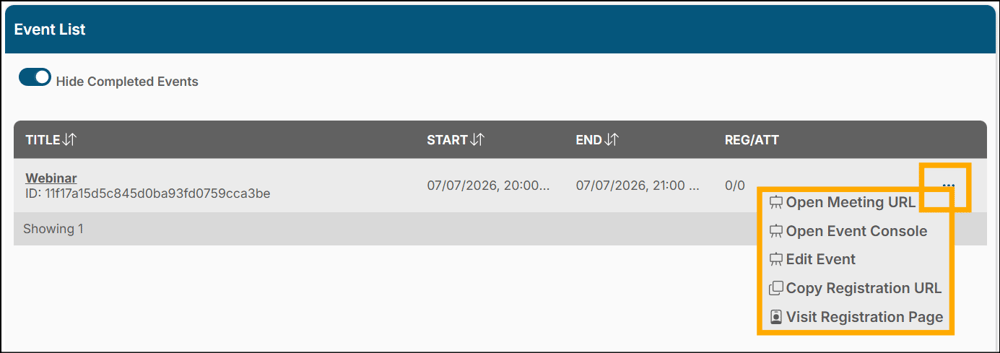
Today's Events and Event List - Listing of Events – Display, ID, Tenant ID, Title, Start/End times. Click the ellipsis (three dots - as shown below) to access options:
The following Widgets display as a bar graph on your Tenant Dashboard:
- Events Per Day - Overview of the Events scheduled.
- Events Per Hour – Overview for Events happening per hour.
- Registrants Per Day - Total number of expected Registrants.
- Attendees Per Day - Total number of Attendees.
- Recording Views Per Day - Daily number of viewings of a recorded Event.
Sizing, Arranging, and Removing Your Widgets
All Dashboard Widgets can be sized and arranged according to your preferences.
To size a Widget:
Hover your mouse over the bottom right corner of the Widget you wish to size. The pointer will change to a double-sided arrow:
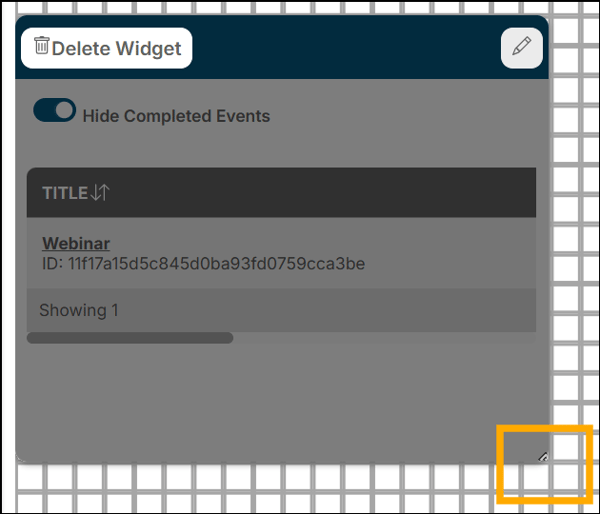
Click and drag the edge to the desired size. This action can be done horizontally or vertically and can make the Widget smaller or larger. There are gridlines to assist in sizing and arranging your Widgets.
To Arrange Your Widgets:
Hover your mouse in the Widget you wish to move. Click and hold, drag the Widget to the desired location on the Dashboard, then release.
To Remove a Widget:
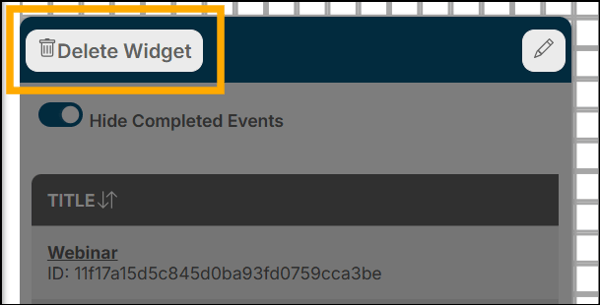
Simply select the Delete Widget option. You may add the Widget back to your Dashboard view at any time:
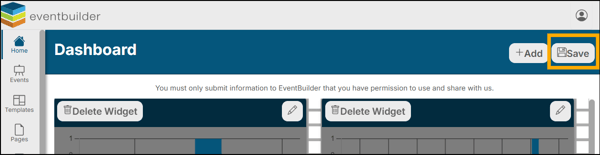
When you have finished customizing your Dashboard Widgets, click the 'Save' icon:
Note: Once a Widget is selected, the relevant data can take a few minutes to populate.
Customize your Widgets
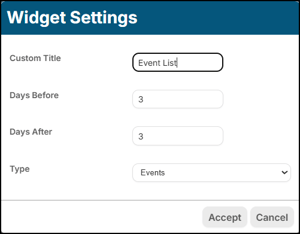
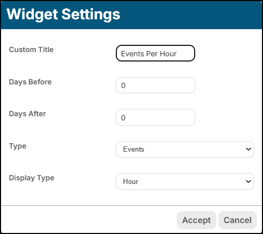
You may customize the Name of your Widget. You may set your Widgets to display data for a customized period of time.
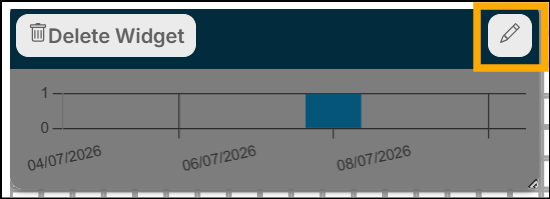
Click on the Pencil Icon in the right-hand corner of your Widget:
Below are some examples of the fields which appear in the pop-up windows. The fields are dependent on the purpose of each individual Widget: