
PII Redact / Delete
EventBuilder provides tools to help organizers manage registrant identifiable information. The software offers options to redact or delete individual registrants data. Each action includes clear confirmation prompts and is irreversible, safeguarding data integrity and compliance.
Delete or Redact a Registrant
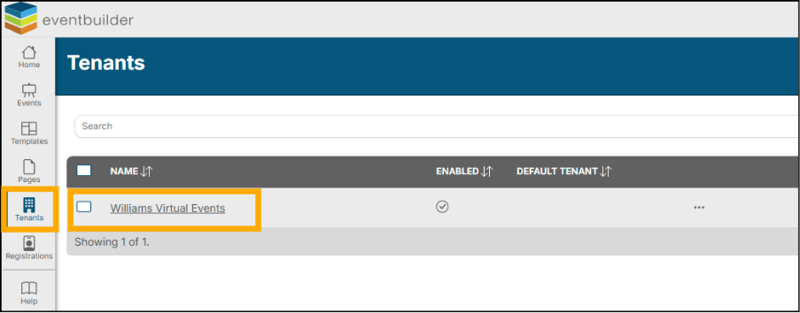
To redact a Registrant's PII, go to your tenant, select Tenants from the outer navigation and click the name of your Tenant:
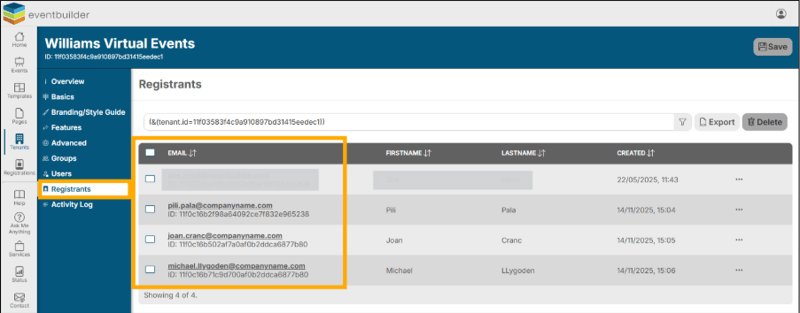
Click into the Registrants area in the inner navigation bar. You will see a list of all registrants on your tenant:
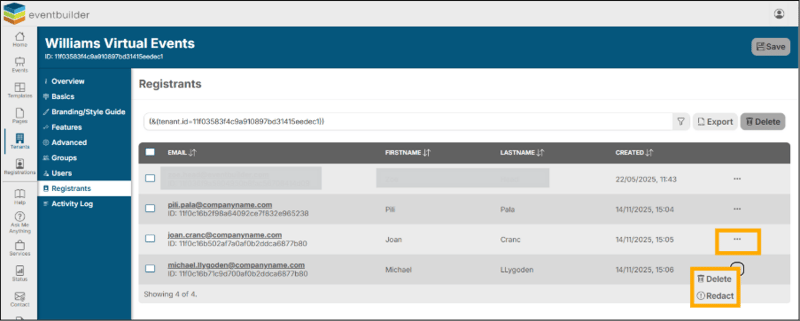
Click on the ellipsis (three dots) to the right of their entry and then select the action you wish to perform (Redact /Delete) from the provided options:
Redaction
A confirmation window will appear, select Yes or No:
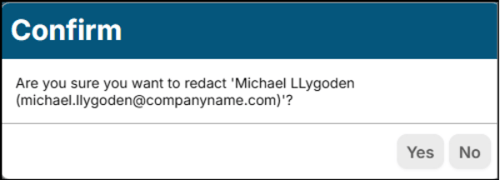
Note: Once redacted, the Registrant's information is not recoverable. Redacting a Registrant's information still allows them access to their Event. A redacted Registrant's name, email, and other identifiable information will not appear in Event Reports.
Deletion
A confirmation window will appear, select Yes or No:
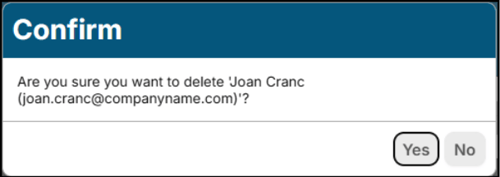
Note: Upon Deletion, the Registrant record entry is not recoverable and will be entirely removed from software. Event access with be revoked.
Filter for specific Registrants
To filter for a specific registrant use the Conditional Logic filter at the top of your page. Click on the filter icon to open it:
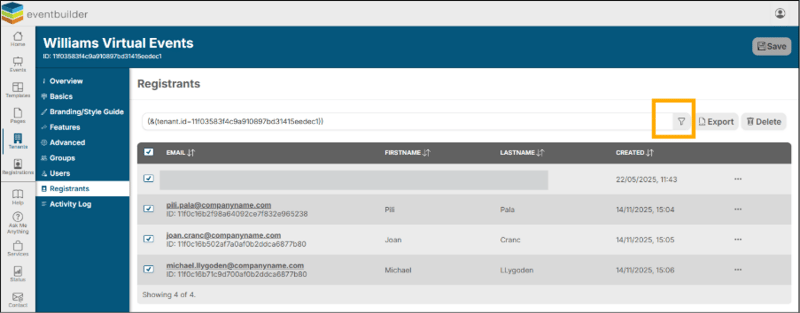
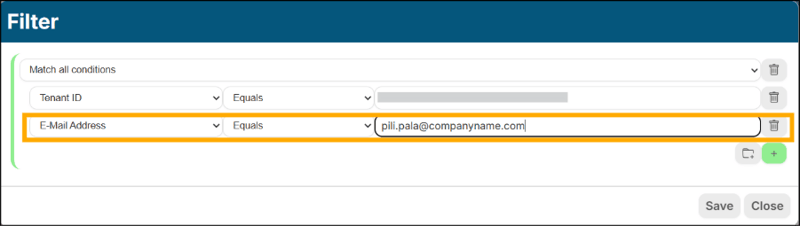
Click the green plus icon to add a new line to your search:

Add the information your require to the fields. As example shows ‘Email Address’ > ‘Equals’ > pili.pala@companyname.com:
The software will now display the Registrant associated with the email specified in the filter:
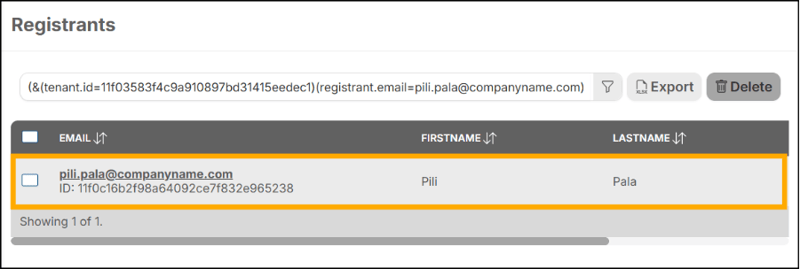
Other useful fields for this search would be ‘email address’ and ‘last name’ – you may filter by as many criteria as you like and use 'equals' or 'contains' variables as necessary.