
The Resources Step allows you to add files and links to your Events to share information such as Privacy Policies, course outlines, presentation slides, etc.
Note: At the Template level, please be aware that any resources added will be available to all events subsequently built from this template.
You can add an unlimited number of files/links to support your Event.
There are two types of Resource you can add in this area:
- Files uploaded from your personal computer
- Web links to articles/guides/promotions, etc.
Example of Resources Step at the Event Level: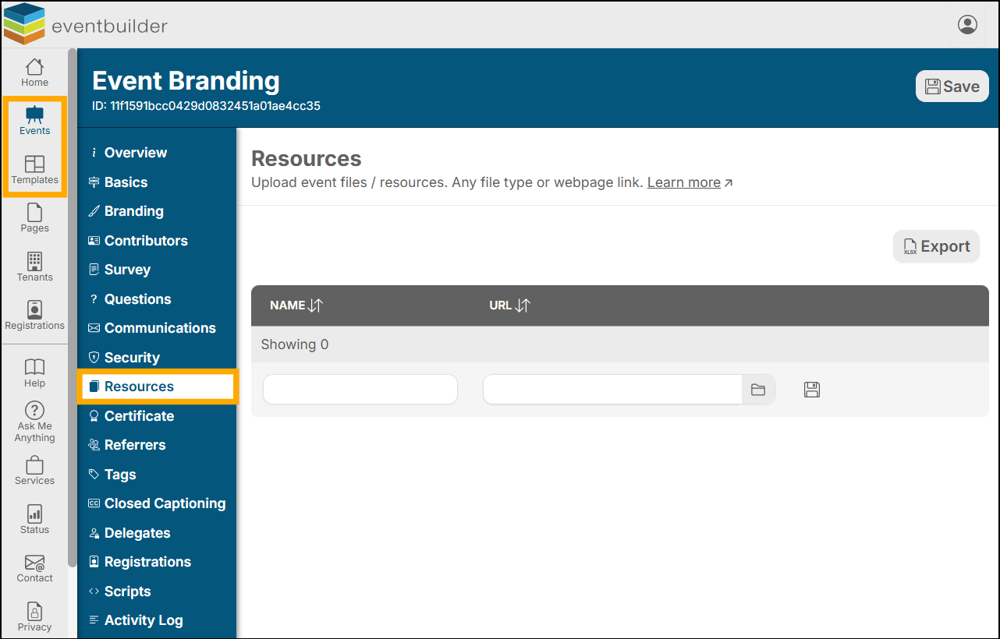
Adding Resources
- Enter the title of the file/link in the name field
- Click the folder icon to navigate to the desired resource in your personal file manager or add the URL
- Press the disk icon to add
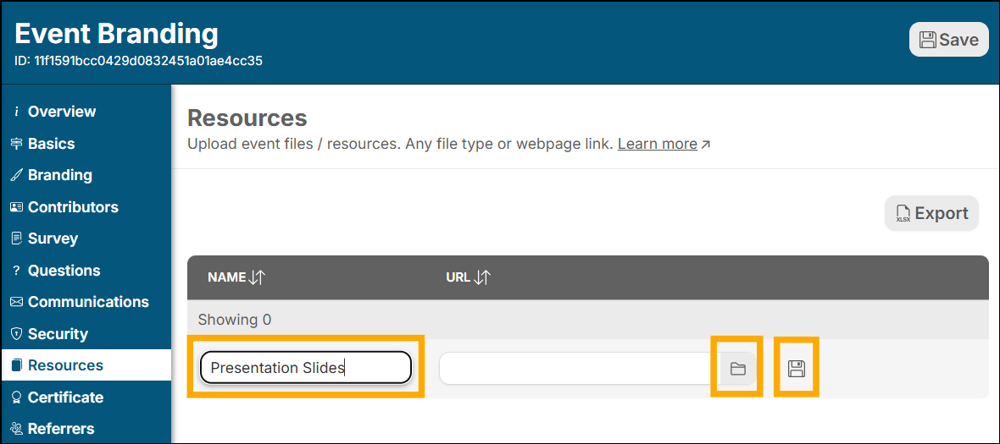
A pop window will appear:
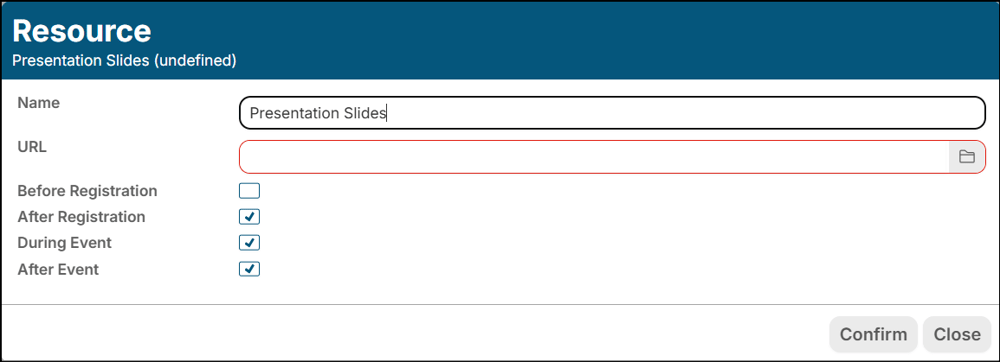
At any time, you can return to this resource by clicking its name in your list to change its title or delivery option.
Delivery Options
Once the File has been added, you can choose when Registrants are granted access to it.
Here are the four delivery options, and where your Registrants/Attendees will have access to your uploaded Resources:
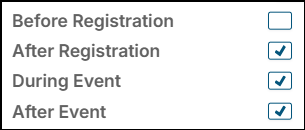
- Before Registration: Available on the Registration Page.
- After Registration: Available when registrants return to the Registration Page to join your event.
- During Event: Within the On-Demand Viewing Console
- After Event: Will appear in Resources area for Archive Recordings.
Note: Please select ALL Delivery Options that meet your requirements.
Once all your resources are uploaded and organized, please be sure to click the Save button in the top right-hand corner of the screen to save these Resources to your event/template:
How it looks
Resources links selected to display on the Registration page: 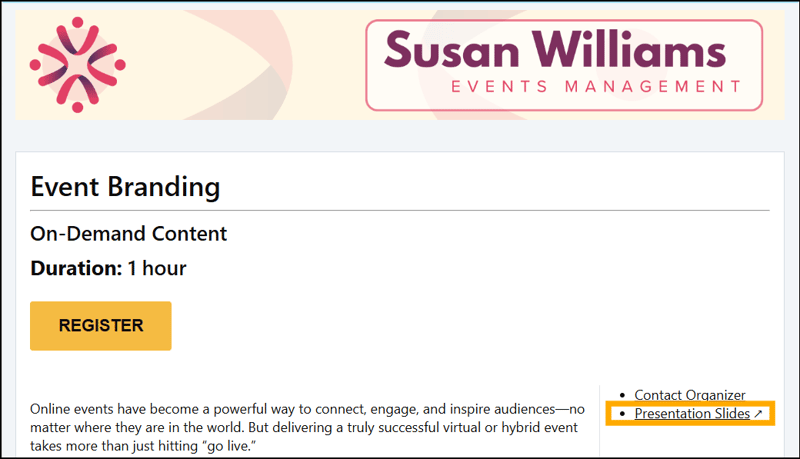
In the On-Demand Viewing Console: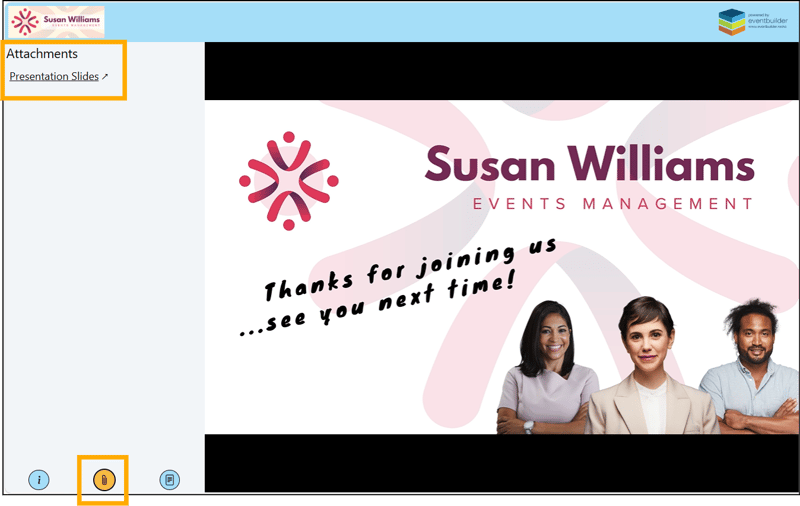
Hierarchical Display
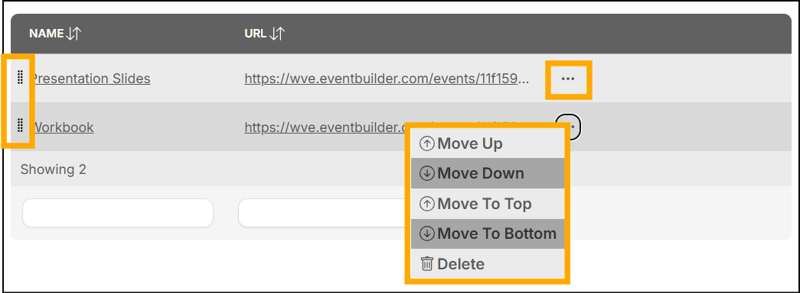
You can change the visual hierarchy of your Resources by moving items Up, Down, To Top or To Bottom by clicking on the ellipsis of each item. You may also manually 'drop and drag' the order of display by clicking on the dotted section on the left of each entry line.
To delete an uploaded resource, simply click the ellipsis and select Delete:
Note: When adding Resources to a Template, you have the option to Lock the availability and position of the Resources’ display.
Simply turn on the Locked toggle button and then choose between ‘Always at the Top’ or ‘Always at the Bottom’: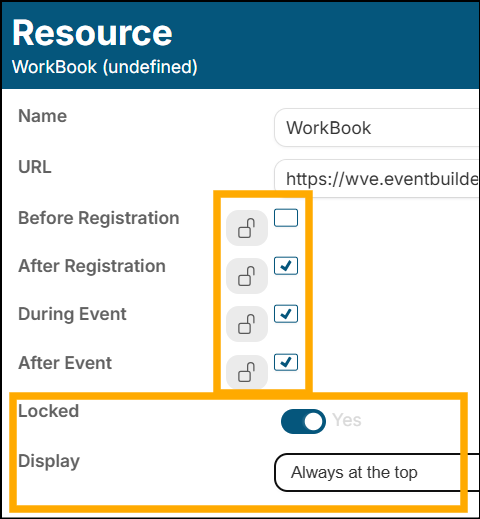
Use case example: Lock your presentation slides to the top, no matter which other resources are added later.