
The Referrers Step (previously called Source Tracking) allows you to evaluate the effectiveness of your marketing campaigns by creating a unique URL for each channel used to invite Attendees.
You can use this information to track where each Registrant discovered the link to your event; such as LinkedIn, Facebook, Instagram etc.
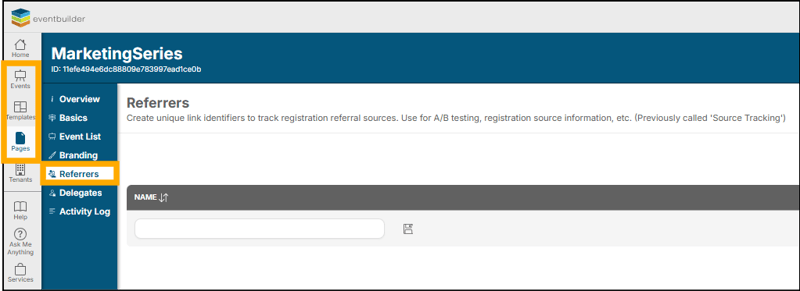
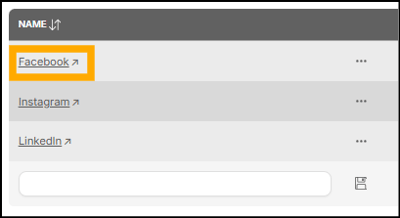
Example of Referrers at the Page Level:
General
- Referral URLs added at the Event Level will be unique to that single Event.
- Referral URLs added at the Template Level will be inherited to all Events created from the Template.
- Referral URLs added at the Page Level will be unique to that specific Page.
- There is no limit to the number of unique URLs you can create.
Create Referral Linking URLs
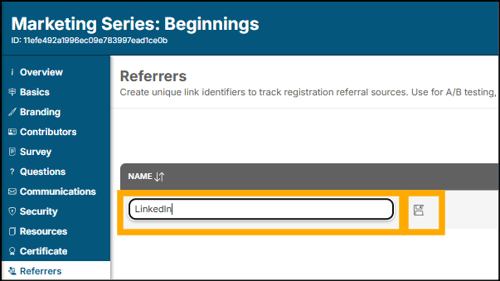
Enter the source you would like to track (e.g., LinkedIn) into the text field provided, and click the disk icon to create the unique tracking URL.
Once all referral links have been added, be sure to save your changes by clicking the ‘Save’ button found at the top right-hand corner of your workspace.
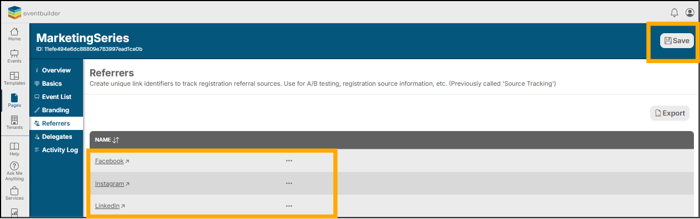
Adding Referrers to your marketing channels
Copy the link by clicking the ellipsis (three dots) and selecting ‘Copy’
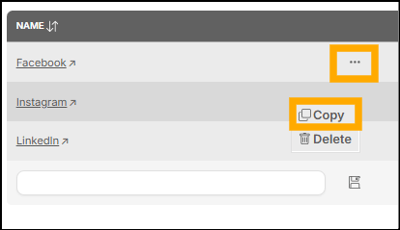
Paste the copied link into the corresponding promotion/marketing channel you have chosen.
Note: For accurate referral tracking, the Registrant must use the tracking URL you created. E.g., yourcompanyname.com/twitter.
Check and Verify
Click on the name of your Referrer to open a new window and confirm your link is working as expected.
Reporting
Registrant Referrer information will appear in the Registration Report under the column 'referrer,' which can be exported from the Registration Step on each of your Events.
