
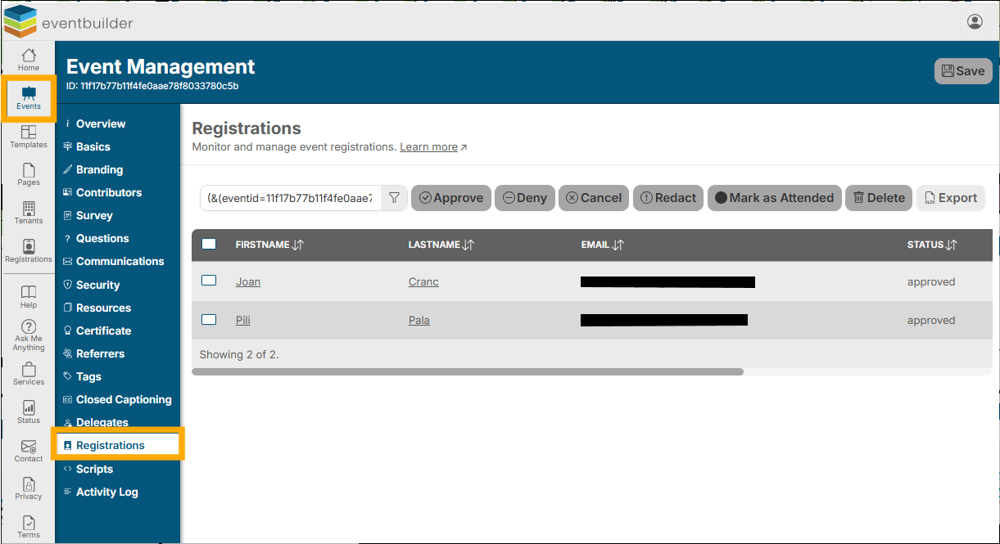
Example of the Registrations Step:
Note: The first time ‘Person A’ registers for an event on your Tenant, two records will be created:
- A single Registrant record - this is a one-time action, the data of which will appear on the Tenant Level under the Registrants Step.
- A Registration record - a unique combination of that Registrant record and the specific event, the data of which will appear on the Event Level under the Registrations Step (the area seen above).
For every subsequent registration made by ‘Person A’ to Events on your Tenant, a new Registration Record will be made – it is these Registration Records that we will be discussing in this article.
Access Registration information on the Event Level to manage tasks related to individual Registrations, including Approve/Deny, Mark as Attended, Redact Registration information, or Cancel/Delete an individual Registration.
Viewing Data
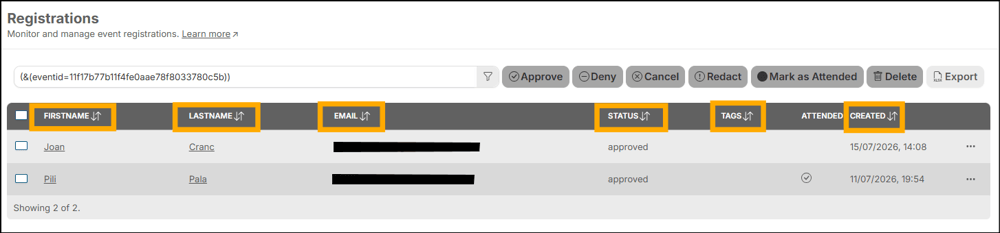
You may order this list to your specification by clicking the title of the following column headers: First Name, Last Name, Email, Status, Created:
Using the filter
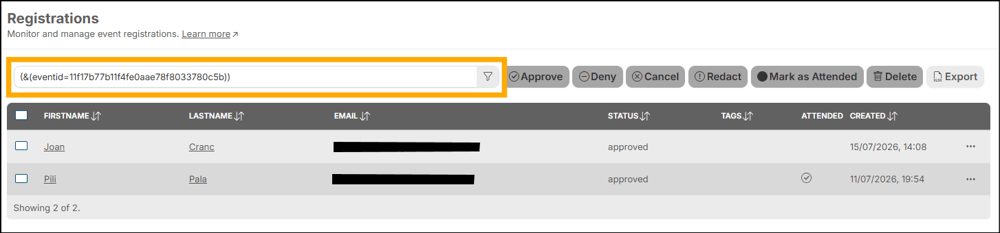
To perform more sophisticated filtering access the Filter:
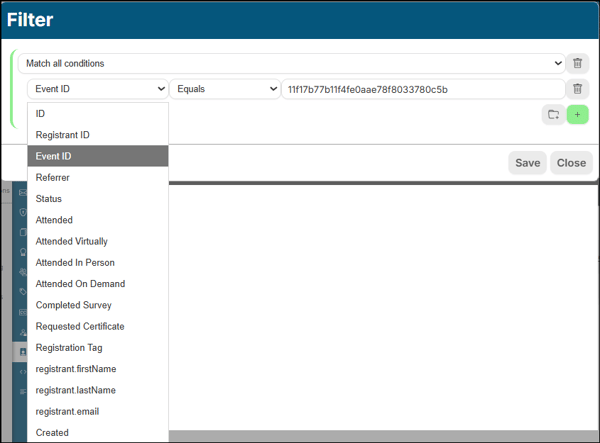
This filter uses Conditional Logic, allowing you to search by a specific action or data point.
Variables in this area include; ID, Event ID, Referrer, Status, Attended, Attended Virtually, Attended In-Person, Attended On-Demand, Completed Survey, Requested Certificate, registrant.firstName, registrant.lastName, registrant.email and Created.
Example of filters on Registrations Step:
Registration Management Actions
There are several Registration management actions you can take in this area.
Approve/Deny Registration
- You may manually Approve or Deny Event registrations.
- Note: This action overrides Event security settings for the Registration. For example: Your Event has a deny list in place, but you would like to Approve the registration of an individual who meets the deny list criteria. Approving the registration will override the deny list setting for that individual Registration.
Cancel/Delete:
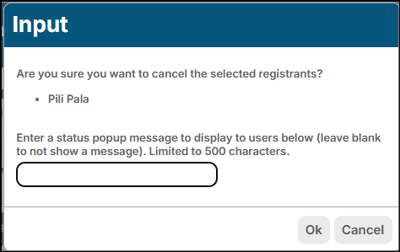
- Upon Selection, the Cancel option will trigger a pop-up confirmation box. This has an area to add text to display when the Registrant returns to the Registration page, if you would like to explain the Cancelation to them. You may also leave this text field empty so no message will be displayed:
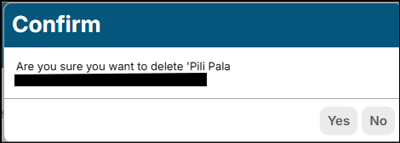
- As a safeguard against accidental error, the Delete option will trigger a pop-up confirmation box:
Redact Registration:
- Registrants can request their Personally Identifiable Information (PII) be redacted in accordance with their rights under the GDPR and EventBuilder's Privacy Policy.
- Once redacted, the Registration information is not recoverable. Upon completion of this action the Registration record entry will indicate the redaction:
- As a safeguard against accidental error, the Redact option will trigger a pop-up confirmation box.
- Note: Redacting Registration information still allows access to the Event. A redacted Registrant's name, email, and other identifiable information will not appear in Event Reports.
Mark as Attended
- The 'Mark Attended' function works dynamically for virtual Events/Webinars, and manually for In-Person Events. Upon delivery to a virtual event/webinar, the Registration will be marked as 'Attended' automatically. For In-Person Events, Organizers use the 'Mark Attended' function manually for Attendee check-in.
Performing Actions on Individual Records
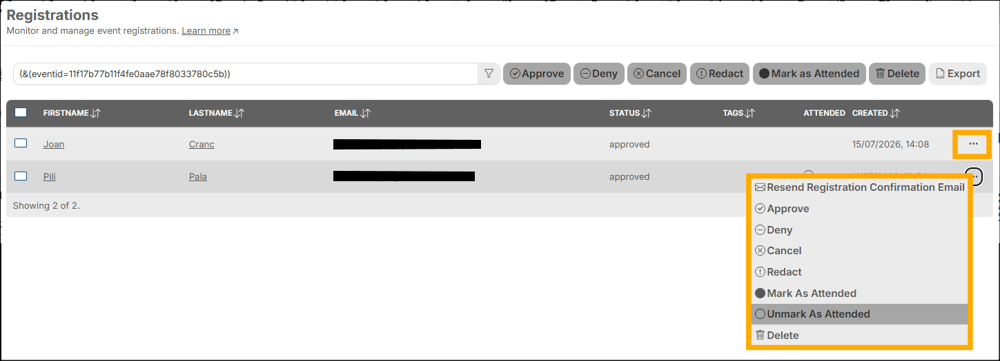
- To change a Registration Record, click on the ellipsis (three dots) to the side of their listing, and select the action you would like to perform from the dropdown list.
Bulk Actions
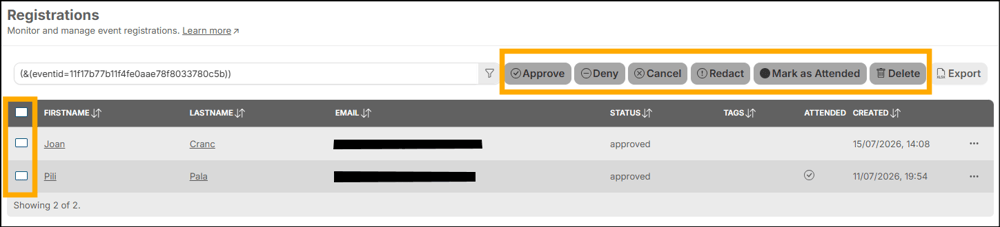
- To perform an action for multiple Registrations at once, click on the checkmark buttons next to each Registration you would like to include in your action, and use the action buttons above the listings to complete:
Viewing Registration Records
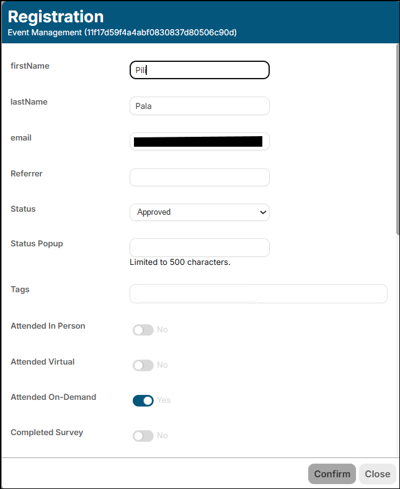
The Registrations Step can also provide a snapshot of a Registration’s basic details. Select any Registration by clicking the name or email address, and the record will open.
Registration records contain the following information: First Name, Last Name, Email Address, Referrer, Status, Status Pop Up, Attended In Person, Attended Virtual, Attended On-Demand, Completed Survey, Retrieved Certificate, and additional fields for any Registration, or Survey Questions you added to your event.
Example of Registration Record:
Exporting Registration Data
You may also Export an Excel (.xlsx) Workbook of your Registrations by selecting Export.
Variables for selection in Registrations reporting are: ID, Event Title, Event Begin, firstName, lastName, email, Time zone, Language, Status, Referrer, Tags, Attended, Attended Virtual, Attended In-Person, Attended On-Demand, Total Recording Views, Completed Survey, Retrieved Certificate, Live Attendance Duration, On-Demand Attendance Duration, Min Bandwidth, Average Bandwidth, Max Bandwidth, Created.
Example of Export button in software:

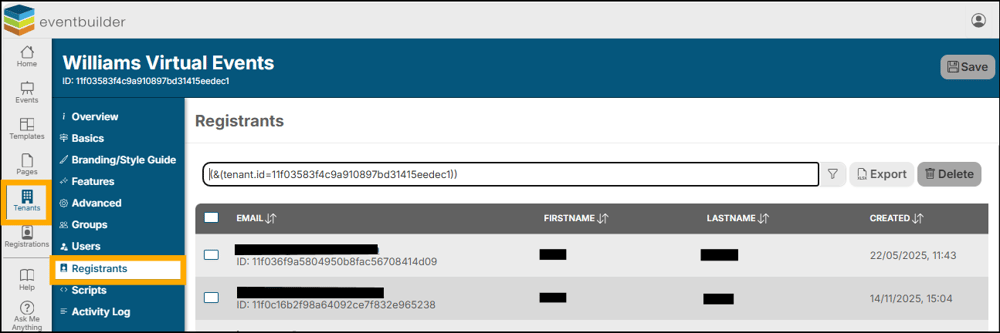
View all Registrant Records at Tenant Level
To see Registrant Records across your entire Tenant, go to Tenants > Registrants. You can search and filter this area in the same manner as the above example.
Example of Registrants Step at Tenant Level:
Read More
For more in-depth information please see: Registrations: Approve, Deny, Edit, or Mark as Attended