The Basics Step is where you customize core information for individual Events and Templates, Pages, and your Tenant. While there is help text within the software for basic guidance, below is an in-depth look at the fields you see in the Basics Step for each level.
At Event and Template Level
The Basics Step is where you add and customize the core details of your Event/Template’s framework.
Example of Basics Step at Event Level:
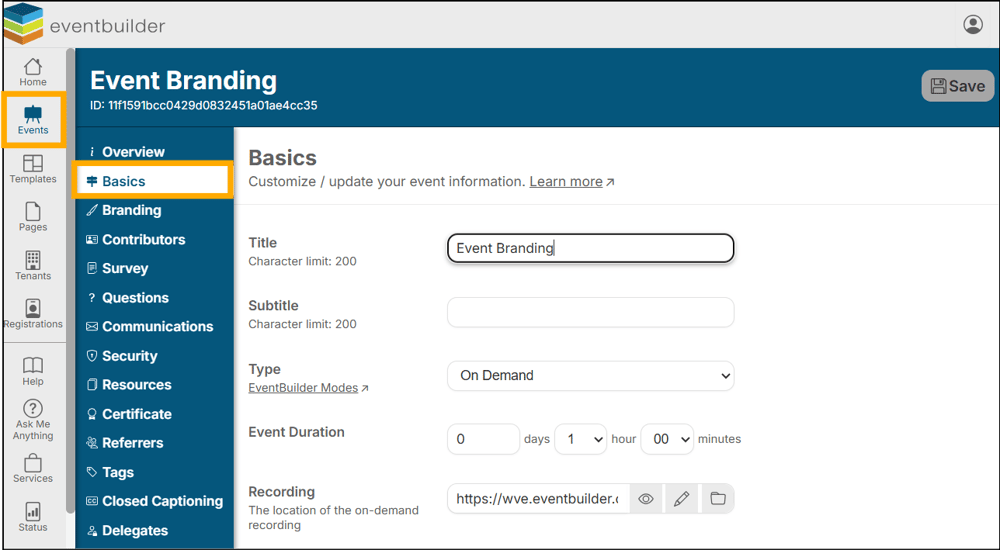
Note: Required fields are visually highlighted in red.
The options displayed correspond with your selected event type, for example:
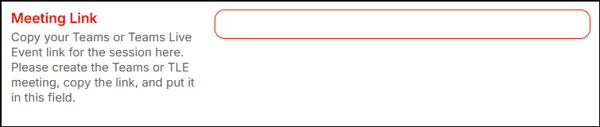
Live Webinar includes a field for you to add your Teams meeting link:
The On-Demand event type includes a field for you to place a recording file link. Click the folder icon to the right and upload required recordings from your computer’s files. See more about How to Upload, View, Edit and Chapter a Recording here:

In-person Events ask for Venue Name and Location.

Learn more about Event Modes here.
At Page Level
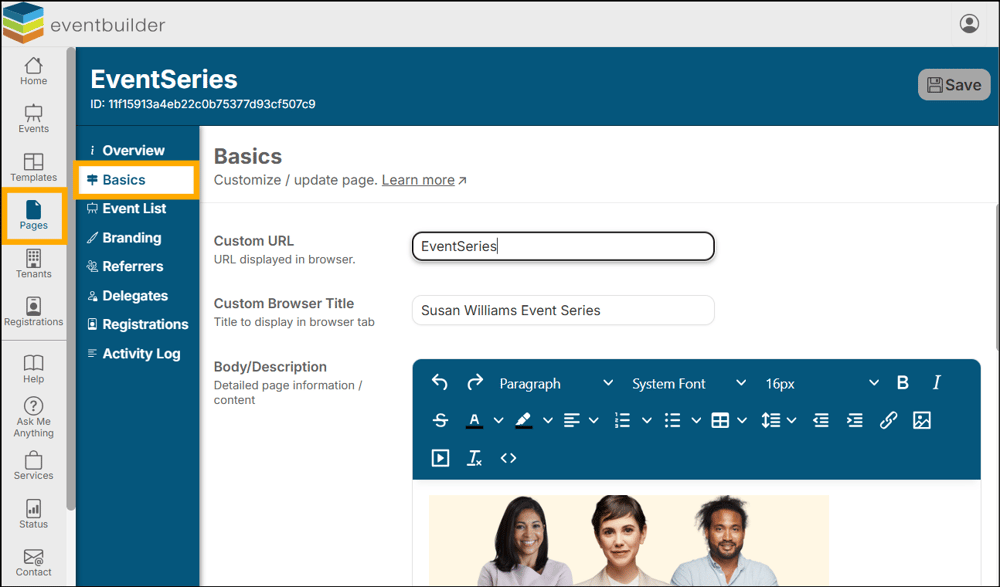
Here, the Basics Step is where you add and customize the core details of your Page's framework: Custom URL, Browser Title, Body Description, and Contact Details:
At Tenant Level
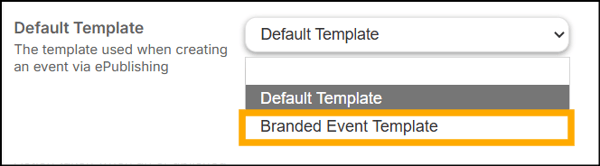
On the Basics Step at the Tenant Level, you will see an overview of your Contact and Billing Information. Most importantly, this is the area where you select and save the Default Template for use across your entire tenant for e-publishing purposes.
Use case scenario: Create a Template specifically branded for events that will be e-published. Once selected here, as your default, all events created via Outlook will inherit the settings applied to your bespoke template (Event Mode, Branding, Registration Securities, Communications etc.).