
Set your events, templates, pages, or tenant level’s branding/style by adding custom images, music, button text, and CSS.
This article also contains image size guidance for all uploads.
Supported image extensions: .jpg, .png, .gif, .svg, .wbem.
Example of Branding Step at the Event Level: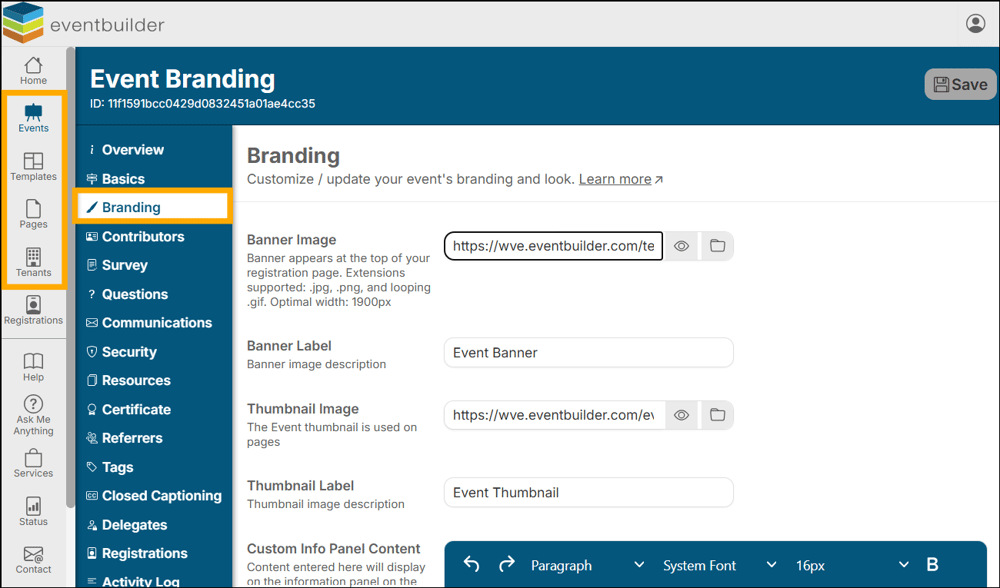
Event and Template Level
Most fields have help text where necessary, but here is a little more information on the options available.
Note: Events created from Templates will inherit all feature settings and branding entered here.
Banner Image & Banner Label
Appears on Event Registration Pages, Pages, and Registrant email Communications.
Add ‘alt text’ in the Label field to describe your image for accessibility purposes.
Optimal width: 1400px. Height: Auto
Example of a Banner on a Registration page: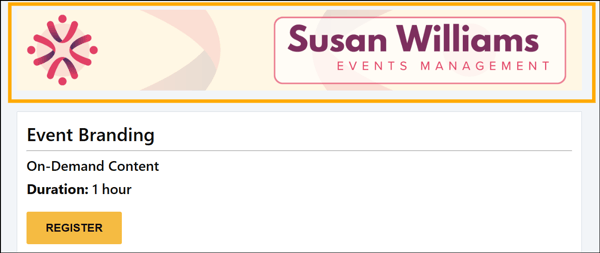
Example of a Banner in a communication email: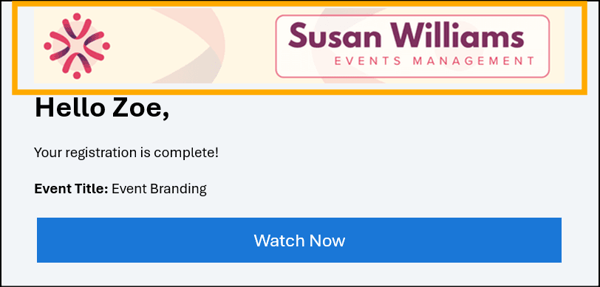
Thumbnail Image and Thumbnail Label
This image appears next to each Event on a listing Page (Table-style Display), or above each. Event when Card-style Display is selected:
Optimal width: 500 x 500px
Add ‘alt text’ in the Label field to describe your image for accessibility purposes.
Example of Card-style display: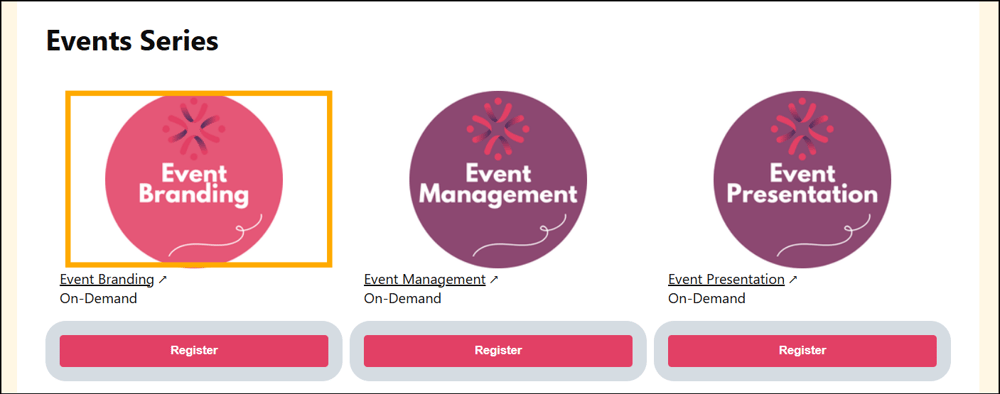
Example of Table-style display: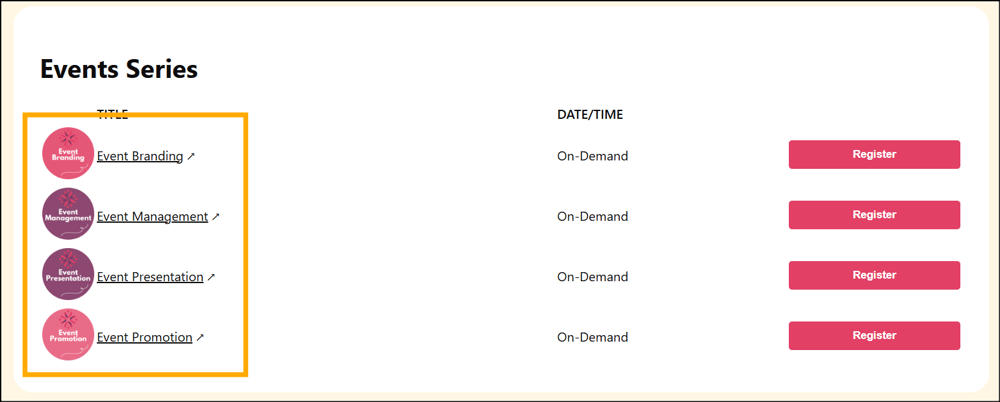
Page Style
For Pages, there are three available style options to choose from: Classic, Marquee, and Clean. The default is set to Classic. Organizers can change the layout even after publication if they wish.
See Styling Options for Registration Pages (Classic, Marquee and Clean) for more information and visual examples.
Button Text Customization
The Registration page button text is dynamic, which allows you to personalize your event by changing the text on your buttons.
Example of automated Button text:
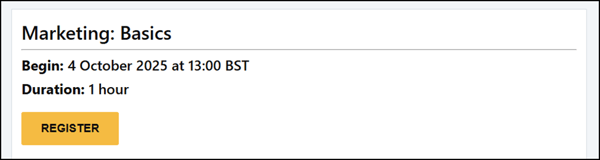
Example of Customized button:
Custom Head Element Content and Custom Body Element Content
You may make additional styling changes by adding custom code snippets here.
At Page Level
See above for details on the fields: Banner Image, Banner Label, Cobrand Image, Cobrand Label, Cobrand URL, Custom Head Element Content, Custom Body Element Content.
At Tenant Level ‘Branding/Style Guide’
See the article Setting Up Master Branding - Tenant, Account Configuration, Branding for more information (COMING SOON!)