
The Event List Step allows Organizers to collate/group together similar events onto one Page, accessible to Invitees via a single URL.
Organizers can create customizable listing Pages, with options for registration efficiencies, display type, sort settings, and add search options for Invitees to locate specific events.
Example of the Event List Step on Page Level:
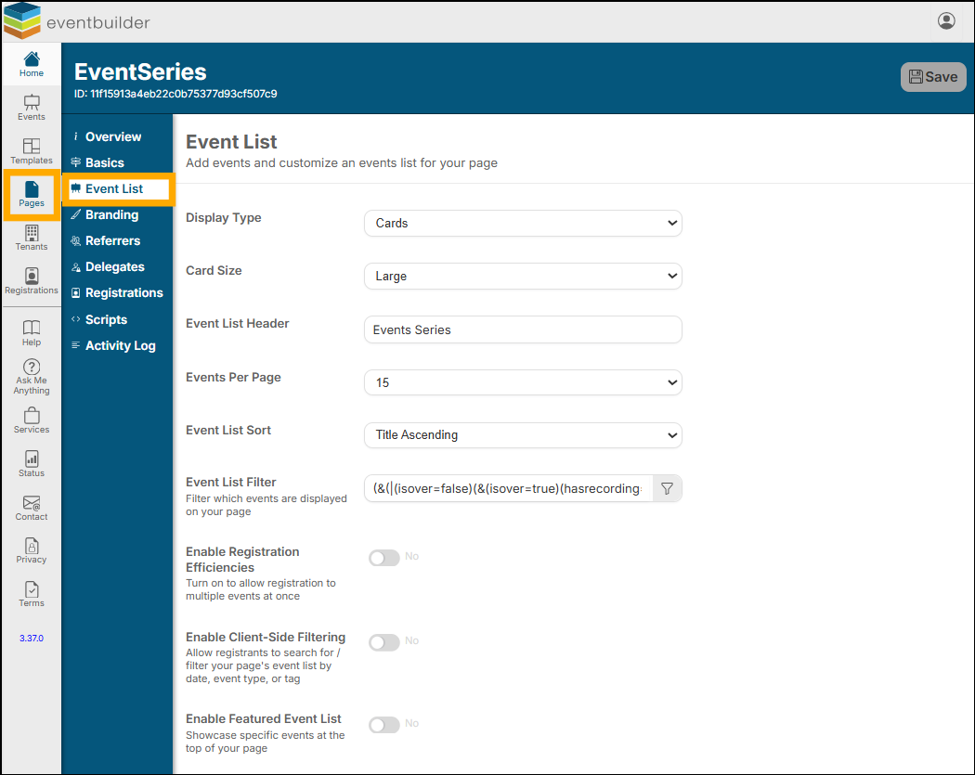
Display Type
Select from two display styles, examples of which are shown below:
Table
Example of Table style: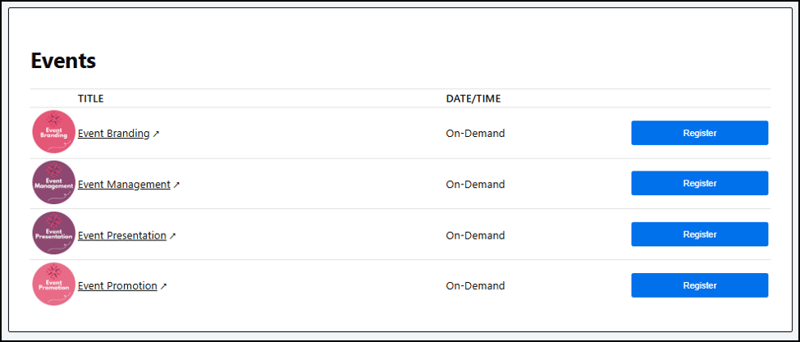
Cards
This selection opens a sub menu where you can select from small or large cards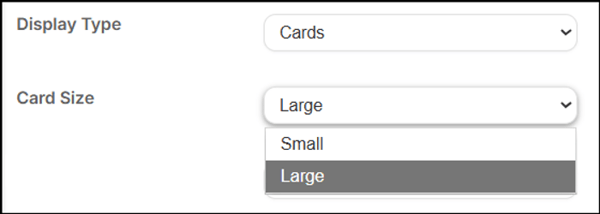
Example of Cards (small):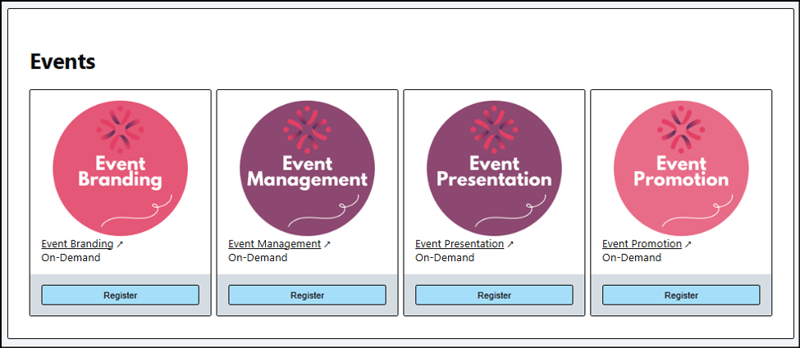
Example of Cards (large): 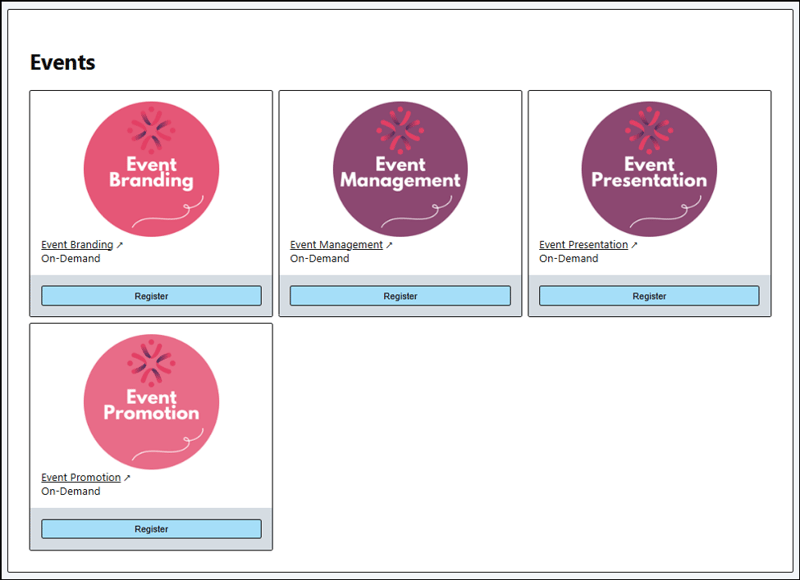
Event List Header
Customize this area with the text you would like to appear above your event listing.
Example of customized heading on Page: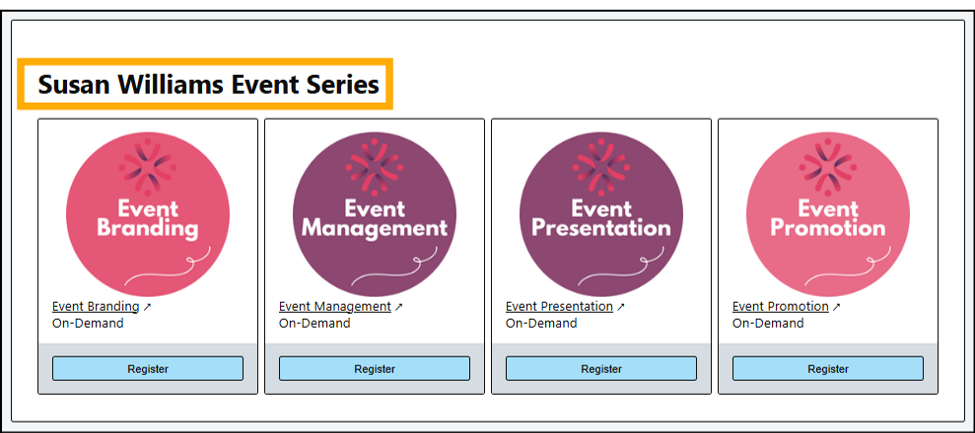
Events Per Page
Select the number of events you wish to display before pagination occurs. You may select from 5, 10, 15, 20, 25, 30 or 100.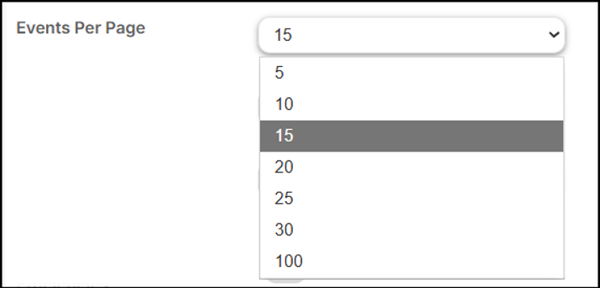
Event List Sort
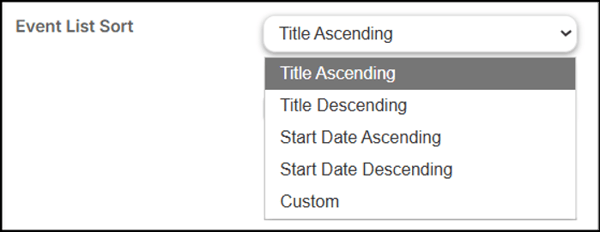
Filter your events to display by either:
-
Title Ascending
-
Title Descending
-
Start Date Ascending
-
Start Date Descending
-
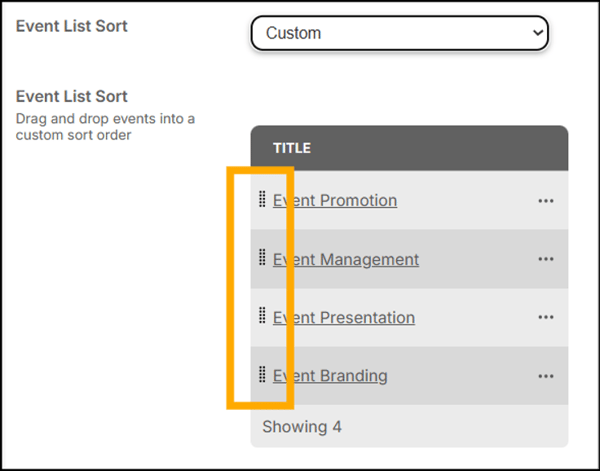
Custom
- Custom sort allows you to drag and drop your events into any specific order
Event List Filters
Use this filter to set a parameter for events you wish this Page to display. Click the pencil icon to open the filter:
This filter is set by default to display
-
all forthcoming events on your Tenant (‘Event Is Over > Equals > No’)
-
all events that are over and have a recording (ie On-Demand Events)
Example of default setting: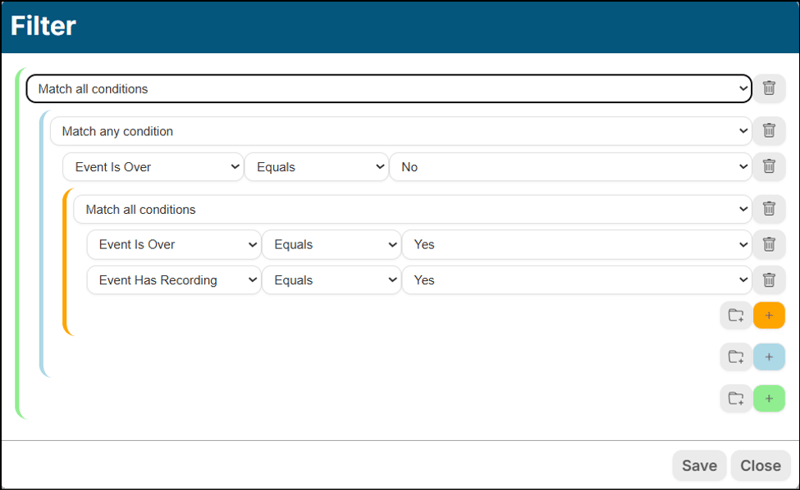
Filters include:
Event ID, Tenant ID, Parent Event ID, Event Title, Event Begin, Event Duration, Event Is Over, Event Time zone, Event Has Recording, Event Tag, Account ID, and Event Created.
Filter Examples
To display only events from a specific series of Events on your page, you could set this filter to ‘Event Title’ > ‘Contains’ > ‘Marketing’ and only those events on your Tenant with Marketing in their title will appear.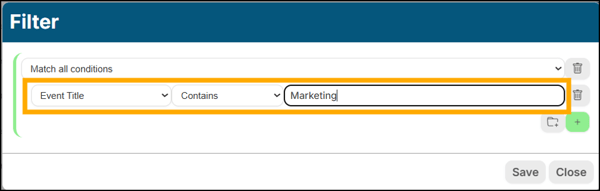
If you have employed Tags on your Event or Template builds you could set this filter to:
‘Event Tag’ > ‘Equals’ > ‘SWEventSeries’.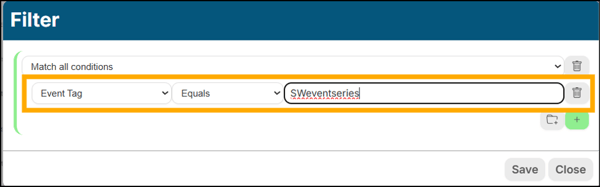
Enable Registration Efficiencies
Toggle on to allow Registrants to select multiple events and register for all, in one easy action.
Once selected a sub menu will display: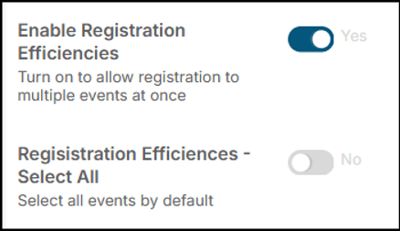
Toggle this to pre-select ALL events on the Page.
Once selected a third sub menu will display: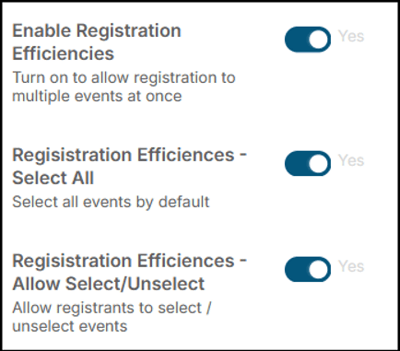
This field is automatically set to ‘Yes’ to allow Registrants the ability to override the full selection of your events and pick and choose which they would like to attend.
Enable Client-Side Filtering
Allow your registrants to filter the events on your Page themselves. Once toggled on, you can enable a selection of four filters for use on your Page:
Search Filter (for text search), by Date, Type, or Tag. Select as required.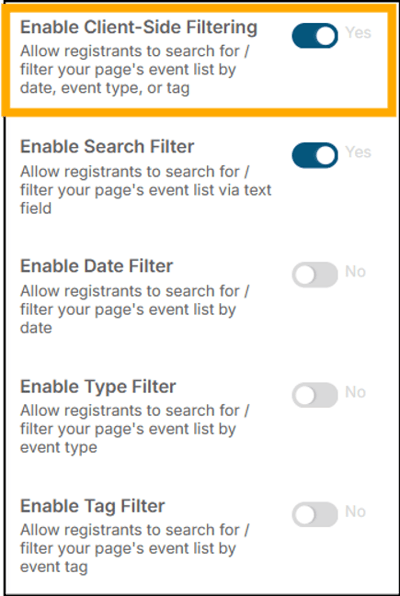
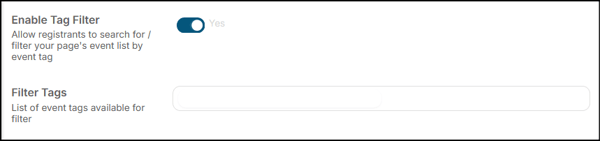
Enable Tag Filter
For this specific field you will need to enter the names of the tags you would like your registrants to be able to search by.
-
Add each tag one at a time
-
Type the name of the tag
-
Press 'enter' on your keyboard and save

Example of all search filters enabled on Page: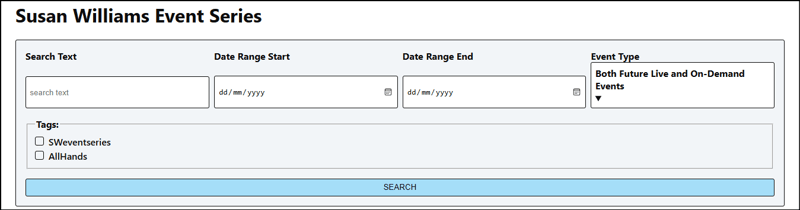
Enable Featured Event List
Toggle on to draw attention to a certain set of Events by enabling a Featured Event List. This displays to your Registrants as a scrollable carousel of Card listings: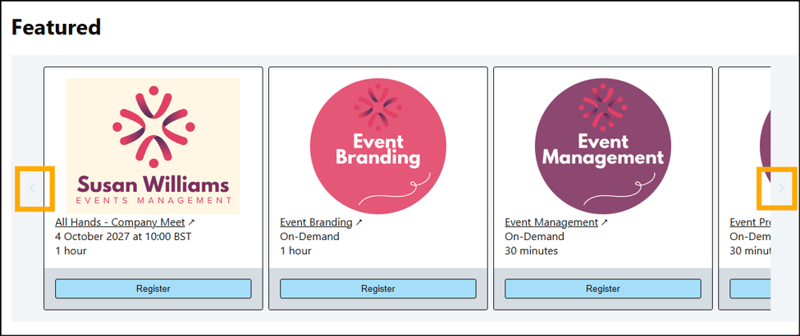
When selected three Sub Menus will display: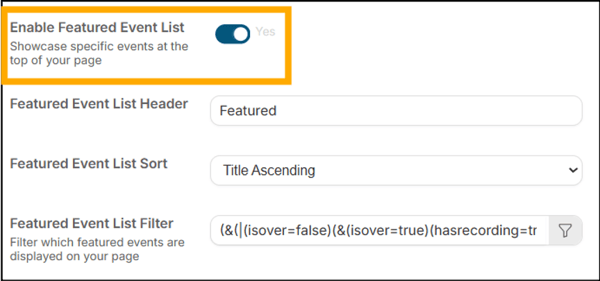
Featured Event List Header
Customize this text to your desired messaging
Example of a customized heading: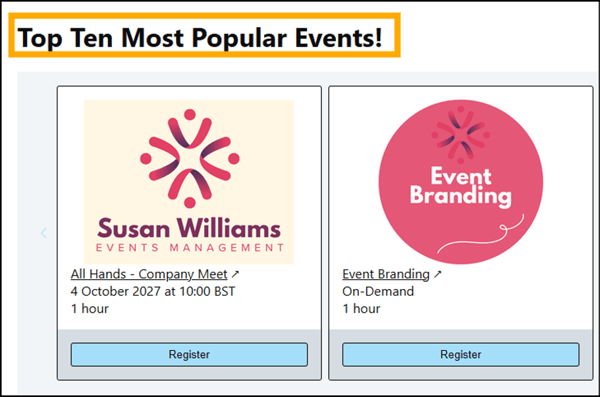
Featured Event List Sort
Choose from: Title Ascending, Title Descending, Start Date Ascending, or Start Date Descending.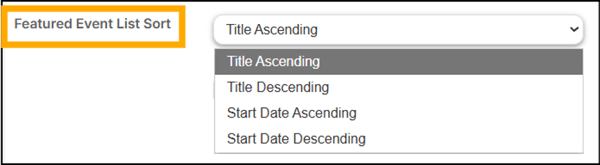
Featured Event List Filter

As with Event List Filters, this filter can be used to set a parameter for events you wish this specific area of your Page to display. It may mirror your previous parameters or you could choose to facilitate this area to promote other webinar series.