Add Tags to filter and group your events together for a variety of purposes, including streamlining multiple Event Registrations, combining a series of Events on a single listing Page, and Reporting.
Note: Tags cannot have spaces, and they are not case-sensitive
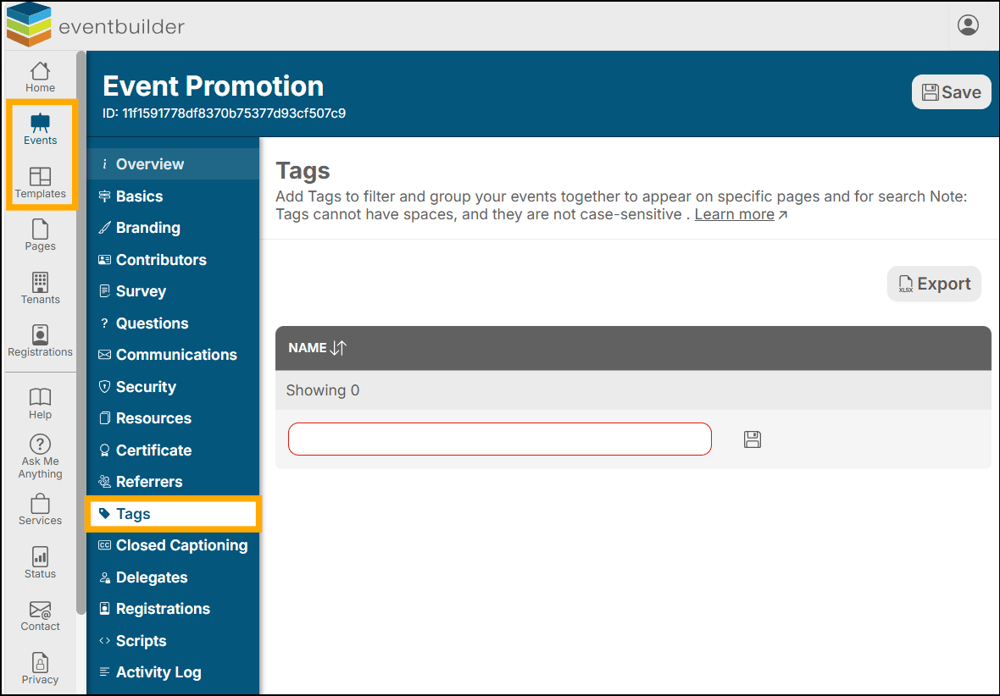
Example of the Tags Step at the Event Level:
Creating a Tag
- Enter the name of your tag into the red ‘Name’ field.
- Click the Disk Icon to save.
Edit a Tag
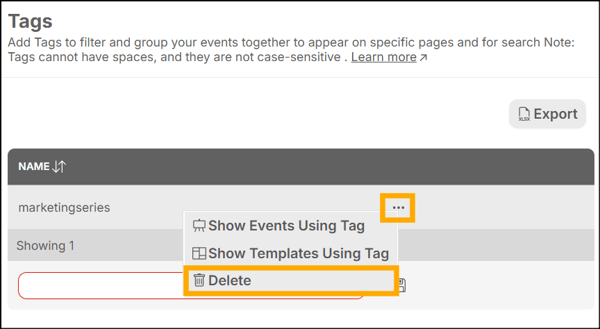
Once a tag is created you cannot edit its name; however, you can choose to delete and replace it by selecting the ellipsis (three dots) to the side of your entry and selecting ‘Delete’ from the drop-down list:
Show Events/Templates Using Tag
To see a list of Events or Templates using this Tag you can either:
- Navigate to the Tag Step of any Event or Template.
- Select the ellipsis and choose either ‘Show Events Using Tag’ or ‘Show Templates Using Tag’
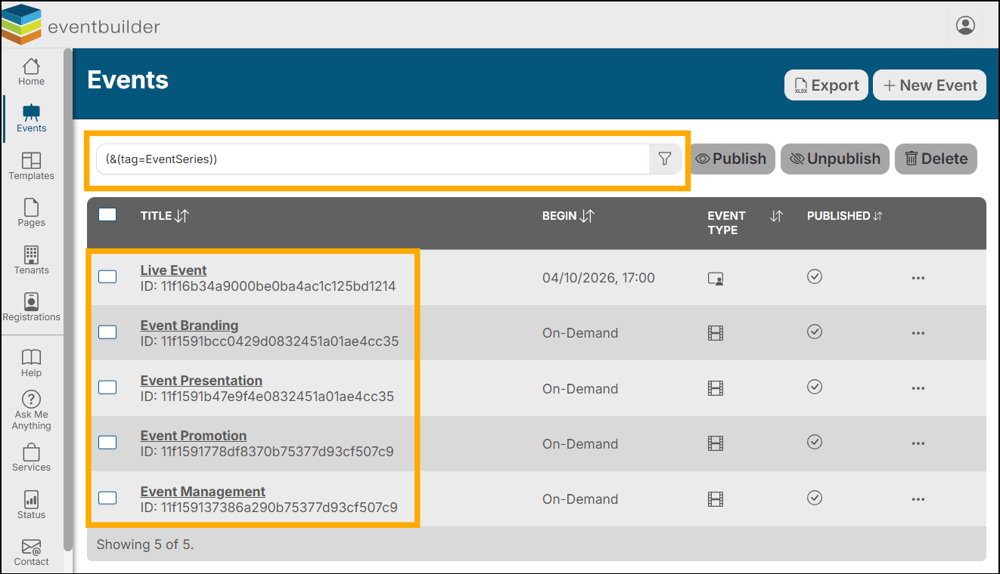
The EventBuilder software will re-direct you to the relevant Level, automatically populate the Search Filter, and display everything that matches your criteria:
Using Tags on listing Pages
Tags are commonly used to group together Events on one comprehensive listing Page – allowing Registrants to complete and submit a single form to register for multiple selected Events at once.
When creating a Page for a series of events you can facilitate Tags by using the Event List Filter:
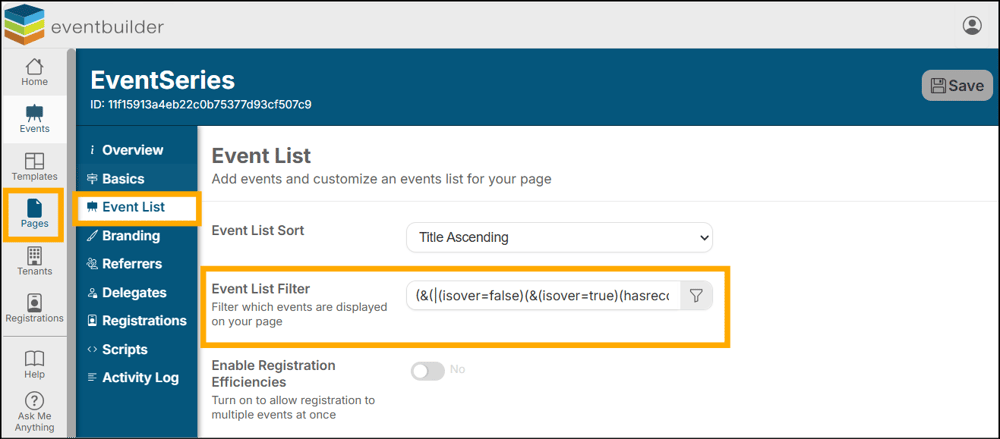
Example of Events List Filter with Tag added in Pages:
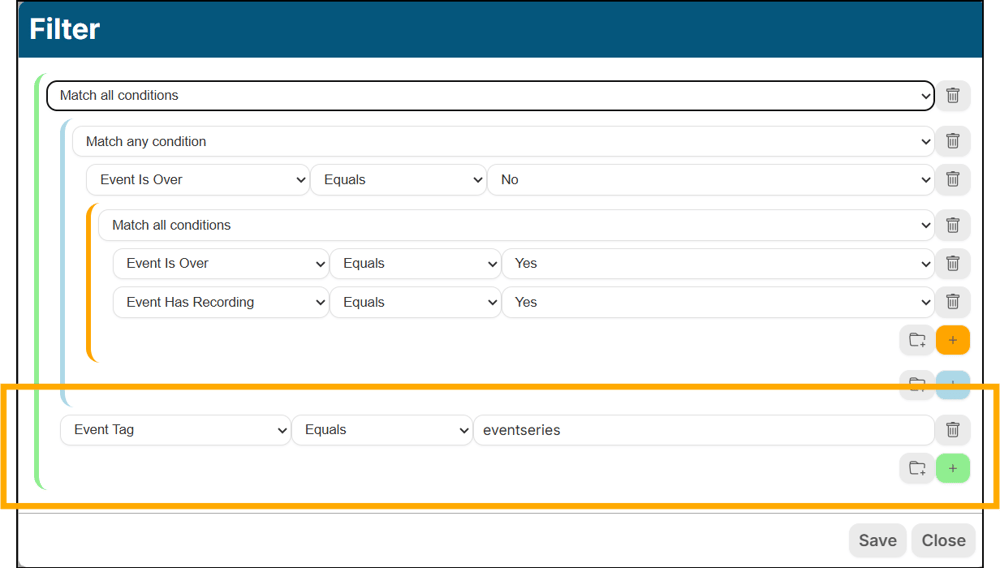
By setting this filter your listing page will only display events from your Tenant that include a Tag entitled ‘Marketing’
Using Tags in Reporting
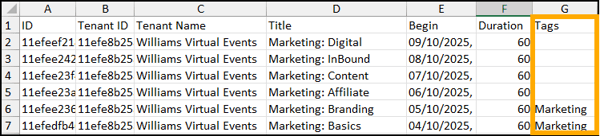
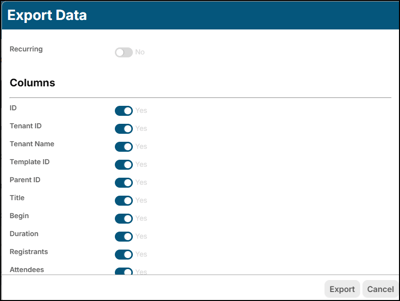
When exporting Event data, one of the available fields is ‘Tags’. You may Export an Excel (.xlsx) Workbook of your events on the Event Level. Including the Tags identifier will provide you the option of filtering your data by ‘Tag’.
Example of ‘Export Data’ interface in software:
The Tag as it appears in software:

Example of report with Tag field displayed: