
Example of software interface:
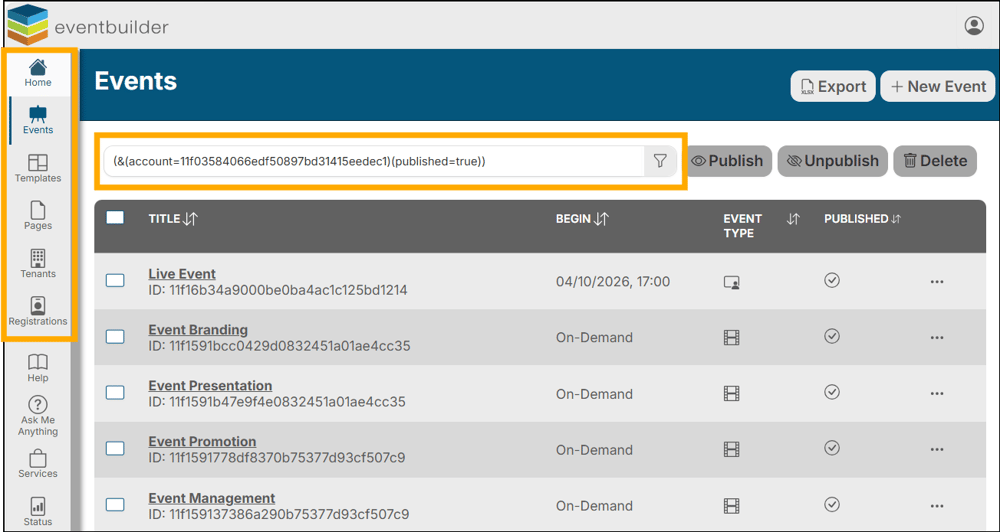
Two areas have been highlighted above:
- The vertical section is referred to as the Outer Navigation bar, displaying Home, Event, Templates, and Tenants. These are described as Levels (i.e. ‘Event Level’, ‘Template Level’)
- The horizontal section is a filter, which appears in many areas to allow you to use conditional logic to search your data.
Example of interface, at Event Level:
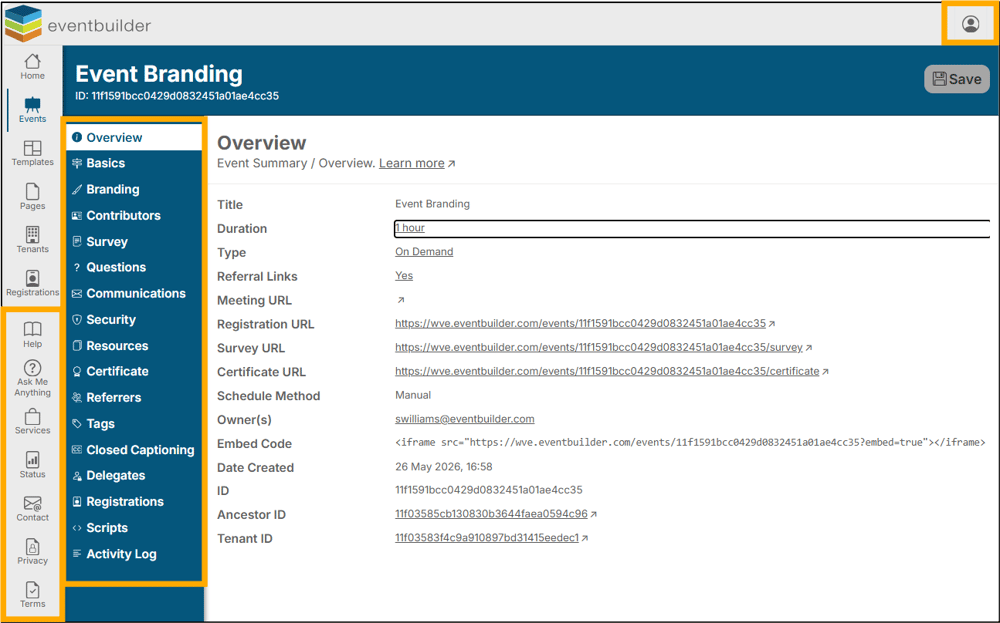
Three areas have been highlighted above:
- The vertical area to the far left is the lower part of the Outer Navigation bar which contains service links. All links open in new browser tabs:
- Help: Directs you to our Knowledge Base articles.
- Ask Me Anything: Directs you to a registration page where you can sign up to attend an Ask Me Anything session. These 30-minute meetings are offered twice weekly. Bring your questions about EventBuilder’s software and features to this open forum-style event and our Care team will give you the help you need to make your events rock. Listing page for future events here
- Services: Directs you to information concerning our Specialized Event Services.
- Status: Delivers you to the EventBuilder Service Status page.
- Contact: Opens an email to our 24/5 Customer Service team, (care@eventbuilder.com) who are happy to answer any questions you may have about your events and our software.
- Privacy/Terms: Directs you to our EventBuilder Privacy Notice and Terms of Use.
- The second vertical section is referred to as the Inner Navigation. It consists of Steps (i.e. ‘Overview Step’, ‘Basics Step’).
- The third section at the top right of the software contains an icon:
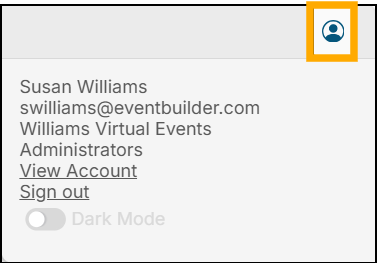
Account Icon: Shows your personal account data and the option to; View your Account, Switch Tenants (if you are working with more than one team), Sign Out, and also to switch your view of EventBuilder’s software to Dark Mode if that is your preference.
Need Help?
Our Knowledge Base contains:
- Software Set Up: Articles to get you started
- Software Overview: Articles for each Step on the interface
- Software Advanced: Additional information on specific processes
- Accessibility: Helpful information concerning accessibility dos and don’ts