Following is a brief explanation of what you can achieve in each area, along with tips for exporting data, filtering data, quick-look links, and advanced search functions.
Home
The ‘Home’ section is fully customizable and displays informative widgets you select, such as details concerning the day’s live events. See ‘Setting Up Your Dashboard’ for more information.
Events
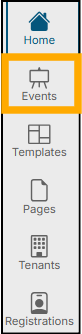
The ‘Events’ section is where you will see a list of all Events you have created. This list can be sorted by Title, Begin (scheduled date), Event Type, or Published status. It’s also where you go to begin the process of creating a new event or update/edit existing events:
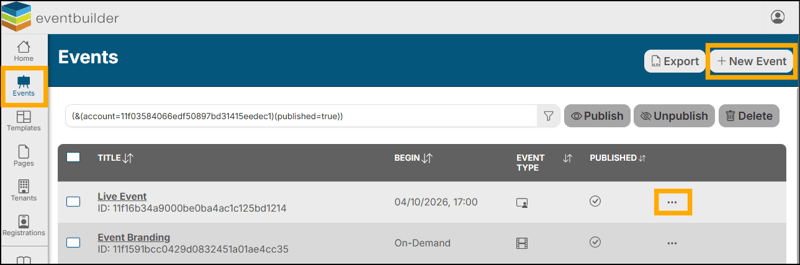
Click on the ellipsis (three dots) by each Event entry to quickly: Copy Registration URL, Visit Registration Page, Publish, Unpublish, Copy, or Delete an Event.
You may also Export an Excel (.xlsx) Workbook of your accounts’ Events:

Templates
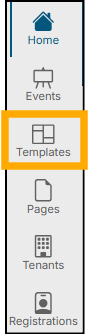
All your event Templates are hosted in this area. This list can be sorted by Name or Shared status. New Templates you create from this area can be customized with your branding and contact information or created for specific event series to lay a foundation for your colleagues to build Events from.
You may also click on the ellipsis by each Template entry to quickly: Set as Default, view a List of Events created from this Template, view a list of Templates created from this Template, Share, Unshare, or Delete a Template:
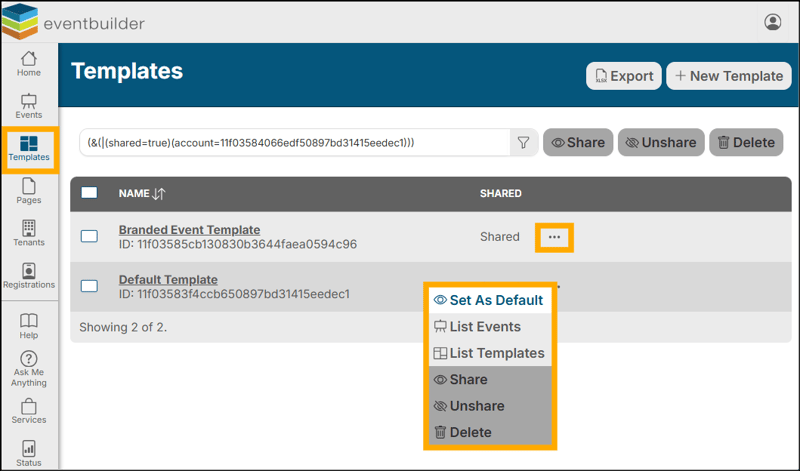
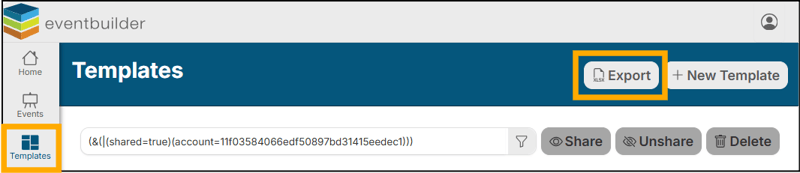
You may also Export an Excel (.xlsx) Workbook of your accounts’ Templates or Create a New Template from this area:
Pages
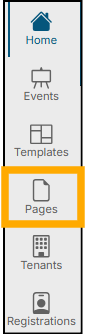
Use this area to create Pages, organizing your events in numerous ways, for example, by theme, series, or category. Pages allow your audience to register for multiple events from a single link. You can quickly sort Pages here by Name, Published status or Created date.
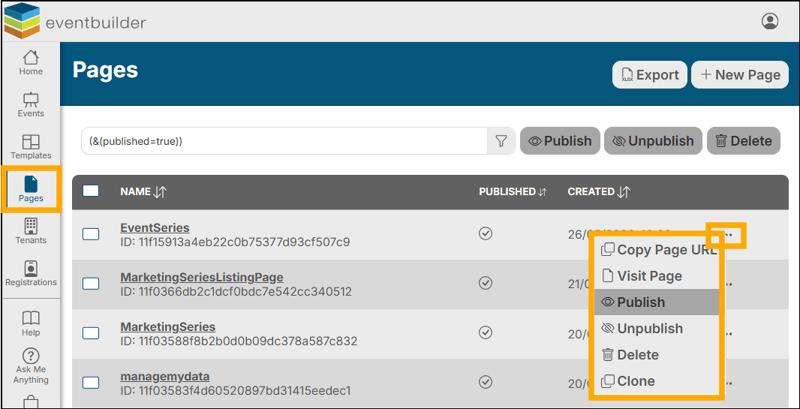
You may also utilize the ellipsis by each Page entry to quickly: Copy Page URL, Visit Page, Publish, Unpublish, Delete, or Clone a Page:
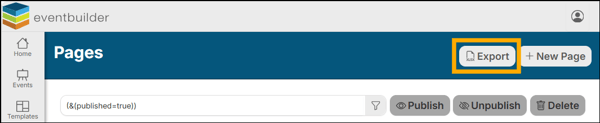
You may also Export an Excel (.xlsx) Workbook of your account’s Pages or Create a New Page from this area:
Tenants
Formerly referred to as your Portal, the Tenants area is where you configure branding and other customized Tenant-wide settings by clicking the name of the Tenant you wish to edit.
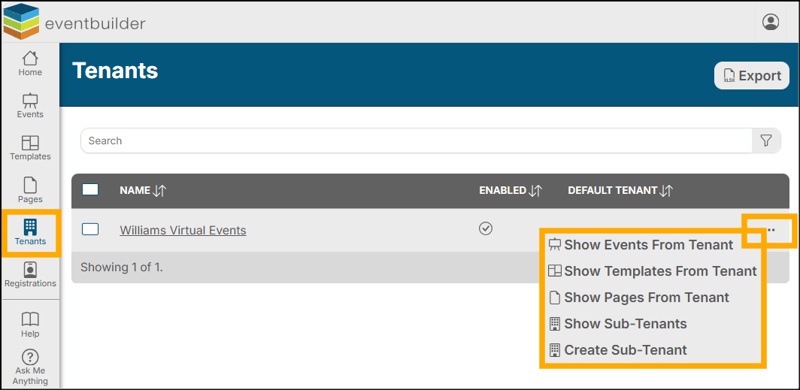
You may also utilize the ellipsis by any Tenant entry to quickly: Show Events, Templates, or Pages from your Tenant:
Advanced Search in all areas (example from Events Area)
To perform an advanced search on any area of your Tenant, facilitate Conditional Logic by clicking the Filter bar to open a larger menu:
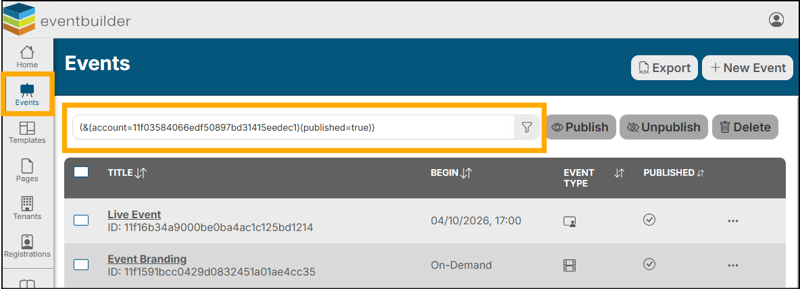
Each area will have different, appropriate, search fields for you to choose from. For instance, if you go to the Events Step search for:
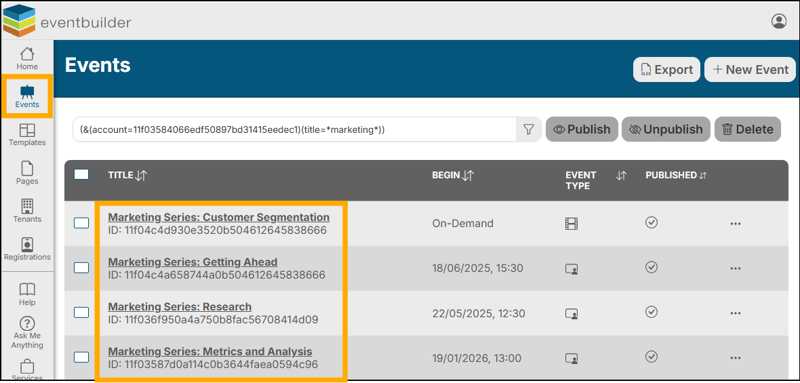
Title > Contains> Marketing, and press Save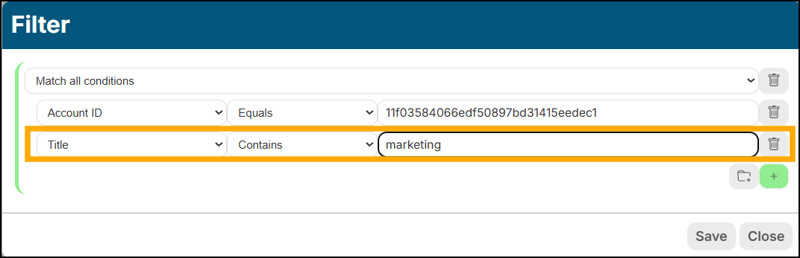
You will return a list of all your Events with Marketing included in the Title: