
Security settings provide greater control over registration and attendance for your events, including limiting the number of Registrants, creating registration and content expiration deadlines, facilitating Access Control Lists, or manually approving Registrations.
Note: Security options assigned at the Template level will be inherited by all Events created from that Template.
Example of Security Step at Event Level:
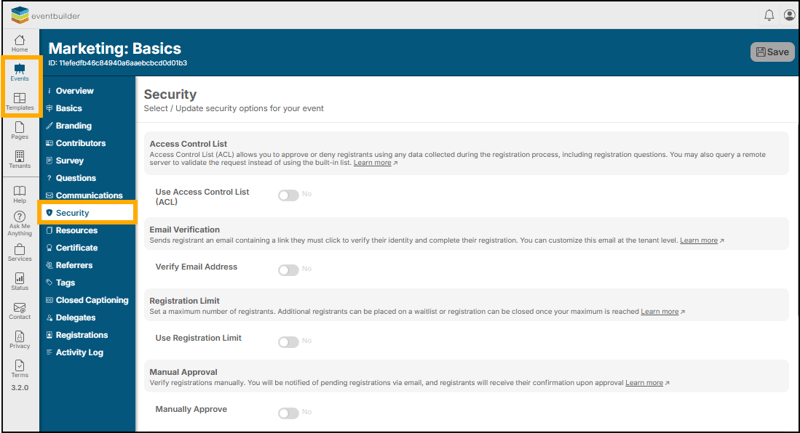
Access Control List (ACL)
ACL allows you to automate registration approval/denial directly from any data gathered during the Registration process.
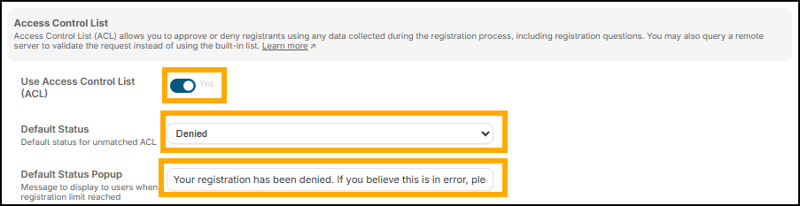
- Toggle Use Access Control List (ACL) on.
- Select the default status for registrations (select from Denied, Approved, Pending, or Invited).
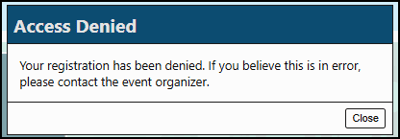
- Edit the Default Status Popup with text you would like to display when Registration is complete.
Example of Default Status Popup in Software:
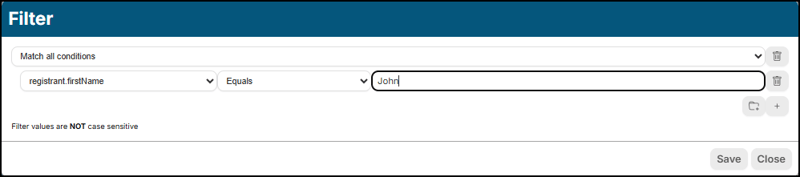
To adjust the ’automatically approve or deny’ Registration setting, enter your criteria in the filter field.
Name: The title of this filter is for your purposes only.

Filter: Set your criteria here using Conditional Logic.
Status: Select the status you would like this action to result in, i.e., ‘Approve’ or ‘Deny’:

Save: Upon saving, a pop-up window will display, containing all the information for the fields you have just set, plus ‘Status Popup’.
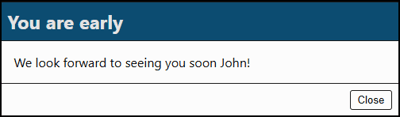
Status Popup: Add a customized message to fit your scenario here, to be displayed when Registration is complete:
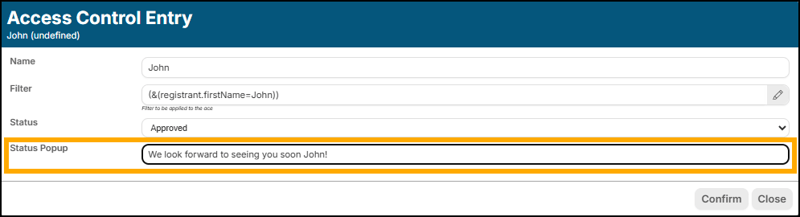
The above examples will create an event where all Registrations are Denied unless the Registrant‘s First Name > Equals > John:
Potential Uses
- Block selected email addresses and/or domains (@gmail / @hotmail) from registering
- Allow only the personnel of one company to register
- Allow or Deny, depending on responses to Registration Questions
Use a Remote ACL
Should you wish to upload a pre-selected criteria you may do so by toggling on the Remote ACL function (shown below), then type in the address of your Remote ACL server:

Email Verification
Require Registrants to verify their email to complete the Registration process.
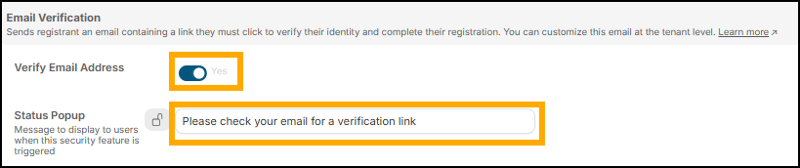
- Toggle on Verify Email Address
- Add customized text to the Status Popup field. This text will be triggered to display when registration is submitted:
Registration Limit
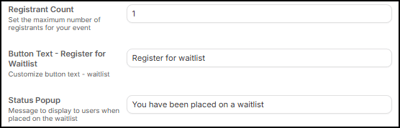
Set a maximum number of registrants for your event. Once that number is reached, you may choose to either close registration entirely or place additional registrants onto a wait list. The maximum number can be adjusted at any time.
Registrant Count and Text for both buttons are fully customizable:
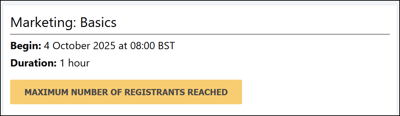
Example of Registration page with maximum number of Registrants reached and no waitlist:
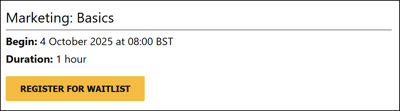
Example of Registration page with maximum number of Registrants reached and waitlist activated:
Manual Approval
Decide on a case-by-case basis which Registrants can attend the scheduled Event.
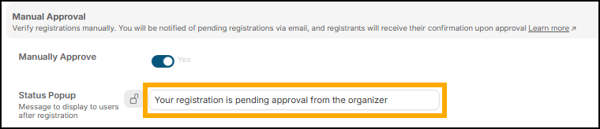
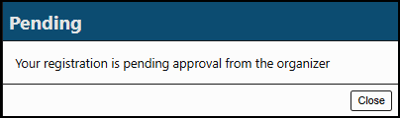
Registrants will be shown a pop up message upon registration completion informing them their registration is Pending (you may edit this text):
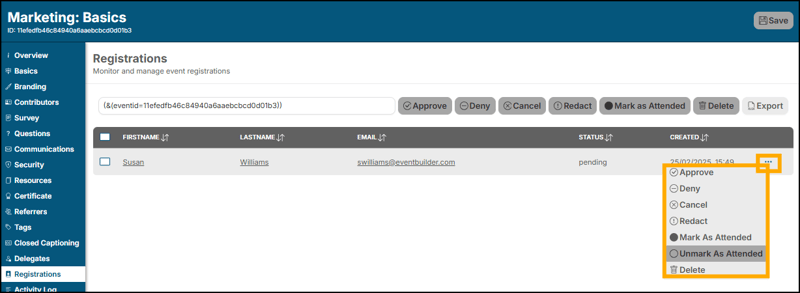
To edit Registrations, navigate to the Registrations Step of your Event, click the ellipsis (three dots) of each entry, and manually select from the drop down to Approve or Deny the Registration:
Multi-Factor Authentication (MFA)
Requires Registrants to enter a one-time access code, sent by email, to join your event.
Registration Deadline
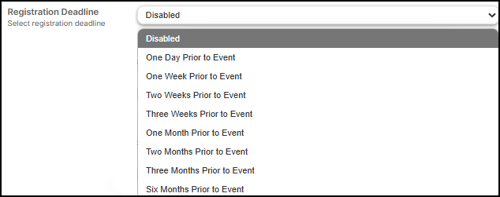
The Event's Registration button will change to 'Registration Closed' on the date selected. Time periods available: One Day, One Week, Two Weeks, Three Weeks, One Month, Two Months, Three Months, and Six Months prior to Event:
Registration Modification Deadline
Prevents Registrants from editing or canceling their registration after the date period specified, based on the Registrant's time zone.
Time periods as above for ‘Registration Deadline’.
Content Expiration
The Event page will be deactivated after the date period selected.
Time periods available: One Day, One Week, Two Weeks, Three Weeks, One Month, Two Months, Three Months and Six Months, 1 Year, and 2 Years after the Event.