


You've hosted your Microsoft Teams-based webinar or Town Hall. Registration went smoothly, attendees joined successfully, your speakers nailed their presentation, and your session wrapped without any technical emergencies. Now comes the question your stakeholders care the most about:
Was it worth it?
Proving virtual event ROI is still one of the biggest challenges for event managers, trainers, and marketers. It's not enough to say, "we had 600 registrants" because your sales, customer success, and leadership teams want to know something more specific: Did the event create meaningful engagement that supports business outcomes?
If you run Microsoft Teams Webinars and / or Town Halls and need reporting that supports decisions, this guide is for you!
Who this Guide is For:
- Event and webinar managers who run programs on Microsoft Teams
- Marketers and demand generation teams who need to connect webinars to pipeline
- Trainers, customer success teams, and partner program owners who rely on Teams for education and enablement
You Don't Have to Wonder What Actually Worked Anymore
Get "The Ultimate Toolkit for Large-Scale Virtual and Hybrid Events" for practical guidance that helps you move beyond attendance counts.
What Microsoft Teams Webinars and Town Halls Actually Report
Many organizers are understandably fuzzy on what data Microsoft Teams actually provides and how far it goes toward answering business questions. At a high level, Microsoft Teams webinar reporting is strong at "who joined and when." It is less focused on what content worked, who showed intent, or where to focus follow-up.
Teams Webinar Reporting: What You Get Out of the Box
Microsoft Teams Webinars include several built-in reports that help you confirm basic participation and capture some interaction data. Teams Premium adds some reporting enhancements and real-time insights, as well.
1. Registration Report
The registration report usually includes:
- Registrant name
- Email address
- Registration date and time
- Responses to custom registration questions (where supported and configured)
This report is useful for:
- Top-of-funnel metrics (registration vs attendance)
- Basic segmentation, e.g., by role, region, or product interest if you use custom fields)
2. Attendance Report
The webinar attendance report usually captures:
- Attendee name (or “Guest” / anonymous if not authenticated)
- Join time and leave time
- Total time in the webinar
- Re-join instances (which can appear as multiple line items per person)
What this does well:
Assists you in answering questions such as, "who actually showed up?" and "how long did they stay connected?"
Nuance alert!
Because teams logs each join/leave as a separate row, raw counts can be misleading. To get accurate unique attendance and engagement duration, you need to aggregate multiple joins per person.
3. Polls and Q&A (Engagement--Related Reports)
Depending on how your tenant is configured, you'll have access to engagement-related data through:
- Polls Report with responses to live polls
- Q&A Export listing questions, answers, timestamps, identities (when not anonymous), and reactions
These are powerful for understanding what people cared enough to react or ask about.
Things to keep in mind:
- Poll and Q&A data live in separate files
- There's no built-in view that tells you, "this person answered these polls, asked these questions, and downloaded these resources."
- Microsoft does not provide sentiment analysis; you or your tools need to interpret the themes.
4. Recording and Transcript
Post-event, you'll also have access to:
- Recording file
- Transcript (where turned on)
These are invaluable for:
- On-demand viewing
- Creating follow-up content, such as clips, highlight reels, and FAQs
- Presenter review and coaching
However, these aren't analytics. They don't tell you who watched which segment, or where engagement dropped of without additional tools.
How to Download Teams Webinar Reports (Organizer View)
- Open Microsoft Teams
- Navigate to Calendar
- Select the webinar you hosted
- Choose Attendance on the right panel
- Click Download to export the CSV file
- For registration details, open the Registration tab and export the report
- For polls, open Polls inside the meeting summary and export results.
These reports help confirm participation, but they leave out content interaction, sentiment signals, and detailed behavior that sales and marketing teams typically request.
Teams Town Hall Reporting At-a-Glance
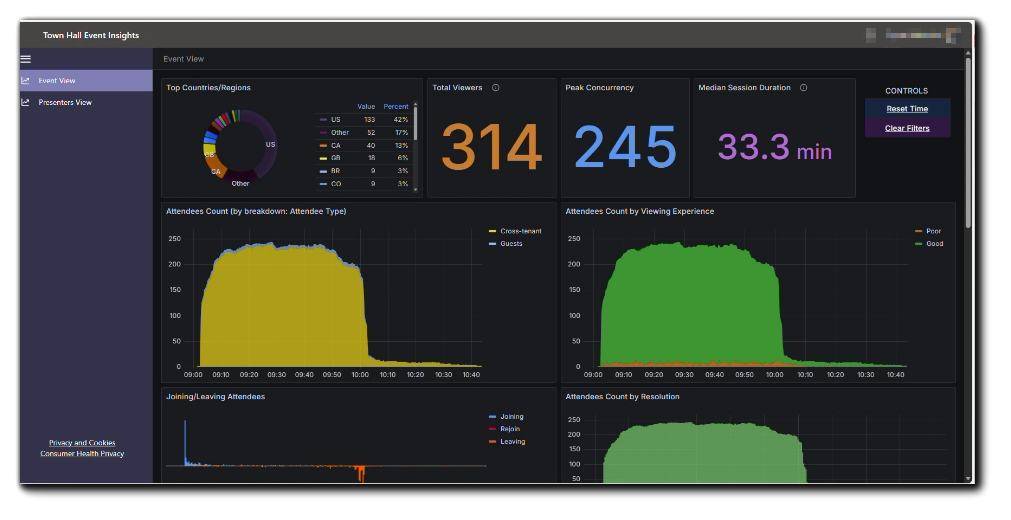
Teams Town Halls are built for large, one-to-many broadcast-style events. Think all-hands, big announcements, or executive briefings. Typical Town Hall reports include:
1. Attendee Report
You typically get:
- Attendee name or anonymous identifier
- Join and leave times
- Viewing duration
This helps answer questions such as:
- Overall audience size
- Peak concurrency
- Session drop-off trends
2. Q&A Report
The Town Hall Q&A report includes:
- Published questions
- Responses from presenters / moderators
- Timestamps
- Moderation details (for example, dismissed or private responses)
This is useful for understanding theme-level interest and concerns, but not for scoring individual attendees or accounts.
3. Organizer Summary & Recording
Organizers also see:
- A high-level summary that may include audience size and presenter activity
- The Town Hall recording, typically stored in SharePoint/OneDrive, for on-demand access
Event Summary view of a Teams Town Hall:
How to Download Town Hall Reports
- Go to Teams
- Open Town Halls from the left navigation menu
- Select the completed Town Hall event
- Scroll to the Event Resources section
- Look for Reports
- Download the available files, usually in .CSV format
- Open Q&A in the Town Hall summary page to export those entries separately.
Key Engagement Metrics
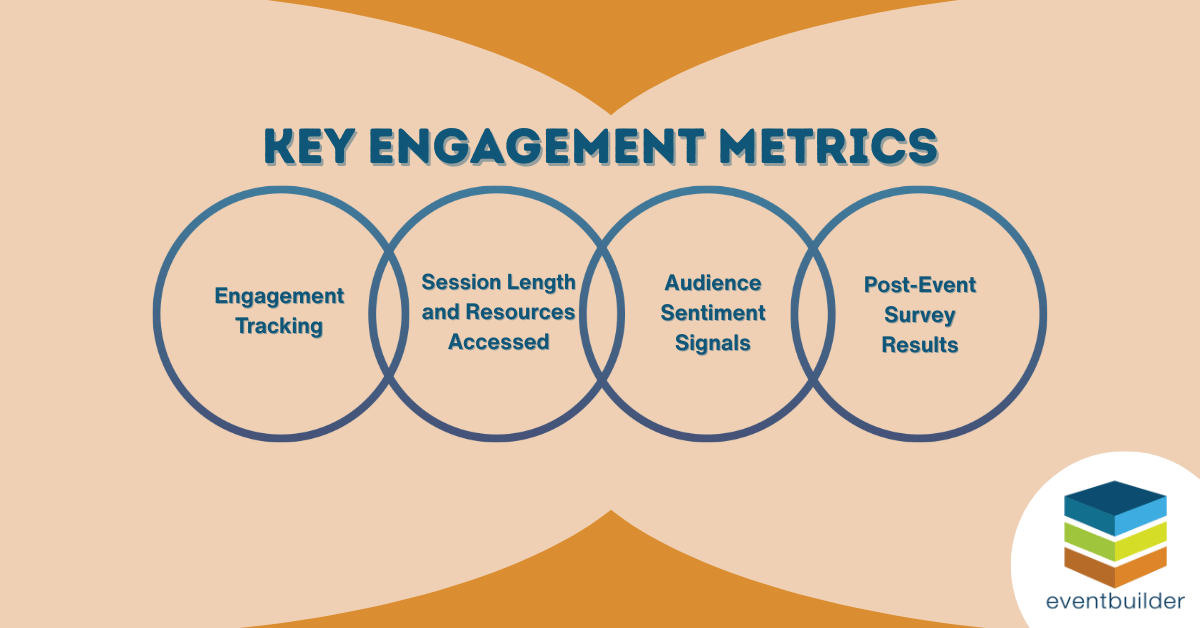
A stronger reporting model focuses on behaviors rather than attendance logs. Metrics that support decision-making include:
- Engagement Tracking - Indicators that include polls answered, chat participation, Q&A activity, resource downloads, and session duration.
- Session and Content Consumption - Details on how long attendees viewed specific sessions, both live and on-demand, along with which materials they accessed.
- Audience Sentiment Signals - Themes and patterns in Q&A, along with keywords that indicate questions, concerns, or interest areas.
- Lead Interest Indicators - Actions that suggest higher intent, such as multiple (unique) event recording views, survey responses, or downloaded resources.
Metrics like these help organizers make informed decisions without relying on assumptions.
How EventBuilder Expands Microsoft Teams Reporting
EventBuilder software and event management services is designed to extend Teams and support organizations that use it for webinars, onboarding, training, customer education, and partner communication. EventBuilder can provide customized reporting for:
- Registrant Activity
- Per-registrant demographics
- Attendance flag (attended / did not attend)
- Individual answers to surveys
- Attendance Activity
- Detailed connection data, including time and duration for each attendee
- Recording View Activity
- On-demand viewing behavior for recorded events, with similar detail to live attendance
- Messages Activity (for streaming events)
- Full log of questions and messages throughout the event
On top of that, EventBuilder provides post-event survey data, portal-level reporting, and Power BI connectors to unify data across events.
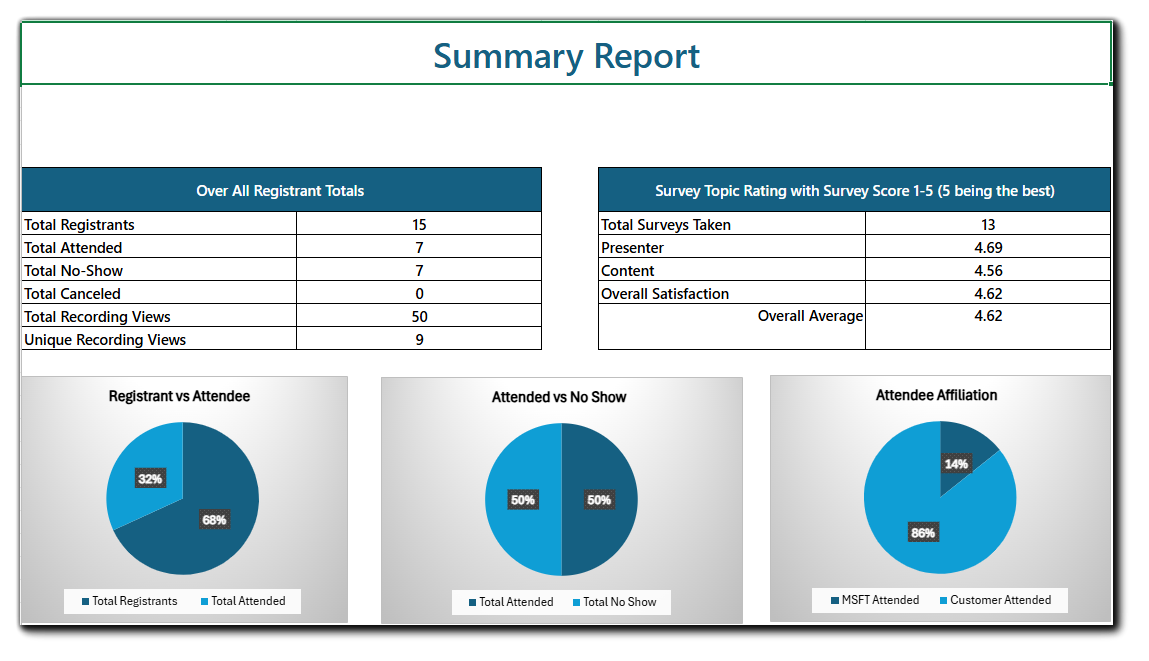 EventBuilder custom registration report example
Turning Insights Into Better Events and Stronger Follow-Up
When reporting is clear, teams can:
- Adjust content based on topics that held attention or prompted questions
- Improve pacing with real viewing patterns and drop-off patterns from live and on-demand attendance
- Shape follow-up based on and attendee's expressed interest
- Share event impact with leadership confidently
- Build repeatable Teams webinar and Town Hall programs events with data-informed decisions
Teams events become far more effective when organizers understand what participants value most.
Recommended Next Steps
If you want to deepen your reporting and understand real engagement, consider taking these steps:
- Audit your current reports
- Pull the last one or two Teams events.
- List the questions you can answer with your current reports
- Highlight where you need to guess, such as content performance or intent.
- Decide what "engaged" means for your organization
- Common signals include poll participation, Q&A activity, post-event survey responses, and resource downloads
- Define your engagement signals
- Use EventBuilder to close any gaps
- Add custom reporting, designed in collaboration with our event services experts, to help keep your existing meeting tools while dramatically upgrading your analytics.
Our event experts are ready to help Teams users make the most of their events! Get the insights that support better decisions, stronger follow-up, and clear results. Talk to EventBuilder about advanced Teams analytics today!

FAQ
What reporting does Microsoft Teams provide for webinars?
Teams offers registration reports, attendance reports, simple poll results, Q&A exports, and access to recording and transcript files. These confirm who joined, how long they stayed connected, and how they engaged with basic features. They do not show slide views, resource downloads, or deeper engagement patterns.
What reports are included with Teams Town Halls?
Town Halls include attendee reports, Q&A exports, an organizer summary, and the event recording. While these reports do help confirm participation at scale, they don't provide individual engagement insights or intent signals.
Can I measure on-demand viewing in Teams?
Teams confirms that someone viewed the recording, but it does not show detailed viewing behavior. If on-demand attendance is important for your program, consider a platform that tracks segment-level viewing and resource engagement.
How can I qualify leads from a Teams webinar?
Native reports offer limited information for qualification. You can see attendance and basic interaction, but you cannot track more granular insights. Through customized reporting, EventBuilder can provide a clearer picture of attendee-level interactions and overall interest.
Struggling to Prove the ROI of Your Large-Scale Microsoft Teams Events?
If you can't clearly prove ROI, secure future budget, or show stakeholders exactly how your event drove results, you're leaving value on the table.
Our comprehensive whitepaper, "Everything You Need to Know to Run Large Virtual Events Using Microsoft Teams," reveals the exact strategies and analytics pros use to run high-impact webinars, Town Halls, and hybrid events that deliver measurable results.
Inside, you'll learn:
- How to define and track success metrics that matter
- Advanced analytics techniques for post-event insight
- Proven methods to demonstrate ROI and win stakeholder support
- Speaker management tactics to keep audiences engaged from start to finish.
Don't let another event go unmeasured! Download the guide and start proving your event's value today.
Disclaimer: This article was created with some help from AI, but thoroughly edited, revised, reviewed, and fact-checked by a living, breathing, coffee-drinking human writer.
How to Run a Simulated Live Webinar in Microsoft Teams
How to Run a Hybrid Event on Microsoft Teams
No Comments Yet
Let us know what you think