


Hosting a multi-day or weeklong virtual event? We know how many moving parts you're managing - content, logistics, engagement, etc. There's a critical piece you may be overlooking: accessibility.
Making your event accessible doesn't mean piling on even more complexity; it means being intentional about how people experience your platform, content, presenters, and follow-up.
This guide breaks down virtual event accessibility into practical, doable steps that help attendees with hearing, sight, cognitive, speech, and motor disabilities participate fully. Let's give all your attendees the experience they deserve and keep your planning process from overwhelming you.
Why Accessibility Matters for Multi-Day Virtual Events

Multi-day and weeklong virtual events have more sessions, more speakers, and more tools, which translates into more chances for someone to get unintentionally locked out of the experience.
When accessibility is baked into planning from day one, a few important things happen:
- More people can actually participate, regardless of disability or temporary limitation
- Engagement improves across both live and on-demand sessions
- Your content works better across devices, internet speeds, and assistive technologies
Accessibility isn't just about meeting legal requirements; it's a signal that people matter more than perfect production. And yes: Attendees Notice.
Key Accessibility Laws and Standards
Before we dive into the details of how to create accessible virtual events, it's important to understand the legal and regulatory foundations that guide your steps for inclusive event design. These aren't simply rules; they're the building blocks for you to work from to create an event experience that allows everyone to participate easily.
The Americans With Disabilities Act (ADA)
Passed by the U.S. Congress in 1990, the ADA prohibits discrimination against individuals with disabilities in all aspects of public life, including virtual events. If your event is open to customers, partners, or the public, your digital experience counts. That means that barriers still count as barriers, even if they're unintentional.
Section 508 of the Rehabilitation Act
Section 508 requires federal agencies to make electronic and information technology accessible. While it applies to government entities, it sets an important benchmark for digital accessibility expectations across higher education, enterprise, and nonprofit organizations.
The Web Content Accessibility Guidelines (WCAG)
WCAG, published by the World Wide Web Consortium, provides the most widely used digital accessibility standards. WCAG 2.1 is built around four core principles: content should be perceivable, operable, understandable, and robust across devices and assistive technologies.
Designing your registration flow, event site, and session content to meet WCAG 2.1 AA is a smart baseline, and one many organizations already expect.
Disability Facts That Shape Virtual Event Planning
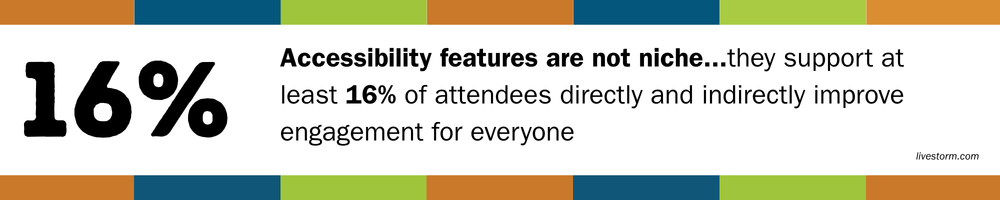
Accessibility affects a meaningful portion of your audience, so it isn't just a niche concern.
- About 1.3 billion people worldwide experience significant disability. That's roughly one in six!
- More than one in four adults in the United States reports having a disability.
- The global disability market represents trillions in disposable income, including an estimated $2.6 trillion across the US, UK, EU, and Canada.
Translation: Accessible events aren't just the right thing to do, they're good business and good community building.
Choosing an Accessible Virtual Event Platform
Your platform sets the ceiling for what's possible, so if accessibility isn't there, no amount of good intentions will compensate for gaps.
Look For Built-In Accessibility Features
When evaluating platforms like Microsoft Teams, Zoom, Google Meet, or GoToMeeting, look for:
- Screen reader compatibility and clearly labeled controls
- Automatic or live captioning options
- Full keyboard navigation and shortcuts
- Support for interpreter views
- Clear audio and volume controls
If you expect attendees who are Deaf or hard of hearing, prioritize accurate captioning and interpreter support. If keyboard-only navigation and screen readers are common, test chat, Q&A, polls, and breakout flows ahead of time.
Features evolve and are updated regularly, so accessibility questions should be part of every renewal conversation.
Fine-Tuning Accessibility for Virtual Events
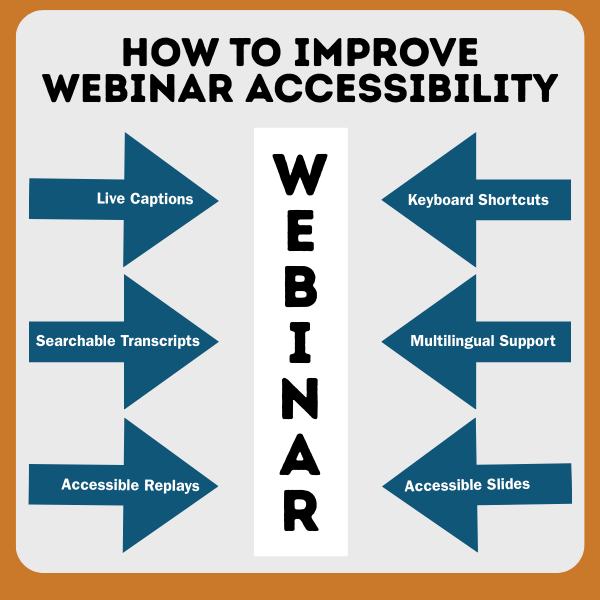
A truly inclusive virtual event requires savvy organizers to think beyond features and prioritize real-world usability. Here's how to ensure your event works for everyone:
Test Accessibility Features
Run rehearsals that include screen readers, keyboard-only navigation, and captioning accuracy ahead of time to avoid disruption and provide a smooth experience for your attendees. If possible, include a person who uses assistive technology to test registration, session entry, chat, and breakout navigation. Pro tip: Fix issues early so your live sessions stay focused on content instead of troubleshooting.
Communicate Accessibility Options Clearly
Tell attendees what accommodations are available on your registration page, event site, and emails. Include a simple question that allows people to request additional support, and make it clear who to contact. Transparency is key to building audience trust.
Provide Captions and Transcripts
Caption every live session. Automatic captions are improving, but human-assisted captioning, or CART , often provide better accuracy for technical or multi-speaker events.
Offer Sign Language Interpretation
Provide a seamless experience for attendees who use American Sign Language (ASL) by providing a visible interpreter with a clear, distraction-free background. Some platforms, like Microsoft Teams, even offer Sign Language Mode to keep interpreters visible throughout the session.
Ensure Clear Audio and Video
Ask presenters to use high-quality microphones and quiet spaces. Check lights and camera placement so faces are easy to see for lip-reading and visual cues. Even small adjustments can make a big difference attendee experience and positive word-of-mouth.
Make Visuals Accessible
Presentations should be easy on the eyes, literally.
- Use high-contrast colors and large fonts
- Avoid text styles and color combinations that make readability challenging
- Add meaningful alternative text (Alt Text) to images and slides
- Make sure your visual content is screen reader-accessible
Provide Accessible Materials
Share materials in accessible formats like structured Word docs, HTML pages, properly tagged PDFs. Avoid image-only PDFs and use real headings, lists, and tables so screen readers can navigate content.
Support Presenter Accessibility
Ask presenters early if they need accommodations, and provide guidance on speaking pace, slide design, and handling questions so sessions stay inclusive.
Provide a Telephone-Based Option
Dial-in numbers help attendees with limited internet, limited devices, or assistive tools that work best by phone.
Designate an Accessibility Point Person
Have someone on the team who understands accessibility features to manage accessibility issues or questions with live chat, a dedicated help desk, or on-call tech support.
Use Calm Virtual Backgrounds
Simple, static backgrounds with good contrast work best. Skip flashing or animated options, as these can cause sensory overload or distractions.
Plan For Breaks
Breaks aren't just nice, they're necessary! To prevent cognitive fatigue, give your attendees a chance to recharge, process information, and come back refreshed and ready to re-engage.
Remember Your Breakout Rooms/Sessions
Be sure to design for and apply your accessibility accommodations across your breakout rooms and any other virtual venues that are part of your event.
Keep Post-Event Access in Mind
Record your event, and include captions and transcripts in the follow-ups. Communicate that your attention to accessibility doesn't end when the live stream does.
Accommodations for Attendees With Cognitive Disabilities
Many accessibility best practices have the added benefit of making events easier for everyone to follow.
- Use clear, direct language
- Define jargon the first time it appears (if you need to use it)
- Break complex topics and ideas into smaller segments
- Recap key points at the beginning and the end
Support With Visuals
Keep slides uncluttered. One idea per slide beats a wall of text every time.
Share Materials in Advance
Provide agendas, speaker lists, and session summaries before the event so attendees know what to expect
Pace Sessions Thoughtfully
Shorter sessions wit breaks with with processing and focus. Give moderators simple scripts for pausing, recapping, and inviting questions.
Keep Design Consistent
Use consistent layouts, fonts, and structures across sessions and tracks. Predictability helps reduce cognitive load.
Accommodations for Attendees With Sight Disabilities
Small details make a big difference here.
- Confirm screen reader compatibility across registration and event pages
- Ensure buttons and fields are clearly labeled
- Write meaningful alt text that explains purpose, not appearance
- Use high-contrast colors and readable fonts
Ensure Keyboard-Friendly Navigation
Test tab order and visible focus states so keyboard users always know where they are.
Communicate Magnification Options
Let attendees know about built-in zoom features and browser shortcuts. When possible, offer dyslexia-friendly font options for documents and web pages.
Accommodations for Attendees With Hearing Disabilities

Hearing access should extend beyond keynotes.
- Caption every live session
- Clearly explain how to access captions
- Provide interpreters when requested
- Share slides and terminology with interpreters ahead of time.
After the event, offer captioned recordings and searchable transcripts so people can revisit content easily.
Pair spoken content with visuals, timers, and chat confirmations to reinforce key messages.
Accessibility Resources, Tools, and Services
Helpful tools include:
Captioning and Transcription Services
Offer high-quality real-time, human-assisted captioning and transcription to support attendees with hearing disabilities:
- National Captioning Institute: Professional captioning and transcription services.
- CaptionAccess: Custom solutions for live and pre-recorded events.
- StreamText: Real-time text delivery for webinars and conferences.
- Rev.com: Fast and accurate captions and transcriptions.
Accessibility Checkers
Verify the accessibility of your event materials, such as your with these tools:
- Built-in accessibility checkers in Microsoft Office.
- Built-in accessibility checkers in Google Workspace.
- WebAIM Contrast Checker: A tool for measuring color contrast against accessibility standards.
Screen Readers
Screen readers allow people with sight disabilities, such as blindness or low-vision, to navigate digital content. These are two of the most well-known and reliable screen readers your attendees may use:
When possible, involve people who actually use these tools during testing. Real feedback will always beat assumptions.
Measuring and Improving Accessibility After Your Event
Accessibility improves when you treat is as ongoing work.
After your event:
- Ask at least one accessibility-focused question in your survey
- Invite open-ended feedback
- Review support tickets and chat logs
- Document what worked and what didn't
Use that to learn to update templates, presenter guides, and platform settings before the next event.
How EventBuilder Supports Accessible Virtual Events
At EventBuilder, accessibility isn't an add-on: it's part of how virtual experiences are designed.
Our proprietary software aligns with WCAG 2.1 AA guidelines, and is reviewed regularly as standards and assistive technologies evolve. We also help organizers:
- Add automated and human-assisted captioning in multiple languages
- Coordinate ASL interpreters for single sessions or full multi-day events
- Plan formats, materials, and communications that support different types of disabilities.
FAQ
Do virtual events need to be ADA compliant?
If your event is public-facing (customers, partners, prospective buyers, community members), ADA expectations generally apply to removing barriers that prevent people with disabilities from participating, including digital barriers. Many organizations treat accessibility as a baseline requirement regardless of legal scope.
What accessibility features should a virtual event platform have?
At minimum, look for:
- Screen reader support with clearly labeled controls
- Full keyboard navigation and shortcuts
- Reliable live captioning options
- Interpreter support (pin/spotlight interpreter video)
- Easy-to-find audio controls
- Dial-in access for phone participation
What's the difference between automatic captions and CART?
Automatic captions are generated by speech recognition. It can be less accurate with jargon, accents, crosstalk, or poor audio. CART is real-time human captioning and is usually more accurate, especially for complex sessions, regulated topics, or high-stakes events.
Do accessibility requirements apply to on-demand recordings too?
Yes! Accessibility shouldn't stop when the live session ends. Provide captioned recordings and, ideally, transcripts so attendees can view content in the format that works best for them.
People-First with EventBuilder
Creating an accessible weeklong virtual event requires careful planning and attention to detail. Our compassion-led and people-first values provide you with an events partner who will plan and deliver accessible virtual events that offer all of your attendees a welcoming environment and the experience they deserve.
Reach out to get started with us today!

Disclaimer: This article was created with some help from AI, but thoroughly edited, revised, reviewed, and fact-checked by a living, breathing, coffee-drinking human writer.

Are Your Virtual Events Truly Accessible?
Living Without Barriers: Accessibility and EventBuilder
No Comments Yet
Let us know what you think