
Example of the Questions Step at Event Level:
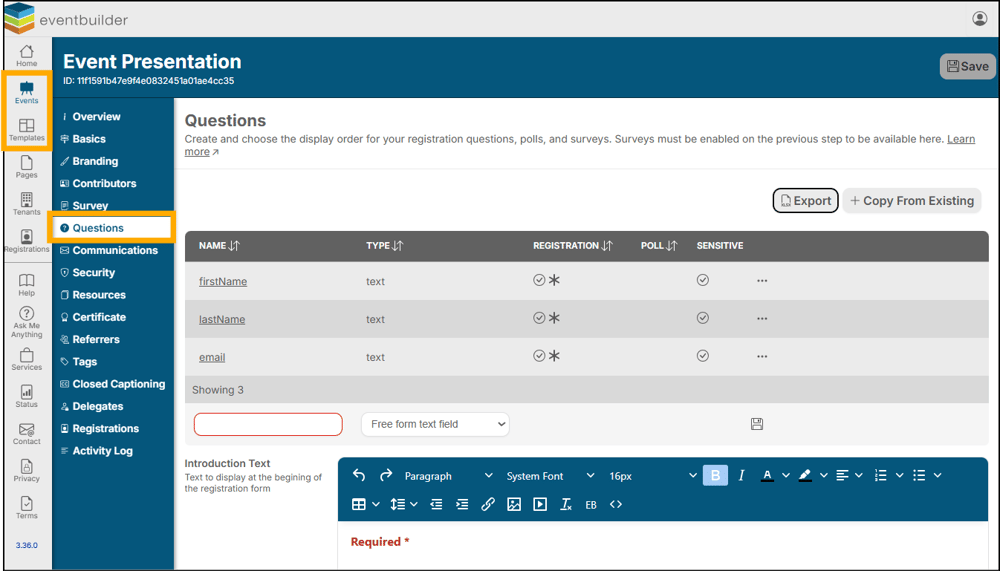
Note: If you wish your questions to be added to Surveys, you must ensure the Survey is enabled on the Survey Step
Creating Questions
There are three pre-loaded questions that are required by all EventBuilder Registration pages: First Name, Last Name, and Email.
Below this you may add as many questions as you require. To add a question:
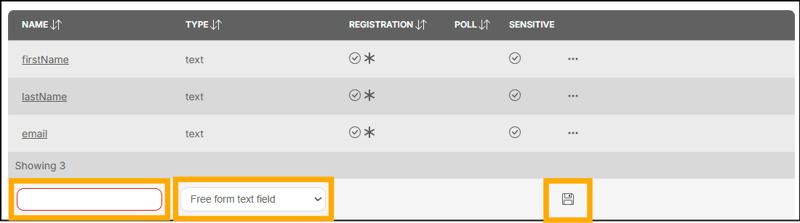
- Enter the name of your question
- Select the type of question you would like to use (skip to Question Types)
- Click the disk icon to save your question
When you save your question, a pop-up box will appear, here you can edit Type, Name (to display on your report) and Display Text:
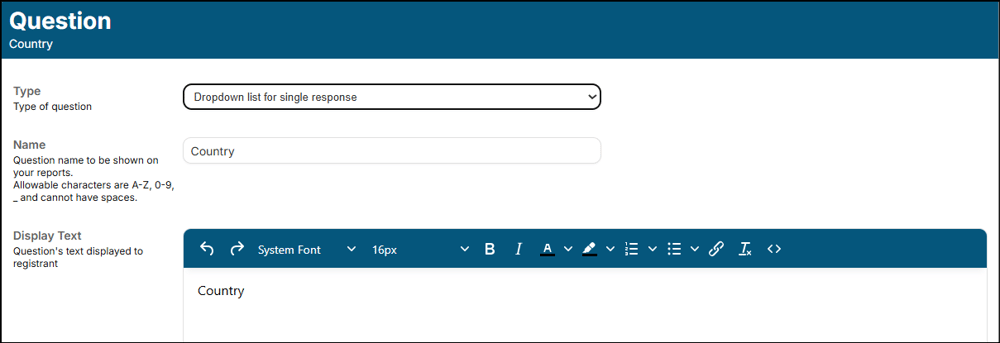
(top of pop up box shown above)
You may also select where you would like your question to appear. Question location options are; Registration page, and as a Survey question.
Note: Please check ALL that apply. 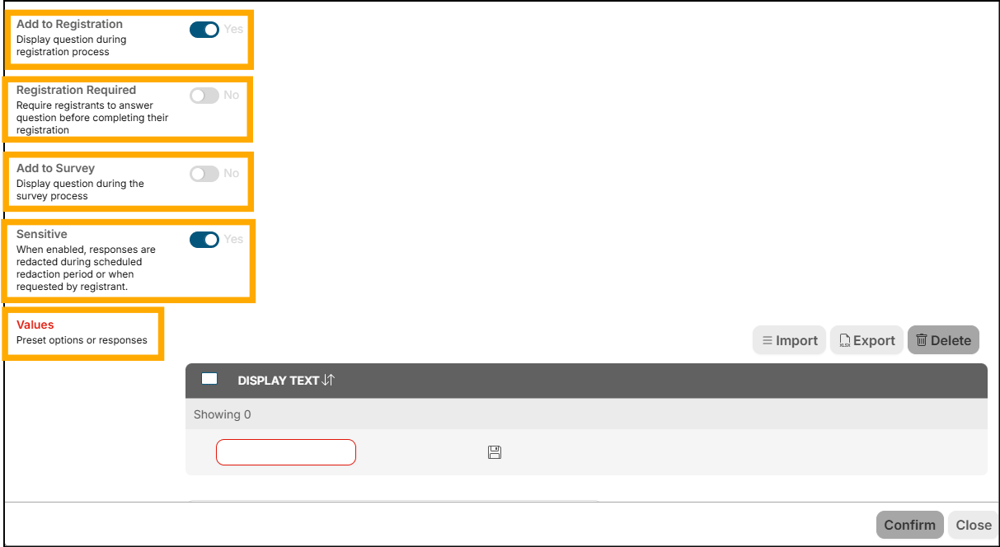
(bottom of pop up box shown above)
Add to Registration: Display your questions as part of your registration process.
Registration Required: Require certain questions to be answered before registration can be completed.
Add to Survey: Surveys are distributed in post-event Communications, as well as via link, and during On-Demand Events within the Attendee Viewer.
Note: You must enable Surveys on the Survey Step to see this option.
Sensitive: Questions marked as Sensitive will be redacted at the time of scheduled redaction period or if requested by a Registrant.
Values:

You have two options to choose from in this area:
- Manually add your own selection of allowed responses by entering the text of each value into the red box and clicking the save icon.
- Click the ‘Import’ button and either upload your own Excel list of options or select one of EventBuilder’s pre-loaded lists (current lists available are States (US) and Countries). These lists can be edited if there are options you would like to exclude, or you may add additional fields once the list has been uploaded.
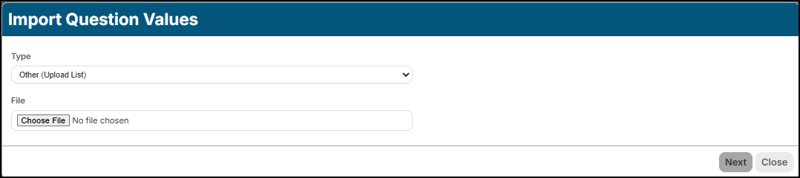
Click ‘Confirm’ once your selections have been made.

Conditional Logic
- Depending on your subscription you may see an option of EventBuilder’s conditional logic to create dynamic, responsive Registration pages. Offer customized follow-up questions based on a Registrants’ selections during the Registration process.
- Use case example: Display different required terms and conditions for Registrants from different countries.
- Jump to this article to learn more: Conditional Logic
Introduction and Conclusion Text
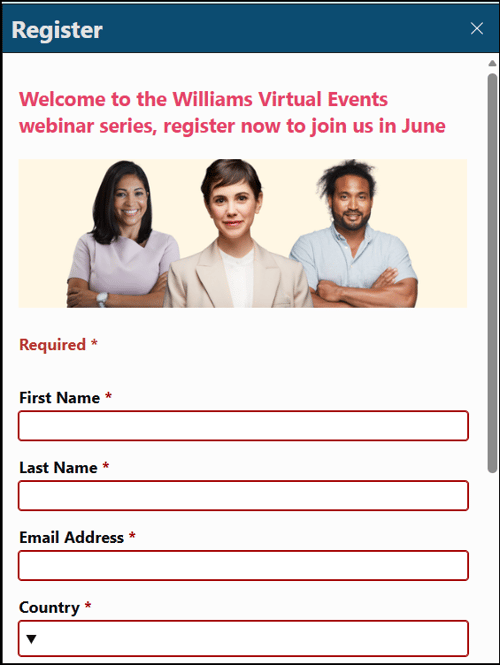
- Use the HTML editor provided. The text you provide in the editors shown below appears at the beginning and end of the Registration form.
- Add images (recommended max width 450px), links, tables etc
- Once your questions and text are complete, remember to click the Save icon (on the right of the upper ribbon) to associate these changes with your Event/Template build:

Example image of registration area:
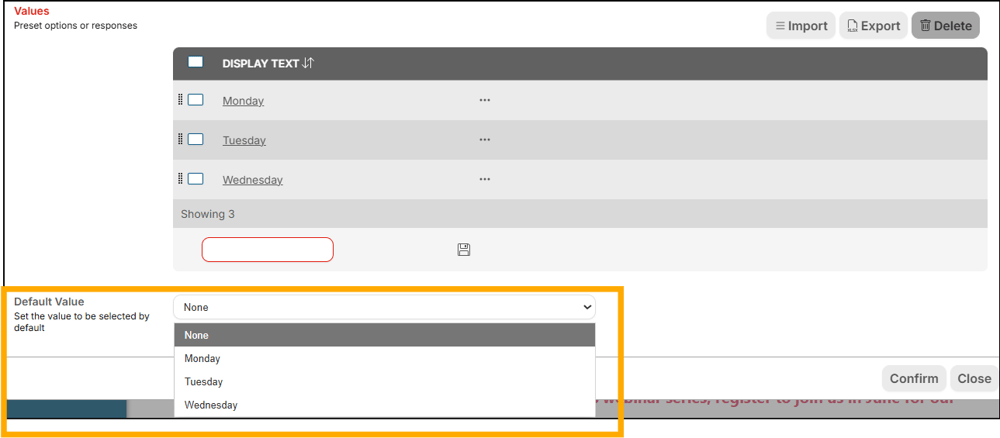
Default Value
Set a default Value for your questions based on the options you have created. This field is set at 'none' by default. Select your desired value from the drop down menu.
Copy Existing Questions
Do this by selecting the '+Copy From Existing' button:
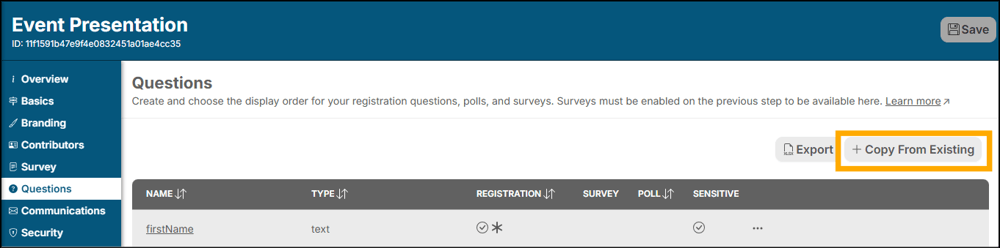
Select from a dropdown list of your Events or Templates - or search for a specific event/template in the filter.
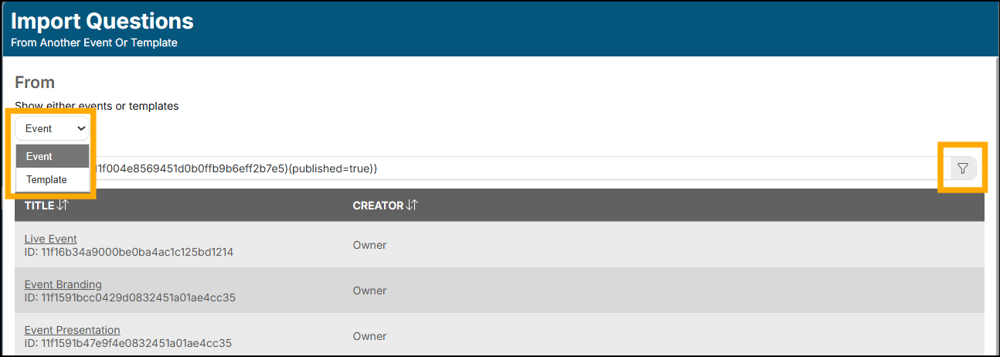
Select your chosen Event/Template. A list of questions from your selected source will be displayed.
Check the boxes next to the questions your would like to add:
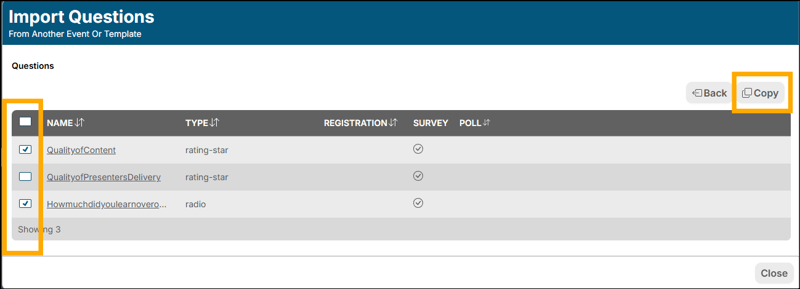
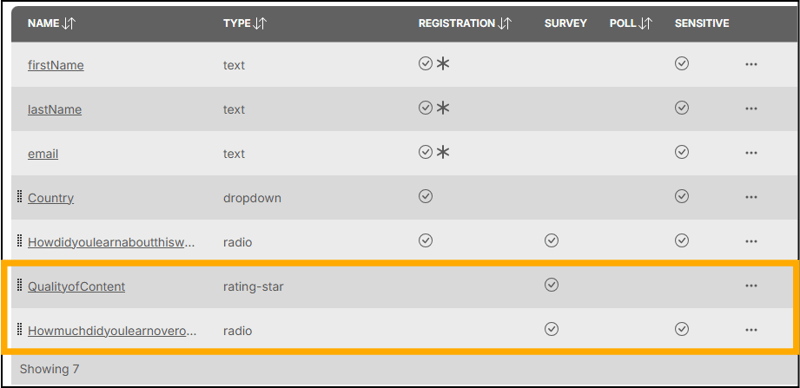
These are now added to your Questions list:
Sorting Question Order / Delete Questions
If you wish to change the order in which your Questions appear on a Registration page or Delete a question entirely simply click the ellipsis (three dots) to the right of each entry:
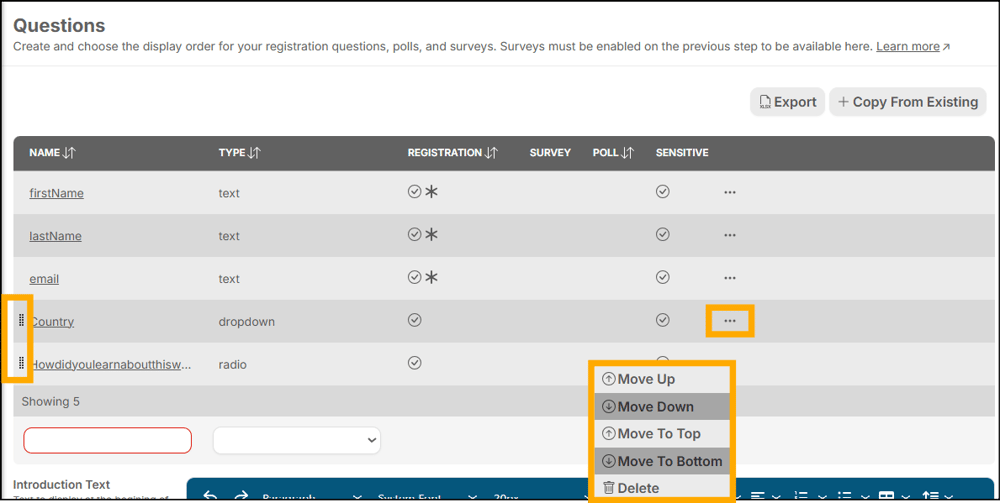
You may move questions Up, Down, To Top, To Bottom, or Delete from this menu. You can also reorder questions by clicking the dots to the left of any column to 'drop and drag' entries by hand.
Reporting Question Data
You can export a report detailing all of the questions you have added to your event/template, where they have been selected to appear, if they are required and if they are 'sensitive' by selecting the export button:
Example of report:
The data collected by your questions, wherever they appear, can be easily exported (Excel (.xlsx) Workbook) from the Registration Step on each of your Events.
Example of export button on Registrant Step:
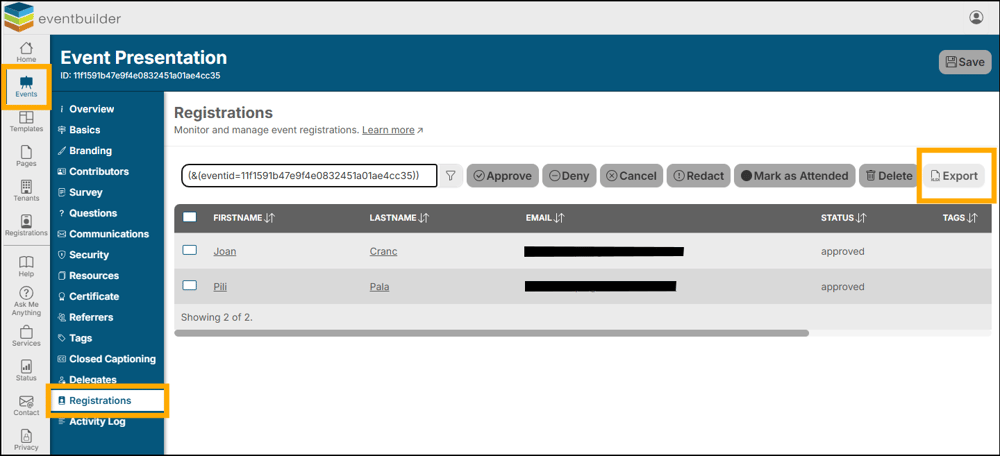
This report will display each of your questions and all Registrants responses individually.

Questions added to Surveys will be suffixed in the report by the word 'Survey', so if you have asked the same question in different areas, you will see all results separately.

Question Types
Below are explanations and images of all the Question Type options
Free form text field: Allow your Registrants to give feedback in their own words.

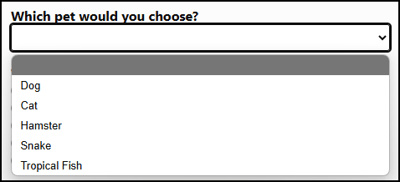
Dropdown list for single response: One selection only.
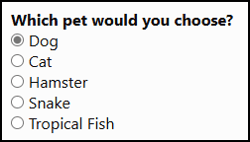
Radio button for single response: One selection only.
Check box for multiple responses: Multiple responses allowed.
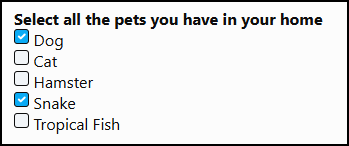
Statement without check box: Use this question type to add a disclaimer, note, or warning with no response required.

Statement with check box (opt-in/opt-out): Make a statement to be opted in or out. Make this field a Required choice to ensure Terms and Conditions are accepted.

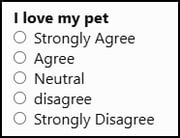
Rating – Agreeability scale: Pre-set choices accompany your question. One response only.
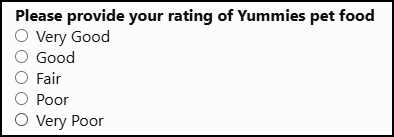
Rating – Quality scale: Pre-set choices accompany your question. One response only.
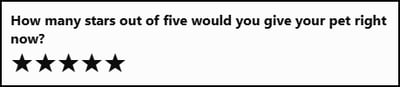
Rating – Star scale: One rating for an ‘out of five’ score.
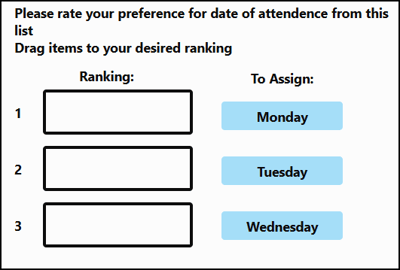
Ranking: Allow Registrants to drag and drop options into a preferential order: