


Live streaming a virtual event isn't complicated, but it is unforgiving. Small issues like unstable internet, poor audio, or last-minute setup changes can impact the experience for your audience quickly.
This guide walks you through how to live stream a virtual event with the right setup, equipment, and workflow so you can avoid common issues and deliver a smooth event. Smooth delivery = event success!
Read our guide for the broader virtual event production framework.
What is Live Streaming for a Virtual Event?
Live streaming a virtual event means sending real-time video audio from a camera and microphone through an encoder to an event platform using RTMP (Real-Time Messaging Protocol) or SRT (Secure Reliable Transport protocol). The encoder packages the video and audio into a format the platform can receive and deliver to attendees watching online.
The Signal Path Setup
Most professional live streams follows the same basic flow:
- Camera captures video
- Microphone captures audio
- Encoder converts the signal into a stream
- A streaming protocol (RTMP or SRT) sends the stream to the event platform
- The platform distributes the stream to your audience
Example signal path:
Camera and microphone → Encoder → RTMP or SRT protocol → Event platform ingest server → Audience
Your camera and microphone record, then send the raw video, audio, and data to your encoder. Your encoder (which is either a hardware device or a software program) compresses the raw video and audio from the camera and microphone into a digital format that's suitable for streaming over the internet. This happens in real-time during a virtual event.
Next, the encoder sends the compressed stream to your event platform's ingest server, typically via RTMP or SRT (both lower-latency, high-performance transmission protocols), from the encoder to a streaming server, in this case your RTMP-ingest or SRT-compatible event platform. This process ensures a consistent connection for stable streaming to your audience.
Next, you need to collect your server details: server URL, stream key, and any authentication requirements. Then run a private test stream well before the day of your event.
Remember: Testing during a rehearsal: smart. Testing live in front of your audience: not smart.
Hardware: What Makes the Biggest Difference
Let's break down the key hardware items you need to make your live stream stick the landing and make you look good.
Basic Equipment List:
- Camera
- External Microphone
- Tripod
- Lighting
- Capture card (for professional cameras)
- Encoder software or hardware
- Wired ethernet connection
Video Advice
Use a camera that outputs clean HDMI so your audience doesn't see battery icons or on-screen menus, which can be a big turn-off. Bring that HDMI signal to your production computer through a capture device so it's recognized as a proper video input.
Lock your exposure and white balance ahead of your event. Auto settings tend to shift mid-session as lighting changes, and that subtle flicker is distracting, especially when it comes to executive-facing events.
Audio (The Real Make-or-Break Factor)
If you have a limited budget for improving your equipment, the best investment is in audio. Viewers are far more tolerant of average video, but unclear sound is an event fail waiting to happen.
An XLR microphone that connects to an audio interface or mixer gives you control over gain and noise. Monitor your levels so peaks stay safely below clipping, and echo by muting room speakers near the mic. Even small background noises become noticeable in a quiet webinar environment. When your audio is clean and consistent, your production immediately feels more credible.
Lighting
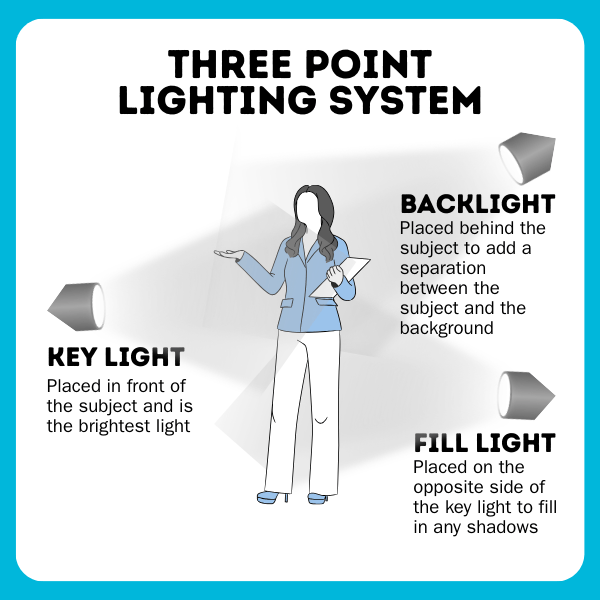
You don't need a full studio build-out, but you do need consistency. A good ring light facing you is a great way to start. If you want to level up, a simple three-point setup goes a long way:
- A key light positioned slightly off to one side
- A softer fill light on the opposite side
- A back light to separate the speaker from the background
Place speaker notes as close to the camera as possible to help your speaker maintain eye contact. Engagement is helped immediately when an attendee can feel like they are being spoken to directly. Pro tip: Coach your presenter that glancing away occasionally is fine: natural, brief glances away are normal and keep your presenter from coming across as too intense or creepy.
Internet and Bandwidth Planning
Unstable internet is the most common cause of live stream failures, not cameras or encoders as you might assume.
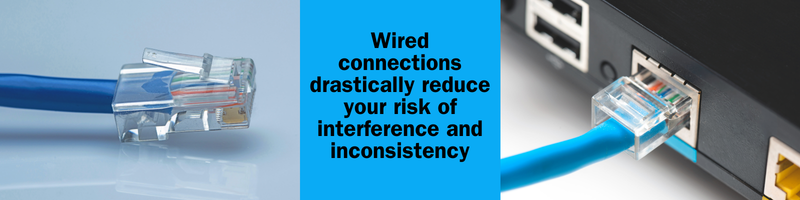
With that in mind, best practice is to connect your production system to the router using Ethernet, as wired connections drastically reduce your risk of interference and inconsistency that Wi-Fi can introduce.
Don't rely on advertised internet speeds, either. Measure your actual upload speed in the exact room where you'll stream, and test different times of day. Confirm that no one else will be saturating the network during your event.
Your available upload bandwidth should comfortably exceed your encoder's target bitrate (roughly 2x your encoder's target bitrate), on a wired connection, with other network traffic minimized.
Need your event to run without technical issues?
If your even is high-visibility or high-stakes (or both!), small technical problems can make or break the experience for your attendees.
We support virtual events with structured production, live monitoring, and technical coordination so everything runs smoothly and you can relax.
Explore our virtual event production services
Encoder Setup: Software vs. Hardware
Your encoder packages your video and audio into the format your platform can ingest via RTMP or SRT.
Software encoders like OBS or vMix run on a computer and are well suited for events that require scene switching, overlays multiple inputs, and flexibility. The tradeoff is that encoding is resource--intensive. The machine running your encoder should be dedicated to that task during the event, with background updates and unnecessary applications disabled.
Hardware encoders are dedicated devices built specifically for streaming. They offer fewer production features, but greater stability. As such, hardware encoders often reduce risk for high-stakes executive broadcasts or large-scale events where reliability matters more than complex graphics.
Regardless if you choose a software or hardware encoder, confirm that your resolution, frame rate, bitrate, keyframe interval, and audio sample rate align with your platform's guidance before going live.
Using Microsoft Teams for Enterprise Events
When identity control, access management, and compliance matter, Microsoft Teams is often a strong fit.
Teams works particularly well for internal broadcasts, executive town halls, and structured webinars where attendees should watch without joining on mic or camera. If your event format supports RTMP ingest, you can send a fully produced feed from your encoder into Teams while maintaining enterprise governance and moderation tools. RTMP ingest is available natively for Teams Town Halls, but requires a Teams Premium license for webinar and meeting formats.
Before show day, confirm your exact Teams event format, verify that RTMP ingest is enabled for your tenant, and understand how recording and attendee access will be handled. In enterprise environments, these decisions are requirements, not simply optional details.
Live Execution Workflow
A structured run-of-show protects you from last-minute surprises. Here's a timeline to guide you:
- About an hour before going live - Confirm framing, focus, exposure, and audio routing, verify your wired internet connection, and pause any large downloads or automated backups.
- Thirty minutes out - Start a private test stream and watch it from a separate device, ideally on a different network. Remember to check lip sync and accuracy!
- Ten minutes before start time - Switch to a holding slide and confirm that attendees can see and hear the feed. Verify recording status and any moderation roles.
- When it's time to go live - Transition cleanly from the holding slide to your camera and content, and start a local recording as backup.
- During the live event - Assign one team member to monitor the event as an attendee so you're always aware of what the audience is actually experiencing.
Redundancy and Risk Controls
Professional production isn't about crossing your fingers and hoping nothing fails, it's about assuming something might and planning accordingly.
For higher-stakes events, consider a second encoder configured with identical RTMP details. Use battery backup for production systems and networking gear so brief power disruptions don't end the broadcast. If possible, have a tested secondary internet option available.
A "ghost participant" monitoring from an external network can quickly alert you to issues before they escalate.
Backups turn potential outages into manageable adjustments.
After the Event: Plan for On-Demand
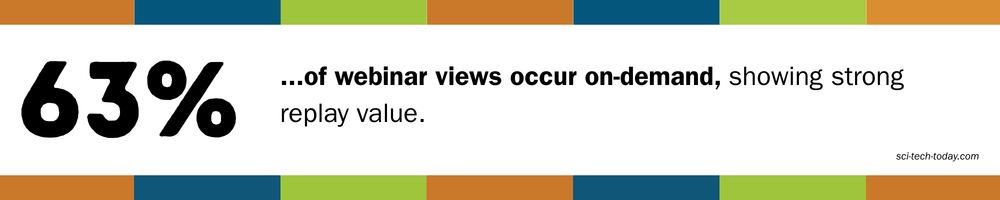
The recording should be part of your production plan from the beginning.
Trim dead air at the start and the end, patch any issues using local recordings if available, and verify captions or transcripts before publishing. One session can become multiple assets: short clips that answer specific questions, a timestamped recap, or a structured FAQ based on audience engagement.
In enterprise environments, store your master files with clear naming conventions, controlled access, and retention policies aligned with organizational requirements.
FAQ
What is RTMP and why does it matter for live streaming?
RTMP (Real-Time Messaging Protocol) is the method most platforms use to receive live video from your encoder. Your encoder sends video and audio to the platform's RTMP server using a server URL and stream key. If those details are incorrect or mismatched, the platform won't receive your stream.
Is Wi-Fi good enough for a virtual event live stream?
While Wi-Fi can work, it introduces instability that can negatively affect delivery, and subsequently attendee experience. Wired ethernet is more reliable and reduces the risk of packet loss and dropouts. For high-visibility or executive events wired internet is strongly recommended.
How much upload speed to I need to live stream?
Your available upload bandwidth should comfortably exceed your encoder's target bitrate. For example, if you stream at 6 Mbps, your upload speed should be significantly higher than to allow for normal fluctuations. Testing in the actual streaming location is essential.
Is software encoding or hardware encoding better?
It depends on your priorities. Software encoders offer flexibility, graphics, and scene control. Hardware encoders offer simplicity and stability. For high-stakes enterprise events, reliability often takes priority over advanced visual features.
Can I send a produced live stream into Microsoft Teams?
Yes. If your event format supports RTMP ingest in Microsoft Teams, you can send a fully produced feed from your encoder into the event. This allows you to maintain production quality while keeping the enterprise identity and access controls in place.
What's the most common reason live streams fail?
Unstable internet connections are the most common cause of stream interruptions. Poor audio setup is the most common cause of disengagement.
Do I need backup equipment for every event?
Not every event requires full redundancy, but higher-stakes broadcasts should include backups such as a secondary encoder, battery backup power, and a tested secondary internet option. Redundancy reduces the impact of unexpected failures.
Live Stream Delivery Success
Livestreaming a virtual event isn't about having the most gear; it's about controlling the signal path, protecting your network, and managing risk before your audience ever logs in.
When the technical layer is solid, everything else, including your content, audience engagement, and messaging, can actually shine. When you're producing in Microsoft Teams at scale, that stability is the foundational layer you can build great events on.
When Live Streaming Becomes Harder to Manage
A basic live stream setup can work for small or informal events. However, as soon as the event becomes higher stakes, more visible, or more complex, the margin for error shrinks. Potential issues like unstable connections, poor audio, missed transitions, or last-minute changes can impact the experience for the attendees and tank your event.
How We Help
We support virtual events with structured production, including live moderation, technical coordination, and execution support so events run smoothly from start to finish.
Need Your Event to Run Without Technical Issues?
If your team wants support with the technical side of a live stream event, from setup to live execution, we can help! Explore our virtual event production services and get in touch today to start the conversation.

Disclaimer: This article was created with some help from AI, but thoroughly edited, revised, reviewed, and fact-checked by a living, breathing, coffee-drinking human writer.
How to Staff Your Virtual Event Production Team
How to Run a Simulated Live Webinar in Microsoft Teams
No Comments Yet
Let us know what you think