


Registration is where a Teams event starts earning its keep, or starts generating support tickets. Microsoft reorganized Teams events in 2026, and the organizer's license now decides which registration tools appear on the setup screen. This guide covers what the native form handles, how to set it up, and where enterprise programs need more.
This post is part of our Mastering Large Virtual Events on Microsoft Teams guide.
How Does Microsoft Teams Event Registration Work?
Microsoft Teams event registration requires attendees to complete a hosted sign-up form before they receive a unique join link. It runs on Teams events, the format many organizations still call webinars. Every Microsoft 365 plan with Teams events includes a customizable form for up to 3,000 attendees with chat, Q&A, and reaction (1,000 with attendee mic and camera). Manual approval, waitlists, and registration windows require an Enterprise-tier license.
Teams Meeting Registration vs. Teams Event Registration
Standard Teams meetings no longer offer registration natively. Microsoft retired meeting registration and points organizers to Teams events, which carry the registration form, unique join links, and registration emails. Meetings stay the right format for collaborative sessions where many people speak. The moment you need sign-ups, schedule an event.
How to Create a Microsoft Teams Event With Registration
Turn registration on while you schedule the event. Teams locks that setting at the first save, so a late decision means building a new event.
- Create the event. Open the Teams Events app (or your Teams calendar) and choose the event's capacity and scenario. Interactive and view-only formats can't be swapped after scheduling.
- Turn on registration. Under Who can attend, switch on Turn on registration? before you save.
- Pick your audience. Choose in-org or public. Public events accept anyone with the registration link.
- Build the form. Select Customize, then Add field. Mix preset fields with custom questions, mark the required ones, and reorder with the arrows.
- Set capacity and controls. Under Set up registration, set capacity. Enterprise-tier organizers can also require manual approval, turn on waitlist, and limit registration start and end times.
- Apply theming. Upload a banner (920x230 pixels minimum) and a logo (280x280 pixels minimum), then set the theme color.
- Edit the emails. Review all nine templates and adjust the reminder send time for your audience's time zones.
- Lock down access. In Meeting options > Meeting access, let registered attendees skip the lobby (if configured), and automatically reject anyone who didn't register.
- Test as a registrant. Register with an internal and an external address, on desktop and mobile. Confirm every email arrives and every join link works.
- Watch the numbers. Track registrations and cancellations in Insights and download the registration report before event day.
What Fields Are Required on a Teams Registration Form?
Every Teams registration form asks for first name, last name, and email, plus Microsoft's consent field. Organizers can't remove those. Every other field stays optional unless the organizer marks it as required.
|
Question type |
Fields |
Who controls it |
|---|---|---|
|
Required |
First name, last name, email, Microsoft consent |
Always on |
|
Standard |
Address, city, state, zip or postal code, country or region, industry, job title, organization, legal terms |
Organizer adds and can require |
|
Custom |
Text input, choices, yes/no checkbox |
Organizer creates; admin policy can restrict |
Your Teams admin sets which question types organizers can require through the events policy: required only, standard and required, or all three (the default).
For Developers: Registration Through Microsoft Graph
Microsoft Graph's virtual events API registers attendees for webinars and Town Halls programmatically. Registering someone without a Microsoft Entra ID requires five properties: firstName, lastName, email, preferredTimezone, and preferredLanguage. Microsoft states the API runs only in its Global service. It isn't available in US Government L4, US Government L5 (DOD), or China operated by 21Vianet, so government cloud teams need a different registration path.
What Does Native Teams Registration Include?
The native toolkit covers a single event with one audience well: a configurable form, a themed registration page, automated emails, and a registration report.
Who Can Register?
Organizers choose between an in-org event and a public event. Public events accept anyone with a registration link, including anonymous users. Every registrant gets a unique join link either way. For public events, organizers can let registered attendees skip the lobby and automatically reject anyone who can't.
Theming
The Theming tab accepts three assets:
- A banner image, 920x230 pixels minimum
- A logo, 280x280 pixels minimum
- A theme color for registration page links, buttons, icons, and attendee emails
One detail regulated teams should know: Microsoft hosts uploaded banners and logos on a public CDN. Keep internal-only artwork off them.
For Teams branding options, see "Microsoft Teams Event Branding."
Attendee Emails
Teams sends nine template-driven emails, and organizers can edit every one:
- Registration confirmation
- Pending approval
- Waitlisting
- Registration rejected
- Registration cancellation
- Event cancellation
- Date and time update
- Event reminder
- Event recording available
Admins can switch editing off through the Customize event emails policy. Reminders go out one hour before start by default, and organizers can change the send time. As of February 1, 2026, premium custom HTML templates require a verified sending domain.
Registration Data
The event's insights view shows registrations, page views, and cancellations. Organizers can download the full registration report from there.
How the April 2026 Licensing Changes Affected Teams Registration
On April 1, 2026, Microsoft moved advanced event features, including registration and attendee management tools, from Teams Premium into its Enterprise plans. The organizer's license now determines which registration controls appear
|
License category |
Included plans |
Registration features |
Registered attendees |
|---|---|---|---|
|
Foundational |
Microsoft 365 Business Basic, Standard, Premium; Microsoft 365 F1, F3; Office 365 F3; A1, A3 for Students and A5 for Students; Teams Essentials; Teams Exploratory, Teams Trial |
Customizable registration form |
Up to 1,000 |
|
Advanced |
Office 365 E1, E3, E5; Microsoft 365 E3, E5, E7; A3 and A5 for Faculty; Teams Premium Legacy |
Customizable form, manual approval, waitlist, registration start and end times |
Up to 3,000 |
A few more details shape planning:
- New Premium licenses don't cover events. Teams Premium bought after April 1, 2026 provides no event capabilities. Organizers need a license from the Advanced category.
- Older Premium licenses keep the features. Microsoft states that Premium licenses bought before April 1, 2026 retain approval, waitlists, and registration until the term ends.
- Capacity Packs raise the attendance limit only. Attendee Capacity Packs (for events above 3,000 attenders, up to 100,000) let organizers scale interactive events. Microsoft's feature comparison states that registration stays off for these larger events.
The practical move: confirm the organizer's license before you promise an approval workflow to a stakeholder.
Signs Your Event Has Outgrown Teams' Native Registration
Teams registration handles a single event with one audience well. Programs grow, though, and their registration needs grow with them. Watch for these signs:
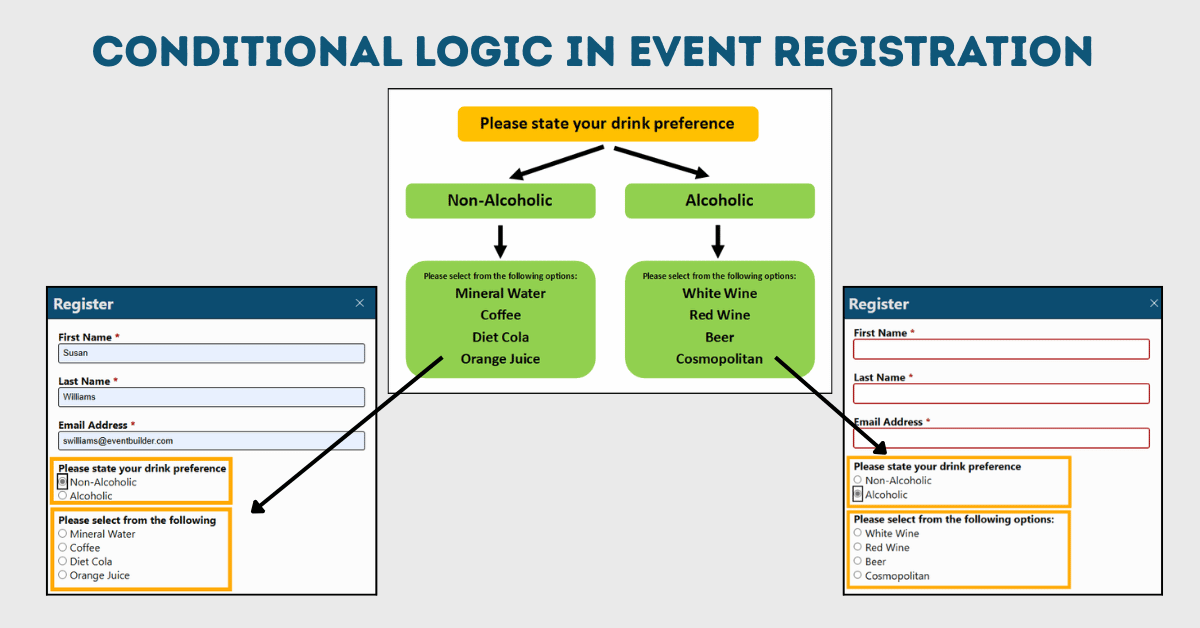
You Need Branded Pages and Dynamic/Conditional Form Logic
Your team wants registration pages that carry your full visual identity, beyond the banner, logo, and theme color Teams accepts. Or you need fields that change based on each registrant's answers. Teams offers three custom question types, and Microsoft's documentation offers no branching logic, so every registrant sees the same form.
| Conditional logic earns its place in scenarios like these: |
|
You Need Custom Fields for Precise Data Collection
This sign shows up when registration data feeds a CRM, tracks internal learning requirements, or scores leads. Teams provides nine preset fields and three custom question types. Its registration data stays in the event's Insights view and a downloadable report, so every hand-off to another system starts with an export and a cleanup.
Approval Workflows Matter
Internal training and certification programs sometimes require approval before someone can join. Teams supports manual approval only for organizers on Enterprise-tier licenses, one request at a time or in bulk. Microsoft documents no routing to a manager and no rule-based approval, so eligibility checks fall to the organizer.
Your Sessions Reach Global Audiences
Registration pages, confirmations, and reminders need to appear in each audience's language. Accurate time zone handling matters more with every region you add.
Your Audience Size Grows
Microsoft caps registered events at 1,000 attendees on Foundational licenses and 3,000 on Enterprise-tier licenses. Past that line, Teams turns registration off, even with an Attendee Capacity Pack. Large programs also bring segmented reminders, audience-specific messages, and stricter reporting requirements. Exporting a registration report and reworking it in a spreadsheet after every event becomes a standing chore at this scale.
Each of these signs means your team is asking the native tools to do work Microsoft didn't design them for.
Can You Use Microsoft Forms for Teams Event Registration?
Microsoft Forms can collect sign-ups, but the responses stay in Forms. Microsoft documents unique join links, approvals, waitlists, and registration emails as features of the Teams event registration form. Forms keeps responses in its own results view and can open them in an Excel workbook.
Microsoft's Teams documentation describes no link between a Forms response and an event's attendee list. That leaves the organizer sending join details and reconciling attendance by hand. Forms works well for interest lists and pre-event surveys. Run the sign-up itself through Teams registration or a registration program that connects to Teams.
What Expanded Registration Options add to Microsoft Teams
Teams handles event delivery very well. However, complex programs need more control at sign-up and throughout the event lifecycle. Pairing Microsoft Teams with event management support gives you more room to meet the needs of global, high-volume, or highly detailed programs. A partner experienced in Teams production can help you reduce friction for attendees and simplify the workflow for your internal team.
Advanced Registration Forms for Teams
- Multi-step layouts
- Conditional fields
- Approval routing
- Registration page designs that reflect your brand
Global Attendee Management
- Multi-language registration pages and communications
- Automatic time zone conversion
- Region-specific reminders
These features reduce confusion, improve attendance, and limit support tickets.
Cleaner Data and Automatic System Connections
- Smooth data delivery into BI tools or other systems via API
- Consistent field formatting for better reporting
Audience-Specific Communication
- Reminders customized and tailored for registrants, attendees, or no-shows
- Follow-up messages and surveys matched to attendance behavior
Production Expertise
A team familiar with both Microsoft Teams and virtual event operations can help you avoid common issues, reduce manual tasks, improve accuracy, keep presenters comfortable on event day, and capture the detailed data your stakeholders need.
Which Teams Registration Setup Fits Your Event?
|
Event scenario |
Native Teams registration |
Teams with EventBuilder |
|---|---|---|
|
Internal training, under 1,000 attendees, short form |
Fits well |
Optional |
|
Customer webinar needing approval, Business-plan organizer |
Approval unavailable on Foundational licenses |
Approval workflows included |
|
Public event with region-specific consent terms |
One form for every registrant |
Conditional pathways by country |
|
Company all-hands above the native ceiling |
Registration switched off |
Registration outside Teams, delivery in Teams |
|
Recurring program reporting to leadership |
Manual export after each event |
Power BI integration |
|
Hybrid conference with on-site attendees |
Out of scope for Teams |
Registration, badging, and check-in |
Plan Your Next Teams Event With Us
Native Teams registration is a solid starting point for simple, single-audience events. Once a program crosses the attendee ceiling, needs conditional forms, or answers to a compliance team, bringing in a partner who works with Teams every day is a smart next step for scaling your events.
By combining Microsoft Teams with expert event management services, you get the best of both worlds: secure, familiar technology with advanced registration, reporting, and production support. We are here to support your success and help your attendees feel confident from the moment they register. Get in touch today!

FAQ: Microsoft Teams Registration
1. Can you add registration to a Microsoft Teams meeting?
No. Microsoft no longer supports registration on standard Teams meetings. Schedule a Teams event instead, which provides a registration form, a unique join link for each registrant, and automated confirmation and reminder emails.
2. How do I create a Teams event with registration?
Schedule a Teams event from the Events app or your Teams calendar. Under Who can attend, switch on Turn on registration? before the first save, because Teams locks that setting afterward. Then customize the form, set capacity, and review the attendee emails.
3. What fields are required on a Microsoft Teams registration form?
First name, last name, and email, plus Microsoft’s consent field. Organizers can add standard fields such as job title, organization, and country or region. They can also create custom questions as text input, choices, or a yes/no checkbox.
4. Can you use Microsoft Forms for Teams event registration?
Microsoft Forms can collect sign-ups, but Microsoft documents unique join links, approvals, waitlists, and registration emails as features of the Teams event registration form. Forms keeps responses in its own results view and Excel, with no documented link to a Teams event’s attendee list.
5. How do attendees register for a Microsoft Teams Town Hall?
Attendees register only when the organizer turns registration on. Microsoft supports registration for events up to 1,000 attendees on Foundational licenses and up to 3,000 attendees with chat, Q&A, and reaction (1,000 with attendee mic and camera). Registrants complete the form and get a unique join link. Larger broadcast-style events skip registration, and attendees join from the invitation.
6. Do I need Teams Premium for Teams event registration?
No. Every Teams license that includes events includes a customizable registration form. Since April 1, 2026, manual approval, waitlists, and registration windows come with Enterprise plans. Teams Premium licenses purchased after that date don’t provide event features by themselves.
7. How many people can register for a Microsoft Teams event?
Up to 1,000 people on Foundational licenses, such as Microsoft 365 Business plans. Organizers with Enterprise-tier (Advanced) licenses can register up to 3,000 attendees when attendee mics and cameras are off, or 1,000 when they’re on. Larger events run without Teams registration, even with an Attendee Capacity Pack. Within those limits, organizers set their own capacity, and Enterprise-tier organizers can add a waitlist.
8. Can I customize Microsoft Teams registration emails?
Yes. Organizers can edit nine email templates, including registration confirmation, waitlisting, event reminder, and event recording available. Admins can turn editing off in the events policy. Premium custom HTML templates require a verified sending domain as of February 1, 2026.
9. Can Teams registration forms use conditional logic?
Microsoft’s documentation describes three custom question types (text input, choices, and a yes/no checkbox) and no branching logic. Every registrant sees the same form. Events that need country-specific terms or follow-up questions, work with a Teams event partner, such as EventBuilder.
Planning a Global Event With Microsoft Teams?
Download our whitepaper, "The Ultimate Toolkit for Large-Scale Virtual and Hybrid Events on Microsoft Teams."
You'll learn how to:
- Build effective registration workflows beyond native features.
- Manage global attendees across languages and time zones.
- Ensure security and compliance at scale.
- Deliver a smooth, professional attendee experience.
Grab the toolkit and skip the trial and error.

Disclaimer: This article was created with some help from AI, but thoroughly edited, revised, reviewed, and fact-checked by a living, breathing, coffee-drinking human writer.

Microsoft Teams Meeting Types Explained
How to Run Secure, Compliant Town Hall Events on Microsoft Teams
No Comments Yet
Let us know what you think