


Getting your Microsoft Teams event options wrong usually shows up as a capacity limit or a missing registration report, right when you can least afford it. This guide breaks down the options that matter so you can confiture ther right experience before you build it. Full Teams event programs bring their own staffing, budget, and planning needs. Our Large-scale and Hybrid Microsoft Teams Events guide walks you through all three.
Which Microsoft Teams Meeting Type Should You Use?
Microsoft Teams offers three formats you can still schedule today: Meetings, Webinars, and Town Halls. (A fourth, Live Events, closed to new scheduling on June 30, 2026, and only continues for events already on the calendar, through February 28, 2027.) Microsoft's scheduling experience walks you through the options that matter, like audience size, interaction level, and whether you need registration, and configures the right event for you. Meetings and Webinars top out around 1,000 fully interactive attendees. Webinars and Town Halls can scale to 100,000 with Teams Enterprise and Attendee Capacity Packs.
What Are My Microsoft Teams Format Options?
Microsoft Teams covers three formats you can schedule today: Meetings, Webinars, and Town Halls. A fourth, Live Events, is winding down and covered separately below. Each active format trades interactivity for scale differently, and each has its own registration, reporting, and control options.
Webinars and Town Halls are both built in the Events app, Microsoft's unified hub for event creation. Instead of a separate build process for each format, you start from scratch or from a template (Webinar and Town Hall are both listed as template options), then set capacity, registration, and audience together in one flow. Standard Meetings are scheduled differently, through the regular Teams or Outlook calendar, a simpler path that doesn't go through the Events app at all.
Start With Three Questions
The Events app configures your event around the same three questions, whether you start from scratch or a template.
- Audience. Internal, external, or mixed? Any privacy or compliance requirements?
- Interaction level. Does everyone need to speak and share, or is this presenter-led with structured Q&A?
- Data needs. Do you need registration, attendance reports, or engagement data when the event ends?
The table below maps each format against those three questions.
How Do Meetings, Webinars, and Town Halls Compare?
| Format | Best For | Attendee Experience | Capacity |
| Teams Meeting | Collaborative sessions, internal training, small group breakout sessions | Everyone can speak, share video, & collaborate. Lobby configuration supported | Up to 1,000 fully interactive, plus up to 10,000 view-only (11,000 total) |
| Teams Webinar | Structured presentations with registration | Presenter-led, with lobby controls and reporting | Up to 3,000 interactive attendees under Teams Enterprise, 10,000 view-only, & up to 100,000 w/ Attendee Capacity Packs |
| Teams Town Hall | Large-scale, one-to-many broadcasts | Limited presenters, attendees use Q&A, and reactions instead of open mics. Production capabilities/RMTP-feeds available | Up to 3,000 interactive attendees, 10,000 view-only, up to 100,000 w/ Attendee Capacity Packs |
| Teams Live Events | Closed to new scheduling as of 6/30/2026 | Produced broadcast, moderated Q&A | Already-scheduled events run through 2/28/2027; no new events can be scheduled |
Attendee experience defaults above reflect each format's out-of-box behavior. Some, like attendee invisibility, may be adjustable through event settings or vary by license. This is worth confirming in your own tenant before treating any of these as a hard rule.
How to Build a Webinar or Town Hall
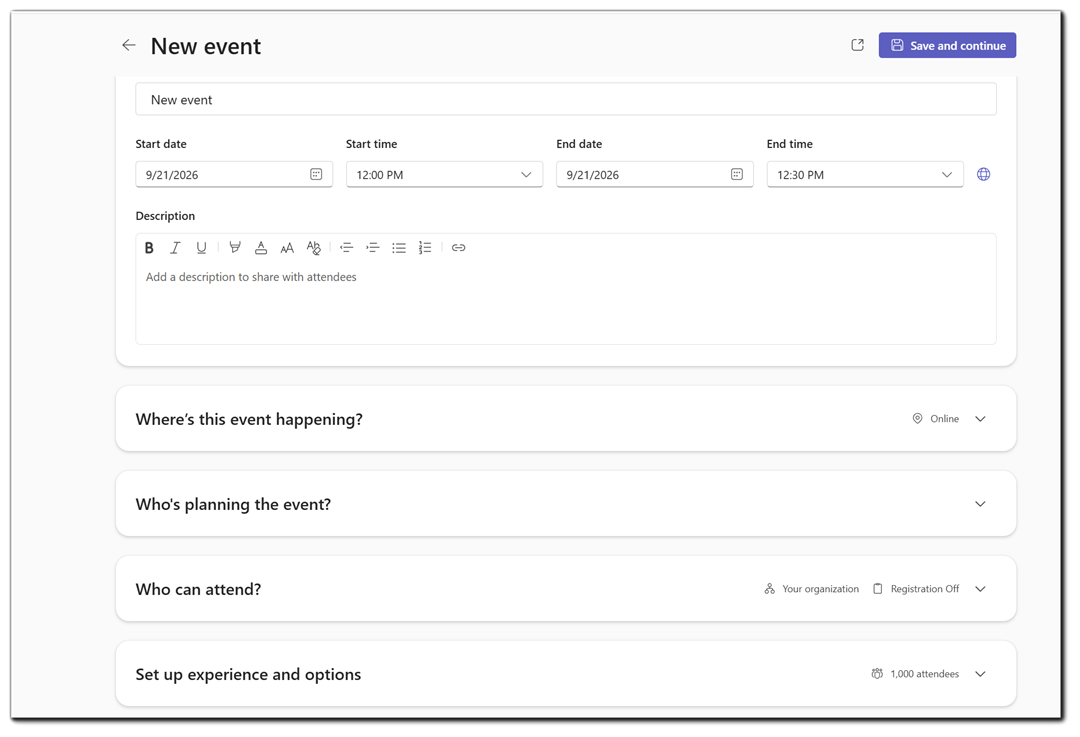
The Events app walks you through this in order:
- Open the Events app in Teams and select Create event.
- Choose from scratch, or start from a Webinar or Town Hall template.
- Add the basics: name, description, date, and time.
- Set organizers and presenters, which controls green room access and on-event permissions.
- Set your audience and registration, internal, external or mixed, with registration on or off.
- Set up experience and options: configure capacity and interaction settings, including the Optimize for large audience toggle for bigger events.
- Publish, which generates your attendee link, registration page, and organizer invites.
If configured, recording and transcription start automatically once you begin the event. Confirm your organization's recording policy before you publish, particularly for events with external attendees.
When Should You Use a Standard Teams Meeting?
A standard Teams Meeting is the right call when interaction is the primary objective. Every participant can unmute, turn on video, and share content up to 1,000 people. A view-only stream extends reach to 11,000 total for overflow audiences, though those additional viewers can't participate
Choose a Teams Meeting If:
- Your priority is collaboration and discussion (as opposed to a formal broadcast).
- You expect under 1,000 active participants.
- You want breakout rooms for small-group work.
Worth knowing: In a standard Teams Meeting, all participants' names can be visible to everyone by default, because Meetings are designed for open, collaborative interaction. For sessions with participants who shouldn't see each other's identities, a Webinar's are likely a better fit, as they provide stronger identity-privacy controls.
When Should You Use a Teams Webinar?
Teams Webinars add registration, confirmation emails, and defined presenter and attendee roles on top of the Meeting foundation. This is the format built for lead-generation sessions, partner training, and any event where you need to know who showed up.
As of April 1, 2026, Webinars scale further than they used to. Under Teams Enterprise, a Webinar supports up to 3,000 interactive attendees and 10,000 view-only, and can reach 100,000 total with Attendee Capacity Packs added. That's a meaningful jump from the 1,000-attendee ceiling Webinars carried before the licensing update, and it changes the calculus for teams that assumed Webinar meant "capped at 1,000."
Choose a Teams Webinar If:
- You want registration and attendance reporting without adding separate tooling
- You need attendee permission controls a standard Meeting doesn't offer.
- Your audience could exceed 1,000 people and you don't need full broadcast production.
When Should You Use Teams Town Hall?
Town Hall is Microsoft's format for the largest one-to-many events: executive town halls, company-wide announcements, investor briefings. Presenters are limited by design, and attendees participate through Q&A, reactions, and captions rather than open microphones.
Town Hall capacity now matches Webinar capacity under the same licensing structure: up to 3,000 interactive attendees, 10,000 view-only, and up to 100,000 with Attendee Capacity Packs. For anything over 20,000 attendees, Microsoft recommends engaging Teams Event Services directly rather than planning it as a standard self-service build.
Choose a Teams Town Hall If:
- Your event is broadcast-style: a small number of presenters, a large audience.
- You need Q&A and reaction-based engagement rather than open discussion.
- You're planning for an audience that could scale well past 1,000, now or eventually.
What Happens to Teams Live Events?
Live Events is being retired. Microsoft closed it to new scheduling on June 30, 2026, so if you don't already have a Live Event on the calendar, this format is no longer an option for you. Any Live Event scheduled before the cutoff can still run, but only through February 27, 2027.
If your organization has a Live Event already booked, it will run as planned up to that date. Use the time between now and then to move any recurring broadcast-style programs over to Town Hall, since that's the only format left that covers the same one-to-many, produced broadcast use case.
What Changed With the April 2026 Teams Licensing Update?
On April 1, 2026, Microsoft moved most large-event capabilities, including registration, attendee management, Simulive, immersive events, expanded host controls, and Microsoft eCDN out of Teams Premium and into a new license called Teams Enterprise. Teams Enterprise now carries large-scale event capabilities on its own. A person would choose Teams Premium if they don't host large events but need enhanced meeting capabilities. With this change, Teams Premium's scope narrowed to advanced meeting protection, branding and personalization, AI-powered intelligence features, and the Queues app. The two licenses are complementary and can overlap.
The short version for anyone planning a Teams event: Before April 2026, running a large event usually required Teams Premium. Now Enterprise covers nearly all of the event functionality by itself, and Premium becomes optional. It's worth adding if advanced protection or branding is a specific requirement for your event.
Teams Enterprise vs Teams Premium (Side-by-Side Comparison)
| Category | Teams Enterprise | Teams Premium |
| Primary Purpose | Full event platform for large-scale events (Meetings, Webinars, Town Halls, Immersive Events) | Meeting enhancements package (security, branding, AI) |
| Event Types Supported | Meetings, Webinars, Town Halls, Immersive Events, Simulive Events | Standard Meetings only |
| Registration & Communications | Registration pages, custom emails, attendee management |
Not included |
| Hide Attendee Names | ✔️Included for all Enterprise customers | ✔️Included ONLY for Premium purchased before April 1, 2026 ❌Not included for new Premium customers |
| Advanced Host Controls | ✔️Full suite for large events | ❌Not included |
| Audience Tools | Q&A, Polls, Comment Stream, Language Interpretation | Standard meeting tools only |
| Production Tools | Simulive, VOD publishing, presenter bios, green room, advanced layouts | ❌Not included |
| Streaming & Infrastructure | eCDN included, RTMP-in/out (region dependent), view-only broadcast mode | ❌Not included |
| Analytics | Advanced event analytics | Standard meeting analytics |
| Security & Compliance | Standard enterprise security |
✔️Advanced meeting protection |
| AI Features | Standard Copilot features | ✔️Intelligent recap ✔️Timeline markers ✔️AI tasks & action items |
| Who It's For | Event organizers, comms teams, marketing, large-scale presenters | Security-focused teams, branded meeting environments, organizations needing AI recap |
Dive Deeper: For the full breakdown of what this licensing shift means for program-level planning, budget, and vendor evaluation, see Large-Scale and Hybrid Microsoft Teams Events.
How Does EventBuilder Extend These Teams Event Types?
Teams handles the meeting and event experience. EventBuilder builds on top of it and supports your event design and delivery when your programs get large, complex, or reporting-heavy.
- Registration and access. Branded registration pages, allowlists, denylists, and registrant verification across Meetings, Webinars, and Town Halls.
- Program-level reporting. Attendance, engagement, and recording-consumption data across an entire event series or a single session.
- Production support. Planning rehearsal and live support for high-volume or high-visibility Teams events.
As a Microsoft Preferred Supplier, we've supported more than 75,000 of Microsoft's own events with our professional event services and software.
If your program is outgrowing DIY Teams, talk to us about how EventBuilder can help you with registration, reporting, and production support for your events.
Which Teams Format Fits Your Event?
- Internal team sync or working session → Standard Teams Meeting.
- Interactive sessions, such as training, with registration and support → Teams Meeting with EventBuilder for registration, security, and reporting.
- Customer webinar with simple registration and follow-up → Teams Webinar. Add EventBuilder for complex registration flows and multi-event listings.
- Company-wide Town Hall with executive presenters → Teams Town Hall. Consider EventBuilder for registration and production support at scale.
- Large announcement, and you already have a Live Event scheduled → let it run as planned, since anything booked before June 30, 2026 continues through February 28, 2027.
- Large announcement, and you're starting from scratch → Teams Town Hall. Live Events is closed to new scheduling.
- Multi-day virtual summit or conference → Combine Meetings, Webinars, and Town Halls with EventBuilder handling program-level registration, listing pages and reporting.
FAQ: Microsoft Teams Meeting Types
1. Do I need to choose a format before I start building my Teams event?
Not for Webinars or Town Halls. Both are built in Microsoft's Events app, where you start from scratch or a template and configure capacity, registration, and audience together in one flow. Standard Meetings are scheduled separately, through the regular Teams or Outlook calendar.
2. What's the real difference between a Teams Meeting and a Teams Webinar?
A Teams Meeting is built for two-way communication: everyone can speak, share video, and present. A Webinar adds registration, confirmation emails, and separated presenter and attendee roles on the same underlying infrastructure.
3. Do I need Teams Enterprise to run a large Teams event?
If your event needs are more than 1,000 interactive attendees in a Webinar or Town Hall, yes. Teams Enterprise carries that capacity as of the April 2026 licensing update. Smaller Meetings and Webinars under 1,000 attendees don't require it.
4. Can I switch Teams formats if my event grows?
Not mid-event. You'll need to plan the format based on your expected audience before you build the event, since Meetings, Webinars, and Town Halls are configured differently from the start. If your audience size is uncertain, size up rather than down.
5. Should I use Teams Live Events or Town Hall for a new broadcast-style event?
Town Hall. Microsoft closed Live Events to new scheduling on June 30, 2026. If you already have a Live Event on the calendar, it can still run through February 28, 2027, but no new ones can be booked.
6. When does it make sense to bring in EventBuilder instead of running a Teams event on our own?
When registration complexity, multiple levels of security configurations are needed, production support, and/or multi-event reporting exceeds what your internal team has bandwidth for, particularly for high-volume programs or events with elevated security and compliance requirements.
Still Not Sure Which Teams Format to Use?
Most of the decision comes down to the three questions from the start: audience size, interaction level, and what event data you need. Sometimes none of the three current formats fits clearly, or your event has outgrown a single Teams license. That's the point to bring in a dedicated event partner.
Talk to us about your event, and we'll help you map the right format, licensing tier, and registration setup for your next Teams event. Contact us today!

Disclaimer: This article was created with some help from AI, but thoroughly edited, revised, reviewed, and fact-checked by a living, breathing, coffee-drinking human writer. Any and all em dashes were strictly human-created.
How to Run a Simulated Live Webinar in Microsoft Teams
Microsoft Teams Webinar & Town Hall Reporting: Measuring ROI
No Comments Yet
Let us know what you think